
It is absolutely vital to understand that responsiveness is crucial for your website’s SEO. I am bringing this up because many people want to optimize their SEO and rank their websites on Google, but they completely neglect mobile responsiveness.
Today, it is incredibly important for website owners to be able to verify this themselves. If you hire any developer to build your site, you must personally check if it is fully responsive across every single device—whether it’s an iPhone or an Android model. The WP Skillz team has provided the best developer to build your site. You must personally check that it is fully responsive on every device—whether it’s an iPhone or an Android device solution for this. Their platform features an extensive database of virtual mobile devices, including both older and newer iPhone models. You can test your URL across all of them to ensure your website is perfectly responsive and rendering correctly. Give it a try right now and see the results for yourself; this tool is an absolute lifesaver for us!
A client called me on a Thursday afternoon, three hours before their site was supposed to go live.
Their WordPress site looked perfect on Chrome desktop. I had tested it on a Samsung Galaxy. Everything was clean. But they had just checked it on their iPhone 13 — and the hero section’s fixed header was sitting directly under the notch, cutting off the navigation menu completely. The sticky footer contact button was hidden behind the iOS home swipe indicator. The contact form auto-zoomed every time someone tapped a field.
Three bugs. All iPhone-specific. All invisible in Chrome’s mobile emulator. All fixable in under 20 minutes if I had tested the right way.
That afternoon taught me something I now treat as non-negotiable: Android testing and Chrome DevTools mobile simulation are not a substitute for actual iOS viewport testing. iPhones behave differently, and the iPhone 13 viewport has become the baseline standard for modern mobile web design.
Why the iPhone 13 Viewport Matters More Than You Think
The iPhone 13 launched with a logical viewport of 390×844 pixels and a Device Pixel Ratio of 3.0. What made this significant is that Apple used the same viewport dimensions for the iPhone 14, iPhone 15, and iPhone 16 base models.
That decision means one thing practically: if your layout works correctly at 390px width, you have solved the core iOS rendering challenge for four consecutive iPhone generations — the most widely used Apple devices in the world right now.
This is not about the iPhone 13 specifically. It is about using the 390×844 viewport as your iOS baseline. Master this size, and you fix the majority of iOS layout issues across the current iPhone ecosystem in one pass.
The DPR of 3.0 matters separately. Your CSS uses logical pixels — a 100px element in CSS. But the iPhone 13 screen renders that at 300 physical pixels. Images that look sharp on a desktop can appear blurry on Retina displays if they are not served at the appropriate resolution. SVG icons handle this automatically. PNG and JPEG images need to be at least 2x the display size to appear sharp.
Three iOS Bugs That Break Real WordPress Sites
These are not theoretical problems. I have fixed all three of these in actual client projects within the last six months.
Bug 1 — The 100vh Height Issue
Every developer’s instinct for full-screen sections is height: 100vh. On Android and desktop, this works perfectly. On iPhone Safari, it does not account for the browser address bar — which appears and disappears as the user scrolls.
The result: your “full screen” hero section is slightly taller than the actual visible area. On some layouts, this pushes important content below the visible fold. Users see a white gap or cut-off elements at the bottom of sections.
The fix: Replace height: 100vh with height: 100svh (Small Viewport Height). This CSS unit specifically accounts for the visible area after browser chrome. It is supported in all modern iOS Safari versions and eliminates the issue entirely.
css
/* Before - causes iOS overflow */
.hero-section {
    height: 100vh;
}

/* After - correct iOS behavior */
.hero-section {
    height: 100svh;
}
Bug 2 — Safari Auto-Zoom on Form Fields
This one confuses a lot of developers because it only happens on the actual device — not in any desktop-based mobile emulator.
When a user taps a form input on iPhone Safari, the browser automatically zooms in if the input’s font size is smaller than 16px. The zoom is jarring and often misaligns the entire page layout. Users frequently mistake this for a broken website and leave.
The fix: Set all form input font sizes to a minimum of 16px. This single CSS rule prevents Safari’s auto-zoom behaviour completely.
css
input, select, textarea {
    font-size: 16px;
}
Using the WP Skillz Responsive Website Checker at 390px width shows you where form elements appear too small — which gives you the exact elements to target with this fix.
Bug 3 — Fixed Headers Overlapping the Notch
Position fixed headers are a standard design pattern. On iPhone 13, the status bar sits above the screen content, and without proper CSS handling, a fixed header can sit directly against the notch area — cutting off navigation items or creating an uncomfortable overlap.
The fix: Use the CSS env() safe area inset variable.
css
.site-header {
    position: fixed;
    top: 0;
    padding-top: env(safe-area-inset-top);
}
This variable reads the actual safe area for the specific iPhone model — including the Dynamic Island on iPhone 14 Pro and later. It works across all notch and Dynamic Island configurations automatically.
How to Use the WP Skillz Responsive Website Checker for iPhone Testing
The WP Skillz Responsive Website Checker tests your site across 150+ devices, including the full iPhone lineup. Here is the exact workflow I use before any site launch.
Step 1 — Test the primary iOS viewport
Select iPhone 13 / 14 / 15 / 16 (390×844px) from the device dropdown. Paste your URL. Look specifically at:
- The top of the page — does anything overlap with where the status bar would sit?
- Fixed navigation — does it remain visible and correctly positioned?
- Any full-screen sections — do they appear complete or cut off?
Step 2 — Check the landscape orientation
Click the rotate button to flip to landscape mode (844×390px). Many developers test only portrait mode. iPhone users rotate their phones constantly — for videos, for comparing images, for typing. A layout that works in portrait but breaks in landscape is still a broken layout.
Step 3 — Test the larger iPhone viewport
Select iPhone 13 Pro Max (428×926px). The larger viewport catches layouts that work at 390px but break when given more width — usually because of hard-coded pixel values where percentages should be used.
Step 4 — Cross-check with other high-value viewports
After iPhone testing, check Android flagships. Samsung Galaxy S-series uses 360px logical width. Google Pixel uses 393px. The gap between 360px and 390px sometimes causes layouts that work perfectly at 390px to collapse at 360px.
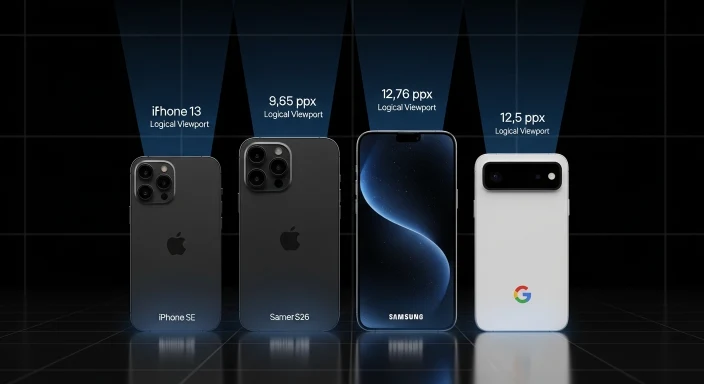
iPhone Viewport Reference for CSS Breakpoints
Use this when writing media queries for iOS-specific fixes:
| Device | Logical Width | Logical Height | DPR |
|---|---|---|---|
| iPhone 13 / 14 / 15 / 16 | 390px | 844px | 3.0x |
| iPhone 13 / 14 Pro Max | 428px | 926px | 3.0x |
| iPhone 13 Mini | 375px | 812px | 3.0x |
| iPhone SE (3rd gen) | 375px | 667px | 2.0x |
| Samsung Galaxy S26 | 360px | 780px | 3.0x |
| Google Pixel 10 | 393px | 873px | 3.0x |
The critical range for your CSS breakpoints is 375px to 430px. If you have one mobile breakpoint at 768px (the common tablet/mobile split), you are missing the entire iPhone-specific range where these bugs appear.
A more complete breakpoint structure:
css
/* Small iPhones - SE, older models */
@media (max-width: 375px) { }

/* Standard iPhone 13/14/15/16 range */
@media (min-width: 376px) and (max-width: 430px) { }

/* Tablet range */
@media (min-width: 768px) { }
Why Google Cares About Your iPhone Layout
Mobile responsiveness is a direct Google ranking signal. But it goes beyond a simple pass/fail check. Google’s mobile-first indexing means the mobile version of your page is what Google actually indexes and ranks — not your desktop version.
Practically, this means:
If your iPhone layout has content hidden or cut off, Google may not see it at all. If your mobile layout has a different heading structure from desktop, Google indexes the mobile H1, H2, and H3 — not the desktop ones.
Layout shifts on mobile — content jumping around as the page loads — affect your CLS (Cumulative Layout Shift) Core Web Vitals score. CLS is a direct ranking signal. The auto-zoom bug I described earlier is, in part, a CLS issue — the page layout shifts when the zoom triggers.
After fixing responsive issues, run a Website Speed Test to check your mobile performance score. Responsive layout and load speed work together — a perfectly laid-out page that loads slowly still performs poorly on mobile rankings.
Complete iPhone Responsive Checklist — Before Every Launch
Run through this before delivering any WordPress project:
Layout:
- Tested at 390px width (iPhone 13 standard viewport)
- Tested at 428px width (Pro Max viewport)
- Tested at 375px width (iPhone SE, older models)
- Landscape mode tested at both 844px and 926px heights
- Fixed header does not overlap status bar area
- Sticky footer/cookie banner not hidden by home swipe indicator
Typography:
- All form input font sizes are 16px or above — no auto-zoom
- Body text minimum 16px
- Line height adequate for mobile reading
Interaction:
- All tap targets minimum 44×44 pixels
- No links or buttons too close together for finger tapping
- Dropdown menus work with touch (no hover-dependent navigation)
Images:
- Product and hero images are at 2x resolution minimum
- SVG used for icons where possible
- No uncompressed images above 200KB on mobile pages
After layout fixes:
- Speed test run on mobile — score above 80
- No mobile usability errors in Google Search Console
- Malware scan run — clean result confirmed
Beyond iPhone 13 — Building a Responsive Testing Habit
The iPhone 13 viewport is your iOS baseline. But responsive testing is a habit, not a one-time task.
Every WordPress theme update potentially changes CSS that affects mobile layouts. Every page builder update sometimes introduces JavaScript that behaves differently on iOS Safari. Every new plugin that adds frontend assets is a potential source of mobile layout regression.
I run a responsive check on every site I manage at least once per month — not because I expect something to be broken, but because the cost of finding a broken layout before a client or customer does is zero. The cost of finding it after they do is significantly higher.
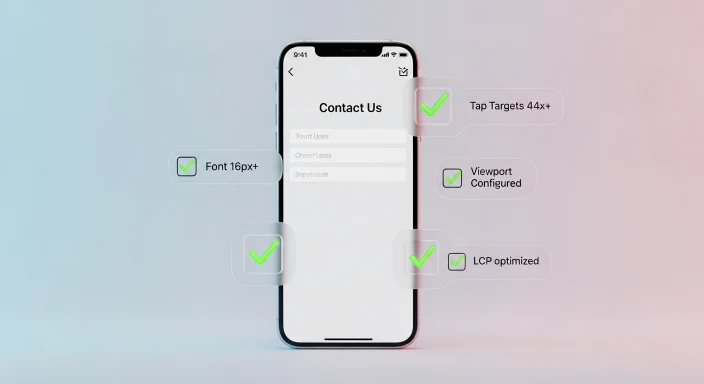
The WP Skillz Responsive Website Checker takes 30 seconds per site. It tests 150+ devices simultaneously. There is no excuse for shipping a site without running this check.
Connect with me on LinkedIn if you are dealing with a specific iOS layout issue — some of the bugs that appear on real devices do not reproduce in simulators and need a different approach.
Frequently Asked Questions
Is there a free iPhone 13 responsive checker? Yes. The WP Skillz Responsive Website Checker is completely free with no login required. It includes iPhone 13, 13 Pro, 13 Pro Max, and 13 Mini viewports alongside 150+ other devices.
Why does Chrome DevTools mobile simulation miss iPhone bugs? Chrome DevTools resizes the viewport but uses Chrome’s rendering engine. iPhone Safari uses WebKit, which handles certain CSS properties differently — particularly 100vh, form field zoom behaviour, and safe area insets. These differences only appear in actual iOS Safari or an accurate Safari-based simulator.
How do I fix content hidden under the iPhone notch? Use padding-top: env(safe-area-inset-top) on your fixed header. This CSS variable reads the actual safe area for any iPhone model and prevents content overlap with both the notch and Dynamic Island.
Does the 390px viewport fix work for newer iPhones too? Yes. Apple used the same 390×844px logical viewport for iPhone 14, 15, and 16 base models. Fixing your layout at 390px addresses the majority of iOS layout issues across four consecutive iPhone generations.
Should I test every page or just the homepage? Every page matters. Google indexes every URL individually and Mobile Core Web Vitals are evaluated per page. A broken contact page or product page affects the trust signals for your entire domain, not just that specific page.
Conclusion — Test Before They Find It
The three-hour scramble before my client’s site launch was completely preventable. Thirty seconds with the right responsive checker would have caught all three issues during development rather than right before launch.
iPhone users are not a niche audience. They are a significant portion of any commercial website’s visitor base, and they are typically high-intent visitors. A broken iOS layout is not just a design problem — it is a conversion problem and a trust problem.
Test at 390px. Fix the 100vh issue. Set form inputs to 16px. Add safe area insets to fixed headers. Run the Responsive Website Checker before every launch.
Then move on knowing your iOS visitors will have the same experience you intended.
Waseem Aijaz — WordPress Developer & SEO Specialist, WP Skillz Responsive Website Checker | All Dev Tools | About WP Skillz