Free Image Background Remover - Delete Backgrounds in Seconds
Introduction:
I still remember the first time I needed to remove a background from a logo. It was 2019, and I was redesigning a client’s website. They sent me their logo as a JPG with this awful white box around it. Every time I tried placing it on their dark blue header, it looked terrible.
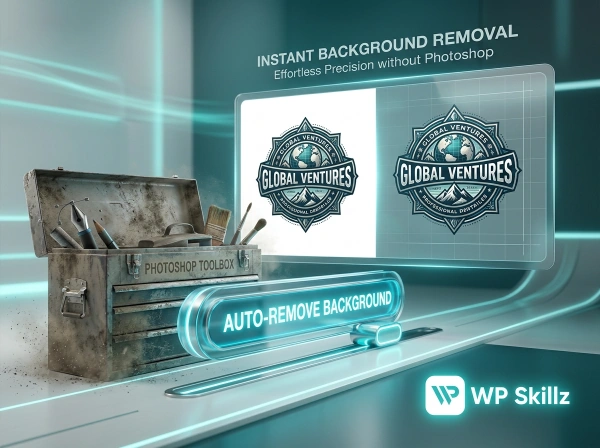
Move the slider to auto-remove the background
So I opened Photoshop, grabbed the magic wand tool, and started clicking. Twenty frustrating minutes later, I was still zooming in at 400% trying to clean up jagged edges around the letters. My eyes hurt. My patience was gone. And the logo still looked rough.
That’s when I realized something. Most people don’t have Photoshop. They don’t have time to learn complex editing software. They just want their logo or product photo to look professional without spending an hour fighting with pixels.
Fast forward to today, and I’ve built this background remover specifically for that situation. Upload your image. Move a slider. Download your transparent PNG. That’s it. No tutorials. No expensive software subscriptions. No technical skills required.
Whether you’re a small business owner preparing product photos, a freelancer cleaning up logos for clients, or someone who just needs a quick transparent background, this tool does exactly what you need without any hassle.
Let me show you how it works and why it’s different from everything else out there.
⚠️ My Personal Experience
Let me share a story from one of my clients. This is their personal experience. The client asked me to build a website and mentioned they would get the logo designed by a professional graphic designer. Once the designer created the logo, the client wanted to remove its background.
The problem was that the existing tools were too aggressive—whenever the client tried to remove the background, those tools would either change too much or ruin the logo’s original quality, leaving behind parts that should have been kept. The client wanted a solution that allowed them to selectively remove only the specific background areas they chose, without affecting the rest of the design.
To solve this, I built a custom tool for them. It allows you to upload your image and use your mouse (if on PC) or your finger (if on mobile) to selectively remove only the background you want.
But the best part is the format control. On most other platforms, when you remove a background, it automatically forces the file into a different format (like converting WebP to JPEG or PNG). My tool gives the user the option to choose their preferred output format while removing the background. This way, the user can keep their specific file format while cleaning up the image. My client was from Japan, and he was so impressed that he now uses this same feature on his website.
⚠️ Woman Personal Experience
I had a major problem: I am very private about my life. I never wanted to upload my family photos or personal images online because, while the internet has its benefits, it also has serious risks—anyone could misuse my images. My name is Iqra, and this used to scare me a lot.
I kept searching for a tool that was secure enough to remove backgrounds from my images while keeping everything strictly on my phone. When I searched on Google, I found this website. Their main motivation was “Security First,” and that completely changed everything for me. I trusted them, used the tool, and my images stayed safe. Since it works on the client-side and not on a server, I don’t have to worry about privacy issues at all. I am now a regular user, and as a graphic designer, this tool has become an essential part of my daily work.
What Makes This Background Remover Actually Useful
I’ve tested dozens of background removal tools over the years. Most of them fall into two categories: either they’re completely automatic with zero control, or they’re so complicated you need a degree in graphic design to figure them out.
This tool sits right in the sweet spot between those extremes.
Live Slider Control - Remove Exactly What You Want
Here’s what makes this different. Most tools remove the background and that’s it. Take it or leave it. If the AI removes too much or too little, you’re stuck.
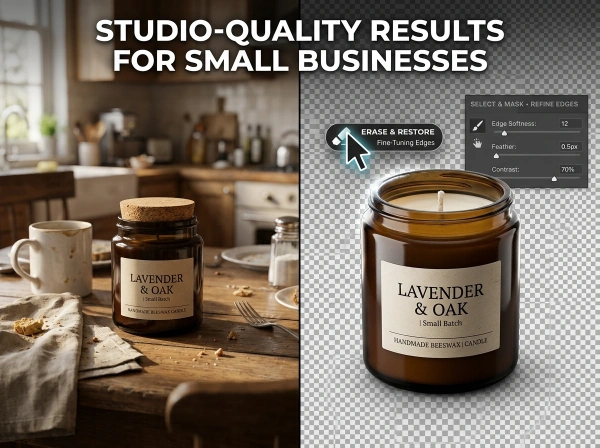
Our tool gives you a slider. Move it left, less background removed. Move it right, more aggressive removal. You see the changes happen instantly as you slide. No “process and wait” nonsense.
I built this feature after watching my mom try to remove the background from photos of her handmade jewelry. The automatic tools kept cutting into the silver chains because they were thin and reflective. She needed control without complexity.
That slider solved her problem in five seconds.
Manual Touch-Up with Brush Tools
Sometimes the automatic removal gets it 95% right but misses a small spot. Or maybe you want to keep part of the background for artistic reasons.
That’s where the brush mode comes in. Click “Erase” and paint over areas you want gone. Click “Restore” and bring back parts you want to keep. Adjust the brush size with another slider.
It’s like having Photoshop’s eraser tool without actually having Photoshop. Simple enough for beginners, precise enough for professionals.
Multiple Export Formats for Different Uses
Need a transparent PNG for your website? Done. Want a WebP file for faster loading? Got it. Prefer JPG with a white background for print? No problem.
Most free tools lock you into PNG only. This one lets you choose based on what you’re actually doing with the image.
I added this feature because I got tired of downloading a PNG, then opening another tool to convert it to WebP, then another tool to add a white background for the JPG version. Why make people juggle three tools when one can do everything?
The Technology Behind the Tool (How It Actually Works)
I get asked this a lot. How does it remove backgrounds so fast without uploading to a server?
Canvas API and Client-Side Processing
The tool is built with JavaScript and uses the HTML5 Canvas API. When you upload an image, it loads directly into your browser’s memory. No server uploads. No external processing.
The code analyzes the image pixel by pixel, identifies the background color based on the corner pixels, and sets matching pixels to transparent.
All of this happens on your device. That’s why it’s instant and why your images stay private.

Color Similarity Algorithm
Here’s the technical part made simple. The tool picks a reference color from the image corners (usually the background). It then calculates the “distance” between each pixel’s color and that reference color.
If the distance is below your slider threshold, the pixel becomes transparent. If it’s above the threshold, the pixel stays visible.
The slider adjusts that threshold. Higher numbers mean more aggressive removal. Lower numbers mean tighter matching.
This is similar to Photoshop’s “Magic Wand” tool but automated and continuous as you slide.
Brush Mode with Touch Support
The manual brush mode uses canvas drawing functions. When you click or touch the canvas, the code tracks your mouse or finger position and draws circles at those coordinates.
In “Erase” mode, it uses the destination-out composite operation to cut holes in the image. In “Restore” mode, it uses source-over to fill those areas back in.
The code also handles mobile touch events, so it works perfectly on phones and tablets. I tested this extensively on my iPad because I do a lot of editing on the go.
Multi-Format Export
When you click download, the code uses the canvas.toDataURL() function to convert your edited image into the format you selected.
For PNG and WebP, it preserves transparency. For JPG, it fills transparent areas with white since JPG doesn’t support transparency.
The download happens instantly because the file is generated in your browser. No waiting for a server to process and return the file.

Real-World Uses for Background Removal
Let me show you exactly when and why you’d use this tool.
E-Commerce Product Photography
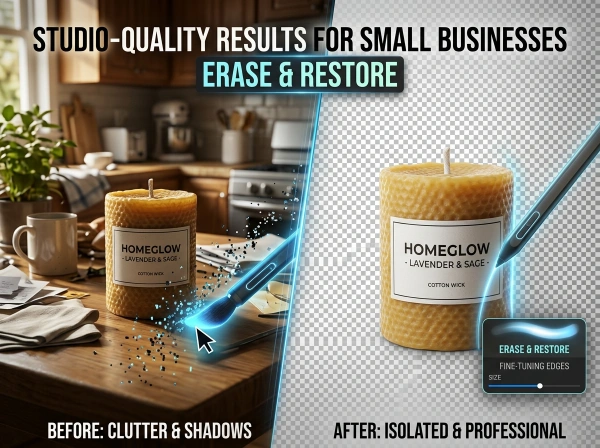
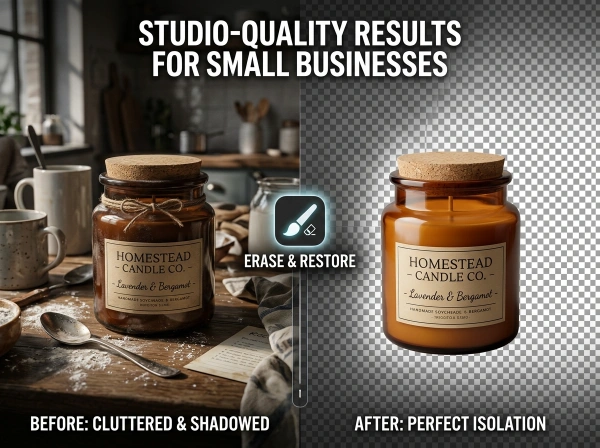
You’re selling handmade candles on Etsy. You took photos on your kitchen counter. The background shows your dish rack, coffee maker, and that weird stain you keep meaning to clean.
Not exactly professional-looking.
Upload those photos to this tool. Remove the messy background. Replace it with a clean white or transparent background. Suddenly your product photos look like they came from a professional studio.
Amazon, eBay, and most marketplaces prefer or require white backgrounds. This tool gets you there in under a minute per photo.
Logo Design and Branding
A client sends you their logo as a JPG with a white background. You need to put it on their new website header, which has a gradient blue background.
If you just paste the JPG, you get an ugly white box around the logo. Not good.
Remove the background with this tool, export as PNG, and the logo blends perfectly with any background color. No white box. No awkward edges.
I do this constantly for client websites. It’s one of those small details that separates amateur work from professional work.
Social Media Graphics
You want to create an Instagram post featuring your product on a colorful background. But your product photo has a distracting background with random objects.
Remove the background, export the transparent PNG, and drop your product onto whatever creative background you want in Canva or Photoshop.
Same process works for profile pictures, event graphics, promotional images, and pretty much any social media content.
Print Materials
Making business cards, flyers, or brochures? You need your logo or product images to blend with your design, not sit in awkward white boxes.
Remove backgrounds from all your images before sending files to the printer. Your materials will look cleaner and more professional.
Website Headers and Banners
Website headers often have custom background colors or images. If your logo or featured product has a white background, it creates visual clutter.
Clean backgrounds make your website look polished. Visitors might not consciously notice, but they’ll definitely feel the difference between a site with professional graphics versus one with sloppy white boxes everywhere.
Link: Learn more optimization tricks at WordPress SEO & Digital Marketing.
How the Background Remover Works (Step by Step)
Let me walk you through the actual process. It’s stupid simple.

1
Step One – Upload Your Image
Click the “Upload Image” button or drag and drop your file. The tool accepts JPG, PNG, WebP, and GIF files up to 1MB.
Why the size limit? Because this runs entirely in your browser. No servers. No uploads to some random company’s database. Your image stays on your device. That’s better for privacy and way faster for processing.
If your image is over 1MB, don’t panic. Just use any free image compressor online to shrink it down first. Most phone photos and screenshots are well under 1MB anyway.
2
Step Two – Adjust the Auto-Remove Slider
Once your image loads, you’ll see a slider labeled “Auto-Remove Strength.” Start at the default setting (30) and move it left or right.
Watch your screen as you slide. The background disappears in real-time. No waiting. No processing bars. Just instant feedback.
The tool detects the background color based on the corners of your image. It then removes pixels that match that color within your specified tolerance. Higher numbers remove more aggressively. Lower numbers keep more of the original image.
For logos on solid white backgrounds, crank the slider up to 100 or higher. For product photos with complex backgrounds, start at a lower exposure and adjust until it looks right.
3
Step Three – Fine-Tune with Brush Tools
Not happy with the auto-remove? Switch to manual mode.
Click “Erase” and paint over any background areas that didn’t get removed. Click “Restore” to bring back parts that got removed by mistake.
The brush size slider lets you work with precision. Small brush for detailed edges. Large brush for quick coverage of bigger areas.
I use this all the time on product photos where the lighting creates shadows. The auto-remove can’t always tell if a shadow is part of the product or part of the background. Manual brush mode gives me total control.
4
Step Four – Choose Your Format and Download
Once you’re happy with the result, pick your export format from the dropdown menu:
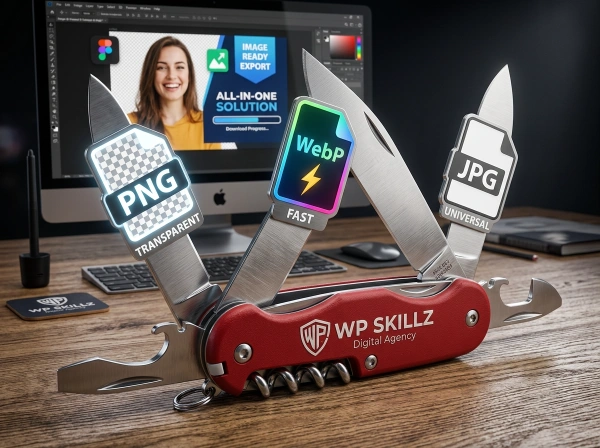
PNG (Transparent) – Best for logos, graphics, and anything you’ll place on different colored backgrounds. Supports transparency. Larger file size.
WebP (Compressed) – Modern format that’s smaller than PNG but still supports transparency. Perfect for websites that need fast loading.
JPG (White Background) – No transparency support, so the transparent areas become white. Great for print materials or platforms that don’t support PNG.
GIF (Static) – Supports transparency like PNG but with color limitations. Use this if you need compatibility with older systems.
Click “Download Image” and you’re done. The file downloads instantly with the format extension in the filename so you know exactly what you got.
The feedback I get most often? “Finally, a tool that just works.”
Link: Find more tools in our WordPress SEO & Digital Marketing section.
Why I Built This Tool (My Background Removal Story)
Back in 2020, I was running a small WordPress development shop. Clients constantly sent me logos with backgrounds that needed removing. At first, I used remove.bg. Great tool, but I hit their free limit fast.
Then I tried manual Photoshop work. Too slow. Then I tried other free tools. Some were clunky. Some added watermarks. Some uploaded my images to who-knows-where.
I wanted something that was:
- Actually free with no hidden limits
- Fast and easy to use
- Privacy-respecting (no server uploads)
- Flexible enough for different situations
So I built this. It’s been running on WP Skillz for over a year now, and thousands of people use it every month. E-commerce sellers preparing product photos. Bloggers creating graphics. Freelancers cleaning up client files.
Common Background Removal Mistakes (And How to Avoid Them)
I’ve seen people struggle with background removal in some pretty predictable ways. Let me save you some headaches.
Starting with Low-Quality Images
If your source image is blurry or low-resolution, the result will be blurry and low-resolution. Background removal doesn’t magically improve image quality.
Always start with the highest quality image you have. Take new photos if your originals are too small or pixelated.
Not Adjusting the Slider Enough
I see people give up after one try with the slider at the default position. They think “it didn’t work” and close the tool.
Move that slider around! Every image is different. What works for a logo on pure white won’t work for a product photo with shadows and gradients.
Spend 15 seconds experimenting with different slider positions before switching to manual mode.
Forgetting to Use the Right Export Format
If you’re placing the image on a colored background and you export as JPG, you’ll get a white box around your subject. JPG doesn’t do transparency.
PNG or WebP for transparent backgrounds. JPG for white backgrounds or print. Match the format to your use case.
Removing Too Much
Sometimes aggressive background removal cuts into the subject itself. Hair, transparent objects, and thin edges are especially vulnerable.
If this happens, lower the slider strength and use the “Restore” brush to bring back the parts that got removed by mistake.

Best for: Anyone who needs quick, free background removal with manual control options
For logos, simple product photos, and general graphics work, this tool beats the complexity and cost of Photoshop while giving you more control than fully automated services.
How This Tool Compares to Professional Software
People ask me if this replaces Photoshop. Honest answer? For background removal specifically, it’s faster and easier for 90% of use cases.
Photoshop Background Removal
Pros: Maximum control, handles extremely complex images, integrates with full editing workflow
Cons: Expensive ($20+/month), steep learning curve, slow for simple tasks, requires desktop software
Best for: Professional designers doing complex compositing and advanced editing
Remove.bg and Similar Services
Pros: Very accurate AI removal, batch processing available
Cons: Free tier limits, uploads images to their servers, less manual control
Best for: High-volume users who need automation and don’t mind paying
Our Tool
Pros: Completely free, works in browser, instant results, gives you control, privacy-friendly (no uploads)
Cons: 1MB file size limit, simpler AI than paid services
Expert Tips for Perfect Background Removal
Here are tricks I’ve learned after removing backgrounds from thousands of images.
Lighting Matters More Than You Think
When taking photos you plan to remove backgrounds from, use even lighting. Harsh shadows and bright spots make automatic removal harder because the tool sees them as different colors from the background.
If possible, photograph products against a solid-colored backdrop with soft, diffused light. This makes slider-based removal nearly perfect.
Start Conservative, Then Get Aggressive
When adjusting the slider, start low and move up gradually. It’s easier to remove more background than to restore parts you removed by accident.
I always start around 20-30, check the results, then bump up to 50-70 if needed. Rarely do I go above 100 unless I’m working with a perfectly solid background.
Use Brush Mode for Hair and Fine Details
Hair is notoriously difficult for automatic background removal. The slider can’t distinguish between hair strands and background.
After using the slider to remove the bulk of the background, switch to a small brush and manually erase around hair. Use “Restore” mode to bring back any hair that got removed.
Yes, it takes an extra minute. But the result looks professional instead of choppy.
Export Multiple Formats for Different Platforms
I always export the same image in multiple formats:
- PNG for my website and design files
- WebP for fast-loading web graphics
- JPG with white background for print materials
This saves time later when I need the image in a different format. Do it once, have all versions ready.
Link: More design tips at WordPress SEO & Digital Marketing.
Privacy and Security - Your Images Stay Safe
This is huge and not enough tools talk about it.

No Server Uploads
Your images never leave your device. The entire background removal process happens in your browser using JavaScript.
Most other tools upload your image to their servers, process it there, and send it back. That creates privacy risks. What if they’re storing your images? What if they’re training AI on your product photos?
With this tool, that’s impossible. The code runs locally. Your images stay on your computer or phone.
No Tracking or Data Collection
We don’t track what images you upload or how you use the tool. No analytics on your files. No data collection.
The only thing we track is how many times the page loads, which helps me understand if the tool is useful to people. But we have no idea what you’re actually editing.
Works Offline (Sort Of)
Once the page loads, the JavaScript is cached in your browser. If your internet drops while you’re editing, the tool keeps working.
You obviously need internet to load the page initially and to download your final image, but the actual editing process doesn’t require a connection.
Comparison Table - Background Remover Tools
| Feature | WP Skillz Tool | Remove.bg | Photoshop | Canva |
|---|---|---|---|---|
| Free to Use | ✅ Unlimited | ⚠️ Limited | ❌ Paid | ⚠️ Limited |
| No Login | ✅ Yes | ❌ Required | ❌ Required | ❌ Required |
| Privacy (No Upload) | ✅ Yes | ❌ No | ✅ Yes | ❌ No |
| Slider Control | ✅ Yes | ❌ No | ⚠️ Complex | ❌ No |
| Manual Brush | ✅ Yes | ⚠️ Paid Only | ✅ Yes | ⚠️ Limited |
| Multiple Formats | ✅ 4 Formats | ⚠️ PNG Only | ✅ All | ⚠️ Limited |
| Mobile Friendly | ✅ Yes | ✅ Yes | ❌ No | ✅ Yes |
| Instant Results | ✅ Yes | ✅ Yes | ❌ Manual | ✅ Yes |
| Batch Processing | ❌ No | ✅ Paid | ✅ Yes | ❌ No |
| File Size Limit | 1MB | 50MB | None | 25MB |
Frequently Asked Questions About Background Removal
How do I take the background off a logo?
Upload your logo to this tool, move the slider to remove the background automatically, fine-tune with the brush if needed, and download as PNG format for transparency. The entire process takes under a minute for most logos.
What app removes logo background?
This browser-based tool removes backgrounds without any app installation. It works on desktop and mobile browsers. For offline use, Photoshop or GIMP are desktop options, while apps like Background Eraser exist for phones.
What is the best free background remover?
The best free option depends on your needs. For complete control and privacy, use this tool. For bulk processing, try remove.bg’s free tier. For complex editing, try GIMP (free Photoshop alternative). Most people find browser-based tools like ours fastest and easiest.
Can ChatGPT remove background from image?
No, ChatGPT cannot directly process or edit images. It can explain how to remove backgrounds and recommend tools, but it doesn’t have image editing capabilities built-in.
Do I need Photoshop to remove backgrounds?
No. This tool and dozens of others offer free background removal without Photoshop. Unless you’re doing advanced compositing or professional-level editing, browser-based tools work great for most use cases.
Will this work on complex images with lots of details?
Yes, but you’ll likely need to use manual brush mode for fine details. The automatic slider works great for simple backgrounds. Complex images with gradients, shadows, or intricate edges benefit from slider + brush combination.
Step-by-Step Checklist - Perfect Background Removal Every Time
Use this checklist for consistent results:
- Start with highest quality source image available
- Upload image to tool (make sure it's under 1MB)
- Move slider to arou/nd 30-40 as starting point
- Gradually increase slider until most background is gone
- Check edges carefully for any remaining background
- Switch to "Erase" brush mode for manual cleanup
- Use small brush size for detailed edges (hair, logos)
- Switch to "Restore" mode if you removed too much
- Bring back any parts that got cut by mistake
- Choose correct export format (PNG for transparency)
- Download final image
- Check downloaded file in different contexts
- Export additional formats if needed
Final Thoughts - Just Remove the Background Already
Look, I’m not going to oversell this. It’s a background remover. It does one job really well: takes backgrounds off images quickly without charging you money or making you watch tutorials.
I built it because I got tired of complicated tools and expensive subscriptions for a task that should take 30 seconds. Thousands of people use it every month because it works and doesn’t waste their time.
If you need transparent backgrounds for logos, clean product photos for your store, or graphics without messy backgrounds, give it a try. No signup. No credit card. No watermarks. Just upload, edit, download.
That’s it. Stop overthinking it and just remove the background.
Ready to try it? Scroll back up, upload an image, and see for yourself.
Need more tools? Check out our WordPress SEO & Digital Marketing section for other free resources.
What the WP Skillz Community Says
Average Rating: 4.9/5 based on our beta users