Free Mobile Website Speed Test: Check Performance, SEO & Accessibility
Last year I audited a WordPress site that had great content, a clean design, and decent backlinks. It should have been ranking well. It wasn’t. Mobile performance score: 28. LCP: 9.1 seconds. The owner had no idea.
One afternoon of fixes — image compression, caching, deferred scripts — and the score jumped to 79. Traffic followed within six weeks.
Speed Check Website Free Tool
Please wait a while to get accurate results. This provides the best Google results....
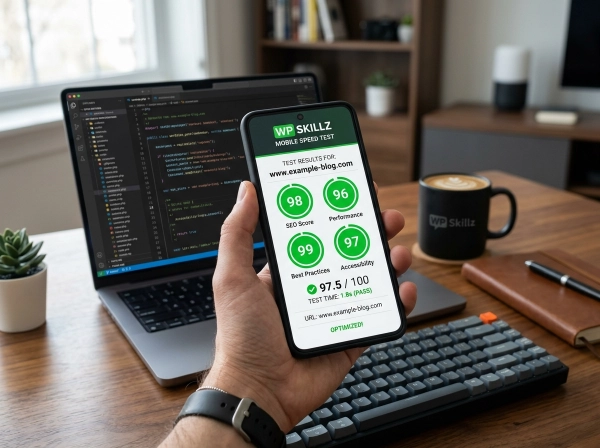
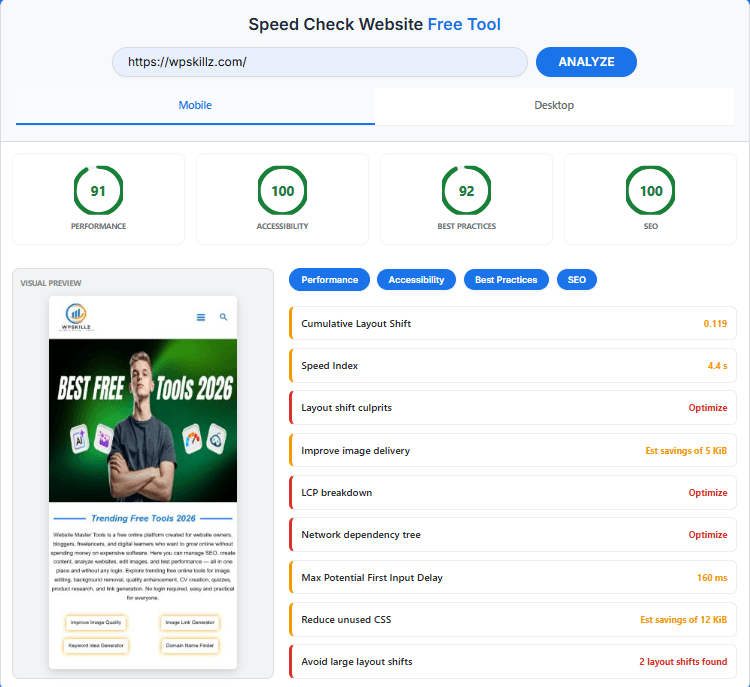
That’s why I built this tool. Enter your URL above. You’ll get four Google Lighthouse scores in under 30 seconds — Performance, Accessibility, Best Practices, and SEO — for both mobile and desktop. No login. No payment. No watered-down data.
If your score is red, keep reading. I’ll show you exactly what’s wrong and how to fix it.
⚠️ My Personal Example
You might be thinking, “There are so many tools on the market to check website speed, so why should I use this one? What makes it so special?” I know exactly what you are thinking, so listen closely.
This tool shows you everything—how it works and what technology is being used. But the biggest advantage is that it is completely free, and you can use it an unlimited number of times without any login or registration, which most other tools don’t offer.
When I built this tool, I had only one goal in mind: to create something that provides real value to the user—something they can use in today’s expensive era without spending a single penny. Whether you want to check your site speed, SEO health, best practices, or accessibility, it is all here. Plus, it provides a full guide. It even shows a screenshot of your website so you can be 100% sure that it is analyzing your specific site.
I use this tool myself every single day, and other developers I work with use it as well. Now, my own clients are using it too because it provides accurate, real-world data. There is nothing fake here—it uses Google’s own official APIs to give you the most reliable results.
Pro Tips:
Here is a tip from my side: if you use this tool and find any issues with your website, you can contact us, and our team will help you solve them. We are working hard to support you. Also, if you want to fix things yourself, you can use Gemini. Just take a screenshot of the error, upload it here to contact us, or share the result directly with Gemini—it will give you the exact solution you need to apply to your website.
How the Tool Actually Works
This tool calls Google’s PageSpeed Insights API v5 directly. The same API that powers pagespeed.web.dev. These aren’t estimates — they’re Google’s actual scores for your URL.
Both mobile and desktop tests run simultaneously using parallel API calls, which is why you get results for both without waiting twice as long. The mobile test simulates a mid-range Android device on a 4G connection — Google’s standard, designed to reflect real-world mobile browsing conditions, not an ideal case.
The screenshot comes directly from Lighthouse’s final-screenshot audit — it’s what your page actually looked like at the end of the load cycle, on the device you selected.
Results are organized into expandable audit cards. Only failed or underperforming audits appear — passing items are hidden so you can focus on what actually needs fixing. Red border means failed (below 50%). Orange border means it needs improvement (50–89%).
How to Use It Free Mobile Website Speed Test
Enter your URL. Just the domain is fine — wpskillz.com works, you don’t need https://.
Check mobile first. Mobile scores affect rankings more than desktop. Always start there.
Look at Performance. If it’s red, that’s your priority. Everything else comes second.
Switch to Accessibility. Click through the audit cards. Alt text and contrast issues are almost always there and almost always fixable in an afternoon.
Use the filter buttons. Click Performance, Accessibility, Best Practices, or SEO to see just the audits for that category. Keeps results clean.
Click the audit cards. Each one expands to explain the specific issue. Red items first, orange second.
Run it again after fixing. The score change is the proof of progress.
One thing worth knowing: test specific page URLs, not just the homepage. A blog post and a homepage often load different plugins and scripts. A page you thought was fast might score poorly because a plugin loads a 200KB script there that doesn’t load elsewhere.
Why Mobile Speed is the #1 Factor for WordPress SEO in 2026
The Six Fixes That Move the Score the Most
After running this analysis on hundreds of WordPress sites, here are the six changes that produce the biggest score improvements, in order of impact:
1. Compress your images before uploading.
This is responsible for more failed mobile speed tests than anything else. A 4MB hero image on a 4G connection is 4–8 seconds of LCP. Compress to under 150KB. Use our Image Compressor before every upload. If you’ve already uploaded large images, Smush or ShortPixel will batch-compress your existing media library.
2. Install and configure a caching plugin.
WordPress generates pages dynamically by default. Without caching, every visitor triggers a full PHP execution and database query. That adds 1–3 seconds before a single byte reaches the user’s browser. WP Rocket is the easiest option. LiteSpeed Cache is excellent and free if your host uses LiteSpeed servers.
3. Add alt text to every image.
Go to your Media Library. Sort by “Unattached” or filter by images. Add alt text to every image that’s missing it. This fixes the most common Accessibility failure in under an hour and improves image SEO at the same time.
4. Fix your color contrast.
If you’re using a theme with light gray body text — anything lighter than about #595959 on white — you’re likely failing the 4.5:1 contrast requirement. It’s usually one CSS line. Open your theme’s Additional CSS in the WordPress Customizer and override the body text color. Check the result in the Accessibility audits.
5. Defer non-critical JavaScript.
Plugins that load scripts on every page — social sharing buttons, chat widgets, analytics beyond basic GA4 — often cause high TBT scores. A caching plugin with script optimization features can defer these until after the page is interactive. WP Rocket’s “Delay JavaScript Execution” option does this automatically.
6. Fix mixed content.
If Best Practices is low, there’s probably an HTTP resource loading somewhere on your HTTPS site. Install Really Simple SSL — it finds and fixes internal HTTP references automatically. For plugin-specific HTTP API calls, check plugin settings for URL fields and update them to HTTPS manually.
Common Mistakes When Reading These Results
- Don't chase 100. A score of 90+ on Performance means Google considers your Core Web Vitals good. Going from 90 to 98 is diminishing returns. Going from 45 to 90 is a real ranking improvement.
- Don't ignore Accessibility because "my audience doesn't use screen readers." Accessibility failures hurt everyone — low contrast hurts people on phones in sunlight, unlabeled forms break browser autofill, poor heading structure hurts keyboard navigation. Fix it for everyone, not just for compliance.
- Don't test only the homepage. Your landing pages, product pages, and blog posts might be slower than your homepage because of different plugins, embedded videos, or heavier content. Test the pages that actually drive conversions.
- Don't panic at a low Best Practices score from jQuery. WordPress ships with older jQuery versions in some configurations. This is a known issue. Many hosts and CDN setups handle this automatically. If your score is low solely because of jQuery, it's lower priority than Performance or Accessibility failures.
- Don't compare mobile and desktop scores directly. Mobile is tested on a simulated 4G connection with a slower CPU. Desktop is tested on a fast connection with more processing power. A mobile score of 70 and a desktop score of 92 is completely normal — it doesn't mean something is broken.
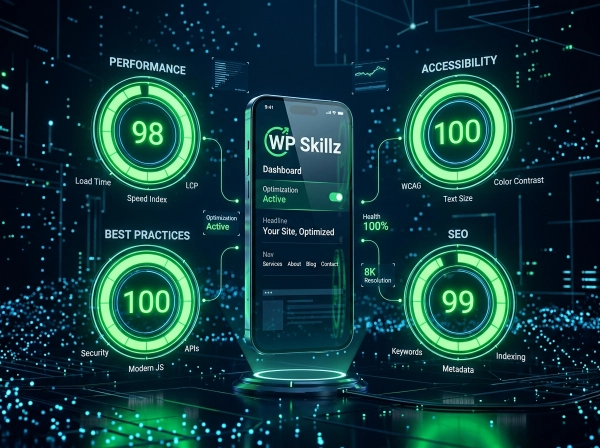
The Core Web Vitals That Actually Drive Rankings
The Three Pillars of User Experience
⚡ LCP (Largest Contentful Paint): Measures Visual Load. Aim for under 2.5s.
🖱️ INP (Interaction to Next Paint): Measures Responsiveness. The new 2026 standard for user interaction.
📐 CLS (Cumulative Layout Shift): Measures Visual Stability. Aim for under 0.1 to stop page jumping.
Your Four Scores
When results load, you’ll see four circular score gauges. Here’s what each one actually tells you about your WordPress site:
Performance — Your Real Speed Score
This measures how fast a real user experiences your page. Not server response time — actual time until someone can see and use your content.
It’s built from Google’s Core Web Vitals:
LCP (Largest Contentful Paint) — How long until the biggest visible element loads. Usually your hero image. Google wants this under 2.5 seconds. Most unoptimized WordPress sites fail this one hardest.
FCP (First Contentful Paint) — How long until anything appears on screen. A blank white page for even 2 seconds feels broken. WordPress plugins that load JavaScript on every page are usually the cause.
CLS (Cumulative Layout Shift) — Does your page jump around while loading? Every time an element shifts, your CLS score takes a hit. The most common WordPress cause: images without explicit width and height attributes. The browser doesn’t know how much space to reserve, so everything moves when the image finally loads.
TBT (Total Blocking Time) — How long the main thread is blocked, preventing clicks from registering. Heavy analytics scripts and poorly coded plugins are the usual suspects.
Score under 50? You’re at a real ranking disadvantage. Google uses Core Web Vitals as a ranking signal — a page scoring 30 loses to a comparable page scoring 90, all else being equal.
Accessibility — More Important Than You Think
Most developers I know treat accessibility as optional. It’s not — and not just because courts in the US, UK, and EU are increasingly applying accessibility law to commercial websites.
Here’s the practical reason it matters for WordPress: every accessibility failure is usually also a usability failure. Low contrast text is hard to read for everyone on a bright phone screen, not just users with visual impairments. Missing form labels break voice control. Poor heading structure confuses screen readers and Google’s crawler equally.
The Accessibility score checks against WCAG 2.1 guidelines. The most common failures I see on WordPress sites:
- Images with no alt text (uploaded without filling in the alt field)
- Light gray text on white backgrounds — looks modern, fails 4.5:1 contrast requirement
- Contact forms with unlabeled fields
- “Read more” and “click here” link text — meaningless out of context
- Heading hierarchy that jumps from H1 to H4
Fix these and your accessibility score improves. Fix these and your SEO often improves too. They’re the same underlying issues.
Best Practices — Is Your Site Technically Clean?
This catches things that signal a poorly maintained site: JavaScript libraries with known security vulnerabilities, console errors, images displayed at wrong aspect ratios, HTTP resources loading on an HTTPS page.
For WordPress specifically, the most common Best Practices failures:
- Older jQuery versions with vulnerabilities (WordPress ships these by default in some configurations)
- Mixed content — a plugin or theme option still referencing an HTTP URL somewhere
- Console errors from plugin conflicts that nobody noticed
A Best Practices score below 80 usually means there’s something technically broken on the page, not just something unoptimized.
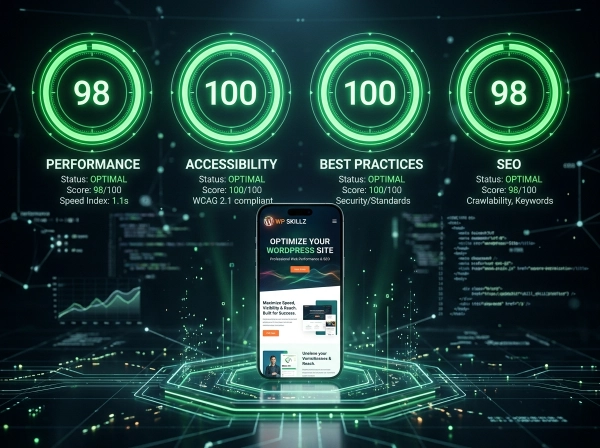

SEO — Can Google Actually Read Your Page?
This isn’t a full SEO audit. It’s a technical readiness check — does your page have the basic foundations Google needs to crawl and understand it?
Checks include: meta description present, content visible without JavaScript, links have descriptive text, page is mobile-friendly, structured data has no errors.
A low score here means Google is hitting technical barriers before it even gets to evaluate your content quality. Fix these before any other SEO work.
What Good Looks Like — Score Benchmarks by WordPress Site Type
Not all sites have the same performance baseline. Here’s what realistic good scores look like for different WordPress use cases:
| Site Type | Performance Target | Accessibility Target | Notes |
|---|---|---|---|
| Simple blog | 85+ mobile | 90+ | Minimal plugins, text-heavy |
| Business landing page | 80+ mobile | 90+ | Watch for hero image LCP |
| WooCommerce store | 70+ mobile | 85+ | More scripts, harder to optimize |
| Membership site | 65+ mobile | 85+ | Login walls limit caching options |
| News/magazine | 60+ mobile | 85+ | Heavy ad scripts pull score down |
If your score meets these benchmarks for your site type, you’re in a solid position. If you’re significantly below them, this tool’s audit cards will show you exactly where to focus.
How We Compare to the "Big" Tools
| Feature | PageSpeed Insights | GTmetrix / Pingdom | Our Pro Tool |
| Mobile & Desktop | Separate Runs | Mostly Desktop Focus | Parallel Sync Scanning |
| Accessibility Audit | Often Hidden | Limited / Paid | Full WCAG 2.1 Included |
| SEO Foundation | Basic | Only with Pro/Login | Deep Technical SEO Scan |
| User Interface | Technical Heavy | Complex Waterfalls | Plain English Insights |
| Price | Free | Freemium (Gated) | 100% Free & No Login |
Frequently Asked Questions (FAQs)
Why is my mobile score so much lower than desktop?
Mobile testing simulates a mid-range Android on a 4G connection. Desktop simulates a fast laptop on a high-bandwidth network. The same site performs differently under these conditions — slower device, slower network, smaller viewport. Most WordPress sites score 15–30 points lower on mobile than desktop before optimization. That gap is normal. The mobile score is the one that matters for rankings.
What's the difference between this and GTmetrix or Pingdom?
GTmetrix and Pingdom are excellent for waterfall analysis — seeing exactly what loads in what order. This tool focuses on Google’s Lighthouse scores across all four categories: Performance, Accessibility, Best Practices, and SEO. No other free tool without login gives you all four in one scan. Use this for Lighthouse data, GTmetrix for waterfall debugging.
What is LCP and what causes a bad score?
LCP is Largest Contentful Paint — how long until the biggest visible element loads. A bad LCP (above 2.5 seconds) is almost always caused by: a large unoptimized hero image, slow server response time (TTFB), or render-blocking resources that delay image loading. Compress the hero image first. That single fix improves LCP on the majority of WordPress sites I’ve seen.
My Accessibility score is 72. Is that a problem?
It means your site has accessibility failures that affect real users. A score of 72 typically means several issues — missing alt text, contrast failures, or form label problems. These are usually fixable in a few hours without touching code. Click the Accessibility filter and expand the audit cards — each one tells you exactly what’s wrong and on which element.
Can I test a competitor's site?
Yes. Any public URL works. Testing competitors gives you a direct comparison on Google’s own metrics. If they score 85 on mobile Performance and you score 55, you have a specific, measurable technical gap. Close that gap and you remove one barrier between you and ranking above them.
How often should I run this test?
Run it before launching any new page or post, after any major plugin update, and once a month as a general health check. Performance can degrade after plugin updates — a plugin that worked fine last month may have added a new script that slows things down. Regular checks catch this before it affects rankings.
Speed Optimization Checklist for WordPress — Based on What This Tool Checks
Run through this after your first scan. Address items in order — earlier items have the highest impact:
Performance (Speed):
- LCP under 2.5 seconds on mobile
- FCP under 1.8 seconds
- CLS below 0.1 (no layout shifts)
- TBT below 200ms
- All images compressed and under 150KB where possible
- Caching plugin installed and active
- Render-blocking scripts deferred or eliminated
- Images have explicit width and height attributes set
- CDN active (Cloudflare recommended for WordPress)
- GZIP or Brotli compression enabled on server
The Score Is Just the Starting Point
The score this tool gives you isn’t a grade. It’s a diagnosis.
A Performance score of 38 doesn’t mean your site is broken — it means specific things are slowing it down, and this tool tells you exactly what they are. An Accessibility score of 71 doesn’t mean your site is unusable — it means specific issues exist that affect specific users, and fixing them is usually straightforward.
Most WordPress developers I know don’t run these checks regularly. They optimize once at launch, then never look again. Plugins update, content grows, new scripts get added — and performance quietly degrades while they wonder why traffic has plateaued.
Run the mobile website speed test now. Look at where you’re red. Fix one thing this week. Run it again. Fix the next thing.
That’s how performance improves — incrementally, consistently, based on actual data rather than assumptions.
Your URL. The search box above. Thirty seconds.
WP Skillz — Built by a WordPress developer who ran this test one too many times and decided to make it easier. 🔗 LINKEDIN
SEO:
- Meta description present on all pages
- Content visible without JavaScript
- All links have descriptive text
- Page is mobile-friendly
- Structured data implemented where relevant
Accessibility:
- All images have descriptive alt text
- Text contrast ratio meets 4.5:1 minimum
- All form fields have associated labels
- Heading hierarchy is logical (H1 → H2 → H3, no skipping)
- All buttons have descriptive text labels
- Links use descriptive anchor text (not "click here")
- Page has a meaningful title tag
- Language attribute set on HTML element
3. Add alt text to every image.
- Site runs on HTTPS
- No mixed content warnings
- No JavaScript console errors
- Images displayed at correct aspect ratios
- No deprecated APIs in use


What the WP Skillz Community Says
Average Rating: 4.9/5 based on our beta users