

WordPress Website Development Tools
Is your website facing issues, but you can’t find the right tool to identify the problems? Stop right there! WP Skillz has brought you the perfect tools to analyze your WordPress website, pinpoint every single issue, and give you the right solutions. Scroll down, try them out, and see the results for yourself!





✓ All tools loaded
Free Website Analysis Tool 2026 — Essential Developer Tools for WordPress
You built the WordPress site. You hit publish. And then… nothing. Traffic is flat, rankings aren’t moving, and you have no idea why.
I’ve been there. And I’ll tell you exactly what the problem was every single time — I wasn’t actually looking at my website the way Google looks at it. I was guessing. And guessing in WordPress development costs you time, clients, and rankings.
That changed the day I started using a proper website analysis tool. Not a $400/month platform — just the right free tools, used consistently, on every site I worked on.
This page is the result of years of working with WordPress. Every tool here is free, requires zero login, and gives you real, actionable data about your website. Whether you’re a beginner working on your first site or a developer managing dozens of client projects — these tools will change how you work.

Pro Tips for Your Financial Health
The 50/30/20 Rule: Use our personal finance budget tools to split your income: 50% for needs, 30% for wants, and 20% for savings/debt.
Emergency First: Before investing, try to save at least 3 to 6 months of expenses. You can use our worksheets to track this.
Calculate Your Tax Early: Use our 2026 Tax Engine to see your take-home pay so you don’t have surprises at the end of the year.

Tool Cards — Each tool shows you what it does, who it’s for, and a direct link to launch it. Clean. No clutter.
Show More Button — The page loads your first 5–10 tools instantly. Click “Load More” to expand the full list without leaving the page. Fast loading, no interruptions.
Every tool listed here falls under WordPress website development — nothing generic, nothing off-topic. If it’s on this page, it belongs here.
How This Page Works
Finding the right website developer tool shouldn’t be a search-and-scroll nightmare. So here’s exactly how this page is organized:
Search Bar at the Top — Type any keyword — “speed,” “SEO,” “security,” “malware” — and the tool list filters instantly. No page reload. Results appear in real time.
Category Filters — Browse tools by category:
- Site Speed & Performance
- Website Security
- Design & Testing
- Dev Utilities
- Web Analysis
- Domain Tools
- Site Speed Assets
- Asset Management
What Is a Website Analysis Tool — And Why Does It Matter More in 2026?
A website analysis tool scans your site from the outside — exactly the way Google’s crawler sees it — and reports back on what’s working and what isn’t.
It checks things you can’t see just by looking at your site:
- Is your page loading fast enough for Google’s Core Web Vitals?
- Is there malware running silently in the background?
- Does your layout break on a Samsung Galaxy at 360px?
- Is your WordPress version exposing a known security hole?
- Are your images doubling your load time without you realizing it?

You can’t fix what you can’t see. That’s the whole point.
Now here’s why 2026 specifically matters. Google has rolled out some significant updates over the past 18 months that completely changed what a website analysis report needs to cover:
| Factor | What Changed in 2026 | Impact on WordPress Sites |
|---|---|---|
| Core Web Vitals | LCP under 2.5s is now a hard ranking signal | Unoptimized themes fail automatically |
| AI Overviews (AIO) | Google pulls structured answers into AI results | Your content must be clear and direct to get cited |
| Mobile-First Indexing | Google only indexes the mobile version now | A broken mobile layout = invisible to Google |
| Helpful Content System | Thin or templated content gets filtered | Every page needs genuine depth and value |
| E-E-A-T | Experience and authorship signals matter | Anonymous content ranks lower across the board |
| GEO (Generative Engine Optimization) | AI engines need factual, well-structured content | Poor heading structure = not cited by AI |
A generic old-school audit tool won’t catch most of these. The best website analysis tool 2026 needs to account for all of them — and the tools on this page do exactly that.
The 8 Free Website Developer Tools on This Page — What Each One Does
Speed Check Website
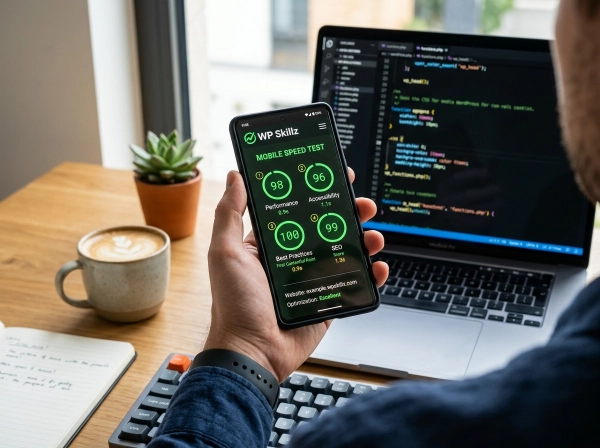
Slow websites don’t rank. It’s that simple. Google confirmed page speed as a ranking factor years ago, and in 2026 it’s more important than ever because of Core Web Vitals.
When I run a speed check on a new WordPress site, I’m not just looking at the overall score. I’m looking at Largest Contentful Paint (LCP) — how fast the main content loads — and Cumulative Layout Shift (CLS) — whether elements jump around as the page loads. Both of these directly affect how Google scores your site.
How to use this tool: Enter your WordPress URL and run the scan. You’ll get a speed score along with a breakdown of exactly what’s slowing you down. The most common culprits I find are render-blocking scripts, unoptimized images, and WordPress themes that load fonts from Google CDN on every single page visit.
Fix those three things and most sites go from a 45 speed score to an 80 within a day.
This is the most important tool on this page. Use it first.
Website Malware Scanner
WordPress powers over 43% of the entire internet. That’s a massive target for hackers, and they know it.
The scary thing about WordPress malware is that it often runs silently for weeks. Your site looks fine to you. Visitors seem normal. But Google’s Safe Browsing database has already flagged your domain — and your rankings have started dropping without a single warning in Search Console.
I’ve seen this happen to client sites. One minute they’re ranking on page one, the next they’re completely de-indexed. The cause? A plugin that got compromised through its own update — nothing the developer did wrong.
How to use this tool: Run a scan on your WordPress URL. The tool checks against major malware databases and blacklists — Google Safe Browsing, Norton, McAfee, and others. If anything comes up, you’ll know immediately and can start the cleanup process before Google acts on it.
Make this a monthly habit. It takes 30 seconds and can save your entire site.
Best Free Responsive Checker
Google switched to mobile-first indexing permanently. That means Google’s crawler visits your mobile site, not your desktop version. If your WordPress theme looks broken on a phone, that’s what Google indexes.
Here’s the problem I run into constantly: developers build sites on a 27-inch monitor and never actually test on a real phone. The site looks stunning on desktop. On a 375px iPhone screen, the navigation menu overlaps the hero text, the CTA button is cut off, and the sidebar has completely disappeared.
That’s not a great experience. And Google knows it.
How to use this tool: Enter your URL and the tool renders your WordPress site at multiple breakpoints — 320px, 375px, 768px, 1024px, and 1440px. You can visually see exactly how your layout responds at each size.
Do this before any site goes live. Do it again after every major theme or plugin update. Takes two minutes and catches problems that would otherwise take you days to notice.
Free Online Code Compiler
Every WordPress developer eventually needs to test a quick code snippet — a CSS fix for a specific browser, a PHP function for the functions.php file, a bit of JavaScript to handle a menu animation.
The old approach: set up a local environment, write the code, test it, then deploy. That process takes 20–30 minutes for what should be a 3-minute test.
The smarter approach: use a live code compiler. Paste your HTML, CSS, or JavaScript directly into the tool and run it instantly in the browser. See the result in real time. No local setup. No staging environment. No risk to the live site.
How to use this tool: Open the compiler, select your language (HTML, CSS, JS), paste your code, and hit Run. The output renders immediately. When you’re satisfied, copy the tested code into your WordPress child theme or custom plugin.
I use this constantly when debugging CSS conflicts between a page builder and a theme. Testing in isolation first saves me from breaking things on live sites.
Website Technology Checker
Before you touch a WordPress site — whether it’s a new client project or a site you’re auditing — you need to know what you’re working with.
The Technology Checker tells you: what CMS is running, which WordPress version, what hosting server, what caching solution is in place, whether a CDN is active, and what analytics tools are installed.
This matters more than most developers realize. If a client’s site is running WordPress 5.8 on PHP 7.4 with no caching plugin, that’s three problems you’ve already identified before you’ve written a single line of code.
How to use this tool: Enter any URL — your site, a client’s site, or a competitor’s site. The tool returns the full technology fingerprint in seconds.
I use this on competitor sites regularly. If a competitor is ranking above me and loading faster, I want to know exactly what they’re using to make that happen. This tool tells me in 10 seconds.
Domain Name Finder
Every WordPress project starts with a domain. And finding the right one — short, memorable, keyword-relevant, and actually available — is harder than it sounds in 2026 with so many domains already registered.
How to use this tool: Enter your niche keywords and the tool surfaces available domain options across multiple extensions. It also flags similar registered domains so you can avoid brand confusion — a real problem when you’re building a client’s brand identity.
Quick tip from experience: a clean, short .com domain still outperforms creative alternatives in terms of user trust and click-through rates. If the exact match .com is taken, go for a variation that still sounds natural when spoken out loud.
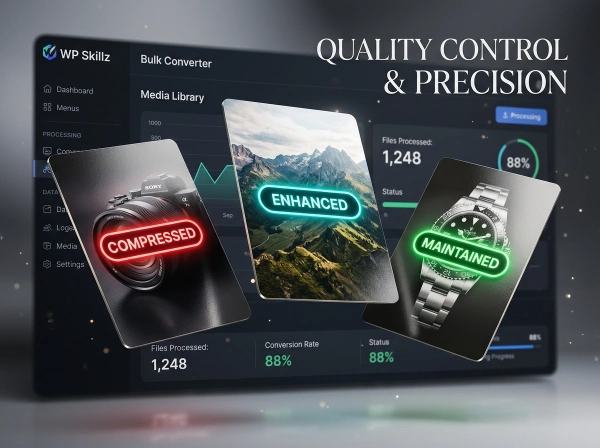
Online Image Compressor
Unoptimized images are the single most common cause of slow WordPress websites. I’ve audited sites where a single hero image was 4.2MB — loaded on every page, every visit, every time.
That’s not just a speed issue. It’s a Core Web Vitals failure. Large images push your LCP score past Google’s acceptable threshold, which directly affects your rankings.
How to use this tool: Upload your image — JPG, PNG, or WebP — and the compressor reduces file size by 60–80% without visible quality loss. Download the compressed version and upload that to WordPress instead.
My rule: no image goes into WordPress over 150KB. Run everything through this compressor first. Combine it with a lazy-loading plugin and your speed scores will improve dramatically within a week.
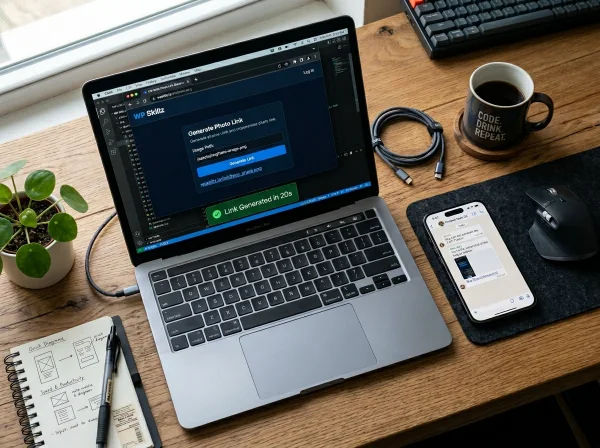
Free Image URL Generator
WordPress developers working with external storage, CDNs, or custom media pipelines need clean, direct image URLs. Manually managing this process without a tool is tedious and error-prone.
How to use this tool: Upload your image and get a permanent, shareable URL instantly. Use it in your WordPress theme templates, custom blocks, page builder layouts, or anywhere an image src URL is needed.
This is particularly useful when you’re building custom WordPress themes and need to reference images from a CDN rather than the local media library.
How to Do a Complete WordPress Website Analysis — My Exact Process
- Step 1 — Speed First Run the Speed Check tool. Screenshot the results. Note your LCP, FCP, and overall performance score. These are your baseline numbers.
- Step 2 — Security Scan Run the Malware Scanner immediately after. If anything flags, stop everything else and deal with it. A malware issue overrides every other optimization.
- Step 3 — Mobile Check Open the Responsive Checker at 375px. If anything breaks at that width, it's your next priority after security.
- Step 4 — Tech Stack Review Run the Technology Checker. Note the WordPress version, PHP version, and caching setup. Flag anything outdated.
- Step 5 — Image Audit Download all images from the WordPress media library that are over 150KB and run them through the Image Compressor. Re-upload the compressed versions.
- Step 6 — Code Review Use the Code Compiler to test any custom snippets before adding them to the live site.
- Step 7 — Document Everything Screenshot before-and-after scores. If it's a client site, this becomes part of your report. If it's your own site, it shows you where you've improved month over month.
Developer Checklist — WordPress Website Analysis 2026
- Page speed score above 80 on mobile (Google PageSpeed)
- LCP under 2.5 seconds
- CLS score under 0.1
- Zero malware or blacklist warnings
- Mobile layout passes at 375px and 768px
- All images under 150KB before upload
- WordPress version is current
- PHP version is 8.1 or higher
- Caching plugin is active and configured
- Technology stack reviewed — no outdated dependencies
- Custom code tested in compiler before deployment
- Image URLs loading correctly from intended source
Frequently Asked Questions (FAQs)
What is the best free website analysis tool for WordPress developers in 2026?
There’s no single best tool — you need different tools for different checks. Speed analysis, security scanning, mobile testing, and tech stack detection each require a specialized tool. WP Skillz brings all of these together in one place, free, with no login required, specifically organized for WordPress developers.
How often should I run a website analysis on my WordPress site?
At minimum, once a month. If you’re publishing new content regularly or updating plugins frequently, run a check after every significant change. Issues can appear fast after WordPress core updates.
Do these tools work on non-WordPress websites? Yes — every tool on this page works on any website regardless of the CMS. But the guidance, tips, and context here is written specifically from a WordPress development perspective.
What's the difference between a website analysis and an SEO audit?
A website analysis focuses on technical health — speed, security, mobile performance, and tech stack. An SEO audit goes deeper into content, keyword targeting, and backlinks. You need both for a complete picture. These tools cover the technical side, which is where most WordPress sites have the most fixable problems.
Will running these tools affect my live website's performance?
No. All analysis tools work by scanning your site from the outside, exactly the way a search engine crawler does. Real users on your site experience no impact whatsoever.
Can I use these results for client reports?
Absolutely. Many WordPress freelancers and agencies use these tools as part of their pre-project audit process. Running a quick technical check before signing a client shows professionalism and gives you a clear baseline to work from.
Common Mistakes WordPress Developers Make During Website Analysis
After working with WordPress for years, I keep seeing the same mistakes come up again and again. Here’s what to avoid:
Running the analysis only once at launch. Your site changes constantly — new posts, plugin updates, theme tweaks. Issues appear after changes, not just at the beginning. Monthly analysis is the minimum.
Only checking desktop speed. Google doesn’t care about your desktop score as much as your mobile score. Mobile-first indexing means the mobile version is what gets ranked.
Ignoring security after plugin updates. Plugin updates are the most common entry point for malware on WordPress sites. Scan after every major update.
Uploading images straight from a camera or stock site. A raw photo from a DSLR can be 8MB. A stock photo download can be 3MB. These kill your speed score. Always compress first.
Fixing the score instead of fixing the problem. A bad speed score is a symptom. The cause might be a poorly coded plugin, an unoptimized database, or a theme loading five different font libraries. Find the cause.
Final Thought — Analysis Is Not Optional Anymore
In 2025 and going into 2026, the WordPress developers who are winning aren’t necessarily the best coders. They’re the ones who understand what their data is telling them and act on it consistently.
You don’t need a $400/month SEO platform to do that. You need the right free tools, used regularly, on every site you touch.
Everything on this page is built for that. Free, no login, WordPress-focused, and updated to work with how Google actually ranks sites today — not how it ranked them three years ago.
Pick one tool. Run it on your site right now. Fix what you find. Come back next week and do it again.
That’s how sites improve. One check at a time.
WP Skillz — WordPress tutorials, tools, and real developer experience. No fluff. 🔗 Linkedin