Free Responsive Website Checker — Check Mobile Responsive Website on 150+ Devices Instantly
Here’s a situation I run into constantly.
A client approves a WordPress design. It looks great on the desktop I built it on. I hand it over. Two days later they message me — “it looks broken on my iPhone.” I check on my Android. Looks fine. They send a screenshot. Their daughter’s iPhone SE has the navigation menu covering half the page content.
That one oversight took three hours to debug and fix. Three hours because I tested on the wrong device size.
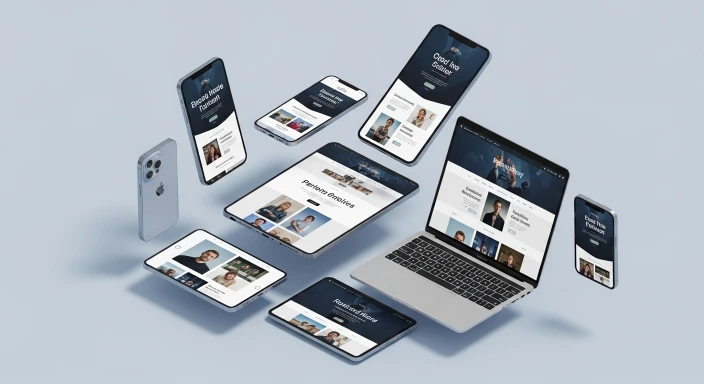
That’s the whole reason this tool exists. Enter your URL above and see your website rendered inside a real device frame — exactly the way that visitor sees it. Not a simulation. Not a screenshot from a third-party server. Your actual live site, loaded inside the device you choose, scaled to real screen dimensions.
150+ devices. iPhone to 8K TV. Custom size. Portrait and landscape. Dark mode. No login. Free.
⚠️ My Personal Experience
People don’t really talk about this, so let me share my personal experience with you. I had a client from the UK for a website called “FHC.” As a developer, I faced a major issue: the website would look perfect on my PC, but it would break on mobile. When I fixed it for mobile, it would break on tablets.
Whenever I faced these responsive design issues, my client would ask, “Why isn’t this working?” and honestly, I used to tell them, “There is no tool where I can check responsiveness across every device.” If I checked it on one mobile, it looked fine, but if I checked it on another, it looked broken. For example, it would look perfect on an iPhone but look completely ruined on a Google Pixel.
I struggled with this for a whole year. So, I spent another year building a tool that provides solutions for every device type—laptops, PCs, TVs, tablets, and different brands. The best part is that I included a “custom” option so you can check exactly what the user sees.
I used this tool for myself for about two years before ever making it public. But then, some fellow developers told me, “You should make this live so other developers and clients can benefit from it.” I listened to them and finally made it live. Today, I am getting great reviews, so give it a try and let me know what you think. Thanks!
Client Experience
I had a website for “FP Insoles,” and I ran into a major problem: the site looked perfect on Android but appeared completely broken on iPhones. I started using this tool, and it solved everything. It covers every device, brand, and screen size you can imagine.
The interface is so clean and easy to understand. The best part is that if you scroll down, you will find a full guide explaining exactly how to use it. Also, the “Rotate” option is a game-changer—it lets you see how the website looks when you tilt your mobile device. Thanks a lot, WP Skillz, for this incredible tool!
(My name is Ali Ahmad.)
How the Responsive Website Checker Works — The Technical Side
Understanding how the tool works helps you read the results correctly. This isn’t magic — it’s clever use of CSS scaling and iframe rendering.
The iframe approach: Your website loads directly inside the tool using an HTML <iframe> element. The iframe is sized to the exact CSS viewport dimensions of the selected device. This means your site experiences the same media queries it would on that actual device — a responsive layout that shows a hamburger menu at 375px will show the hamburger menu in this tool, because the iframe is genuinely 375px wide.
This is fundamentally different from tools that take a screenshot of your site on a small screen and show you the image. Screenshots are static. This tool is live — you can scroll, click links, fill forms, and interact with your site exactly as a real visitor would.
The scaling engine: Device screens are often larger than the viewport showing them. An iPhone 17 Pro Max at 440×956 pixels would be taller than most laptop screens. The tool uses CSS transform: scale() to shrink the device frame to fit the stage area while maintaining the correct aspect ratio. The iframe inside stays at the real device dimensions — only the visual presentation is scaled.

Device frames: Each device type gets a different visual frame. iPhones get rounded corners, Dynamic Island notch, and hardware buttons. Laptops get a base and keyboard chin. Monitors get a stand. These aren’t decorative — they give you accurate context for how much screen real estate the browser actually has on that device.
The rotate button: Hitting rotate swaps width and height, simulating landscape mode. For a landscape test, the notch and hardware buttons reposition accordingly. This matters for sites with fixed-width elements that break in landscape — a common issue on tablet sizes.
Auto-scaling: The tool calculates the maximum scale that fits the device frame within the stage area and applies it automatically. When you resize your browser window, the scale recalculates. This means you always see the largest possible preview without scrolling.
How the Responsive Website Checker Works — The Technical Side
Apple iPhone — 17 Models Across Every Generation
From the iPhone 2G (320×480) to the iPhone 17 Pro Max (440×956), every major iPhone is included. This covers the full range of CSS viewport sizes that real iPhone users experience.
The devices developers test on most often:
iPhone 17 Pro Max (440×956)
The current flagship. Largest iPhone viewport. Sites that look fine here sometimes have overflow issues on narrower models.
iPhone SE 2022 (375×667)
This is the small one. 375px wide. If your site breaks anywhere, it usually breaks here first. The SE is still widely used and its small viewport catches CSS problems that wider phones hide.
iPhone 13 Mini (375×812)
Narrow and tall. Navigation menus, modal popups, and sticky headers all behave differently at this ratio compared to wider phones.
iPhone X / XS (375×812)
Still used by millions. The notch era introduced safe area insets — content that ignores env(safe-area-inset-top) gets hidden behind the notch on these models.
I always test on iPhone SE and iPhone 17 Pro Max as my minimum two iPhone checks. If a layout works on both extremes, it almost always works on everything in between.


Samsung Galaxy — S26 Ultra to Note 20
Samsung’s Android devices use slightly different CSS viewport sizes than iPhones. The Galaxy S26 Ultra runs at 384×854. The Z Fold 7 in unfolded mode is 768×956 — essentially a tablet. Testing on Samsung devices catches Android-specific rendering differences in fonts, scrollbar behavior, and touch target sizes.
The Galaxy Z Fold is worth specific attention for WordPress sites with sidebars — the unfolded viewport is wide enough to show a desktop layout, but the folded viewport is narrow enough to trigger mobile layout. If your breakpoints are set wrong, Fold users get a broken layout in both modes.
Google Pixel — Pixel 10 Pro XL to Pixel 2
Google’s reference Android devices. Pixel 9 Pro Fold in unfolded mode (840×920) tests the same folding phone territory as the Samsung Z Fold. Pixel devices use the cleanest Android rendering — if something looks wrong on Pixel but fine on Samsung, it’s usually a Samsung-specific rendering quirk rather than your CSS.
MacBook — Every Current M-Series Model
MacBook Pro 16 M4 (1728×1117), MacBook Pro 14 M4 (1512×982), MacBook Air 15 (1440×932), MacBook Air 13 (1280×832).
These are the screens your clients are most likely using when they review your work. If your design looks different on a MacBook than on a Windows laptop, it’s usually because of macOS font rendering, Retina pixel ratios, or Safari-specific CSS behavior. Testing MacBook sizes catches the most common “it looked different on my computer” client complaints.
Windows Laptops — Dell, HP, ThinkPad, Alienware
Dell XPS 16 (1536×960), Dell XPS 13 (1280×800), HP Spectre x360 (1536×960), ThinkPad X1 Carbon (1440×900), Alienware m18 (1600×1000).
Windows laptops are the most diverse category for screen sizes. Corporate users on ThinkPads, developers on XPS machines, gamers on Alienware — they all see your site differently. The 1280×800 viewport of the XPS 13 is particularly important — many WordPress themes that look great at 1440px have elements that overlap or compress at 1280px.
TV Displays — 4K, 8K, Ultra-Wide
This is where this tool goes further than every competitor.
8K Ultra LED TV (7680×4320), 4K Smart TV (3840×2160), Ultra-Wide 21:9 (3440×1440), Full HD (1920×1080).
Why does this matter for WordPress developers? Smart TV browsers are real. Samsung Smart TVs ship with a Chromium-based browser. LG WebOS has a built-in browser. Users in lounges browse on TVs — especially for recipe sites, how-to content, and entertainment sites. A site that looks fine on a 1080p monitor can have enormous empty margins on a 4K TV, or text so small it’s unreadable at 10 feet.
The Ultra-Wide (3440×1440) test is increasingly important as ultra-wide monitors become common among designers and developers. Many WordPress themes max out at 1200px content width and leave blank space on ultra-wides — which is fine. But some themes stretch content to full width and produce unreadably long line lengths at ultra-wide.
Custom Size — Any Width × Height You Need
Enter any width and height in the custom size fields and hit Apply. This is for:
- Testing specific breakpoints from your CSS — if your media query fires at 768px, test 767px and 769px to confirm the breakpoint is working correctly
- Checking unusual screen ratios like square kiosk displays (800×800)
- Testing specific client devices that aren’t in the preset list
- Replicating a reported bug at the exact screen size the user described
Why Responsive Design Is a WordPress SEO Priority in 2026
Google’s mobile-first indexing has been fully rolled out. This means Google sends its crawler to visit your mobile version first — and ranks your page based on what the mobile crawler sees.
If your layout breaks at 375px — text overlapping, navigation covering content, images overflowing — Google’s mobile crawler sees that broken layout. Not your beautiful desktop version. The broken one.
Beyond rankings, responsive design directly affects the metrics Google measures:
Bounce rate: Users who land on a broken mobile layout leave immediately. A high bounce rate from mobile is a strong negative signal.
Dwell time: Users who can comfortably read and navigate your mobile layout stay longer. Google measures this.
Core Web Vitals CLS: Layout shifts — elements moving as the page loads — are directly affected by responsive CSS quality. A well-structured responsive layout has minimal CLS. A poorly structured one has constant shifts as images load without reserved space.
I’ve seen WordPress sites jump from page 3 to page 1 after fixing a mobile layout issue. Not because of new content or new backlinks — just fixing a broken mobile experience that Google was penalizing them for.
Complete Device Resolution List (2025-2026 Models)
To provide the best responsive testing tool for websites, we have integrated hundreds of accurate screen resolutions. Whether you need an iphone responsive checker or a desktop responsive checker, we have the exact pixels mapped out for you.
📱 Apple iPhone & iPad Devices
| Device Model | Resolution (Width x Height) |
| iPhone 17 Pro Max / 16 Pro Max | 440px x 956px |
| iPhone 17 Pro / 16 Pro | 402px x 874px |
| iPhone 17 Plus / 16 Plus | 430px x 932px |
| iPhone 17 / 16 / 15 / 15 Pro | 393px x 852px |
| iPhone 15 Pro Max / 14 Pro Max | 430px x 932px |
| iPhone 14 Plus / 13 Pro Max | 428px x 926px |
| iPhone 14 / 13 Pro / 13 / 12 Pro / 12 | 390px x 844px |
| iPhone SE / 8 / 7 / 6s / 6 | 375px x 667px |
🖥️ Desktop Monitors & Smart TVs
Your responsive layout checker test must include large screens.
Standard PC Monitors: 24/27-inch (1920×1080), 2K/QHD (2560×1440).
4K UHD Monitors & TVs: 3840px x 2160px.
Ultra-Wide Monitors: 21:9 (3440px x 1440px).
🍏 Apple MacBooks & Laptops
| Laptop Model | Resolution |
| MacBook Pro 16-inch (M3/M4) | 1728px x 1117px |
| MacBook Pro 14-inch (M3/M4) | 1512px x 982px |
| MacBook Air 15-inch (M3/M4) | 1440px x 932px |
| Dell XPS 16 / HP Spectre x360 16 | 1536px x 960px |
| Lenovo ThinkPad X1 / IdeaPad | 1440px x 900px |
🇬 Google Pixel & Other Androids
| Phone Model | Resolution |
| Pixel 10 Pro XL / 9 Pro XL / 8 / 8a | 412px x 915px |
| Pixel 10 Pro / 10 / 9 Pro / 9 | 393px x 873px |
| Pixel 9 Pro Fold (Main Screen) | 840px x 920px |
| OnePlus 13 / 12 / Moto Edge 50 | 412px x 915px |
How to Use the Responsive Website Checker — Step by Step
- Step 1 — Enter your URL Type or paste your website URL in the bar at the top. The tool pre-loads with
https://wpskillz.com/as a demo. Replace it with your own URL. The iframe loads immediately when you click Preview. - Step 2 — Choose a brand The brand tabs on the left sidebar organize devices by manufacturer: Apple, Samsung, Pixel, OnePlus, Moto, Laptops, Displays. Click the brand you want to test first. The model list below updates immediately.
- Step 3 — Select a device model Scroll through the model list or use the search box to filter by name. Click any device. The preview updates immediately — the device frame changes shape, the iframe resizes to the correct viewport dimensions, and the scale adjusts to fit the stage.
- Step 4 — Check the device info pill The small label in the top-left of the stage shows the active device name and its CSS viewport dimensions. Confirm these match what you expect before reading the layout.
- Step 5 — Rotate if needed Click the rotate button (🔄) to switch between portrait and landscape. The dimensions swap, the notch repositions, and the layout reloads. For tablet and laptop testing, landscape mode often reveals layout issues that portrait hides.
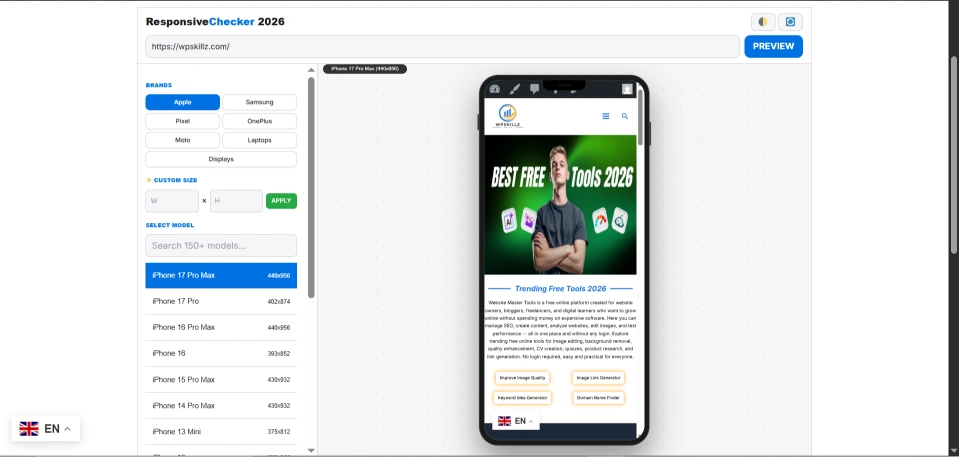
- Step 6 — Toggle dark mode The dark mode toggle (🌓) switches the tool interface to a dark background. This doesn’t affect your site’s appearance — it changes the tool UI. Useful for long testing sessions or low-light environments.
- Step 7 — Test custom sizes Enter a custom width and height in the sidebar fields and click Apply. The device frame becomes a generic monitor frame at your specified dimensions. The iframe renders your site at exactly that viewport size.
On MacBook and laptop sizes (1280px–1728px): Layouts that look fine on a 1920px monitor may compress awkwardly on a 1280px MacBook. Check that your content doesn’t feel cramped or that max-width containers don’t create too-narrow columns.
On 4K and TV displays (1920px and above): Content that stretches to full width becomes unreadable — lines of text 250 characters wide are impossible to track. Verify your theme has a reasonable max-width on content containers. 1200px to 1440px max-width is standard for a reason.
What to Look For — Common Responsive Issues by Device Type
On small iPhones (375px and below): Navigation menus that don’t collapse into hamburgers, text that overflows its container, buttons that extend outside the screen, fixed-width elements causing horizontal scroll.
On mid-range phones (390px–430px): Font sizes that feel cramped, images that don’t scale properly, two-column layouts that don’t drop to single column, forms with fields that are too narrow to type in comfortably.
On tablets and iPads (768px–1024px): This is the most commonly broken breakpoint in WordPress themes. Many themes only have mobile (below 768px) and desktop (above 1024px) breakpoints. The space between — the tablet range — often gets a layout that’s half-broken. Navigation may be partially collapsed, columns may be wrong widths, sidebars may overlap content.
What This Tool Does That Others Don't
Most responsive checkers show you a shrunken iframe in a generic rectangle. That tells you roughly how wide the content is. It doesn’t tell you whether the navigation breaks on an iPhone 13 Mini. It doesn’t show you whether your site stretches on a 4K monitor. It doesn’t let you test a Samsung Galaxy Z Fold in unfolded mode.
This tool does all of that.
Here’s what makes it genuinely different from tools like Responsinator, Am I Responsive, or the basic Chrome DevTools responsive mode:
| Feature | This Tool | Am I Responsive | Responsinator | BrowserStack |
|---|---|---|---|---|
| Devices available | 150+ | 4 fixed | 8 fixed | 3000+ (paid) |
| iPhone 17 / 16 Pro | ✅ | ❌ | ❌ | ✅ (paid) |
| Samsung Galaxy S26 | ✅ | ❌ | ❌ | ✅ (paid) |
| MacBook Pro M4 | ✅ | ❌ | ❌ | ✅ (paid) |
| 4K / 8K TV sizes | ✅ | ❌ | ❌ | ❌ |
| Custom width × height | ✅ | ❌ | ❌ | ✅ (paid) |
| Rotate portrait/landscape | ✅ | ❌ | ❌ | ✅ (paid) |
| Dark mode interface | ✅ | ❌ | ❌ | ❌ |
| Real device frames | ✅ | ❌ | ❌ | ✅ (paid) |
| No login required | ✅ | ✅ | ✅ | ❌ |
| Cost | Free | Free | Free | $39/month |
The paid tools like BrowserStack are excellent for QA teams that need real device browsers. But for checking layout and responsiveness on specific screen sizes — which is what 90% of WordPress developers actually need — this tool does everything they charge $39/month for, for free.
Understanding CSS Viewport vs. Physical Resolution
A common mistake developers make is testing for physical pixels. For example, an iPhone 17 Pro might have a high physical resolution, but its CSS Viewport is 440px wide. Our tool uses these “Logical Pixels” (viewports). This ensures that your media queries ($@media$) fire exactly when they should, showing you the real-world layout instead of a blurry, oversized version of your site.
How Our Live Scaling Engine Works
Instead of taking a static screenshot, we load your site in a live <iframe>.
The Container: We set the iframe to the exact CSS dimensions of the device (e.g., 375px for iPhone SE).
The Transform: We use
CSS transform: scale()to fit that large device frame onto your laptop screen without changing the site’s internal proportions.The Result: You get a pixel-perfect, interactive preview that responds to your clicks and scrolls in real-time.
The 2026 Multi-Device Reality
Testing for the Unfolded Era (Foldables & Dual Screens)
With the rise of the Galaxy Z Fold and Pixel Fold series, standard 375px testing is no longer enough. Modern WordPress sites must handle “Fluid Breakpoints.” Our tool includes specific viewports for Unfolded States (768px – 840px), ensuring your site handles the transition from a narrow phone to a mini-tablet layout without breaking the container or overlapping text.
Frequently Asked Questions (FAQs)
How do I check if my WordPress site is mobile responsive for free?
Enter your URL in the tool above. Select “iPhone 17 Pro” or “iPhone SE 2022” from the Apple brand tab. Your site loads inside an iPhone-sized frame showing exactly how it appears at that viewport. If the layout breaks, overflows, or has unreadable text — you’ll see it immediately. Switch to “MacBook Air 13” to check the laptop view. The whole process takes under two minutes and requires no login.
What is the difference between a responsive checker and a mobile-friendly test?
A mobile-friendly test (like Google’s deprecated mobile-friendly test tool) checks whether your page passes a pass/fail threshold for basic mobile usability — viewport set, text readable, tap targets sufficient. A responsive checker shows you the actual visual layout on specific device sizes so you can see exactly how each breakpoint looks. Both are useful; the responsive checker gives you more visual detail.
Why does my site look different on iPhone versus Android?
Safari and Android Chrome have different default stylesheets, different font rendering, and different viewport behavior. iOS Safari adds extra padding to form elements. Android Chrome handles scrollbar width differently. Some CSS properties like -webkit-overflow-scrolling only affect iOS. Testing on both an iPhone and a Samsung Galaxy catches these platform-specific differences.
What viewport sizes should I always test for a WordPress site?
At minimum: 375px (iPhone SE / small Android), 430px (modern iPhone), 768px (tablet / iPad mini), 1024px (iPad landscape / small laptop), 1280px (common laptop), 1920px (full HD desktop). These six sizes cover the most common real-world viewports. If your site works correctly at all six, it will work correctly for the vast majority of your visitors.
What does the rotate button do?
It swaps the width and height of the current device, simulating landscape orientation. A phone at 390×844 becomes 844×390 in landscape. This matters for testing layouts that behave differently in landscape — a common issue with fixed-height elements, modal popups, and sticky headers that cover too much screen in landscape on phones.
Can I test a staging or local WordPress site?
The tool loads your URL in an iframe. Any URL that is publicly accessible on the internet will work. Local development sites (localhost) and staging sites behind password protection won’t load correctly because the iframe request comes from the browser — if your browser can access the staging URL, the iframe can too. If the staging site requires an HTTP authentication popup, the iframe won’t be able to display it.
Responsive Design Checklist — Before You Launch Any WordPress Site
Test these across at least three devices: a small iPhone (375px), a tablet (768px), and a laptop (1280px):
- Navigation menu collapses to hamburger on mobile
- Hamburger menu opens and closes correctly
- No horizontal scrollbar on any mobile size
- Text is readable without zooming — minimum 16px body text
- Buttons are large enough to tap — minimum 44×44px touch target
- Images scale within their containers — no overflow
- Forms are usable — fields wide enough to type in
- No fixed-width elements breaking out of their container
- Content is not hidden behind fixed headers or footers
- Two-column layouts drop to single column on mobile
- Tablet breakpoint tested — not just mobile and desktop
- Landscape orientation tested on phones and tablets
- Site usable on 4K monitor without extreme line lengths
- Font size doesn't change unexpectedly between portrait and landscape
Test Every Screen Before Your Client Does
The most expensive responsive bug is the one a client finds after launch. Not because it’s technically hard to fix — but because it costs trust. A client who sees their site broken on their own phone questions everything else you delivered.
Test early. Test on the devices that matter to your actual audience. If you’re building a recipe site, test on iPhone SE because that’s what people use while cooking. If you’re building a business site, test on MacBook Air because that’s what your client uses. If you’re building a media site, test on tablet because that’s how people read long content.
This tool gives you 150+ device sizes, real device frames, portrait and landscape testing, and custom size input — all free, all without login.
The responsive website checker is above. Your URL and 60 seconds is all it takes.
WP Skillz — WordPress tutorials, tools, and honest developer experience. Built by a developer who has fixed one too many post-launch responsive bugs. 🔗 Linkedin
What the WP Skillz Community Says
Average Rating: 4.8/5 based on our beta users