Free Website Technology Detector — Check Website CMS, Theme, Plugins & Security Instantly
The fastest answer to “what is this site built on?” — no login, no payment, no guessing.
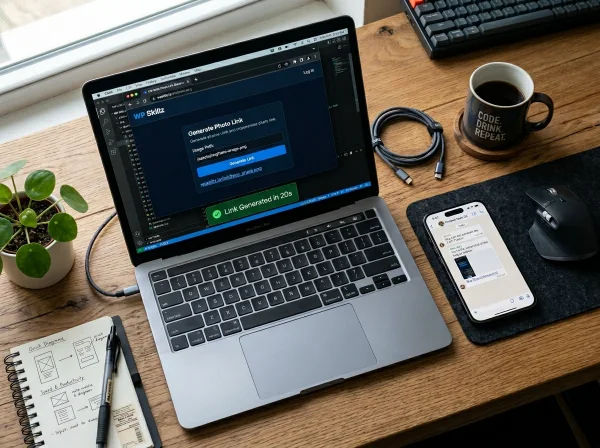
Enter any URL above. Hit Analyze. In under 20 seconds you’ll see the CMS, active WordPress theme, installed plugins, security layers, SSL status, server info, domain registration date, expiry date, and a live screenshot of the site.
Check the Website Technology
🔒 100% Secure & Private: We don't track or save your search data.
Decrypting Headers & Spoofing Browser...
🚀 Tech Stack
🌍 Server & Domain
🔌 Discovered Plugins
That’s it. That’s the tool.
If you want to understand why any of that matters — and how to actually use this information to build better WordPress sites, research competitors smarter, and catch problems before they cost you — keep reading. Everything below comes from real experience working on WordPress projects, not from a content template.
⚠️ My Personal Experience
This is my personal story. As a WordPress developer with 10 years of experience in the field, I used to face a very specific challenge during my journey. Clients would often come to me, show me a reference website, and say, “Build us something exactly like this—but first, tell us what platform it’s built on.”
I would get stuck trying to figure out how to accurately tell them which platforms or technologies were running behind the scenes. Because of this hesitation, clients would walk away. They would think, “If the developer doesn’t even know this, how is he going to build our website?”
I took that to heart. I worked day and night and built this tool entirely from scratch. Originally, I created it just to solve my own problem. But then I realized that other developers, and even everyday clients, must be facing the exact same struggle. Whether you want to check what technologies are powering your website or you want to see exactly what platform your competitors are using, this tool will do all the work for you.
Want to know how to use it? Just scroll down below!
Amazing Tip:
Here is an amazing tip from my side: when you check what platform a website is built on using this tool, you can also see exactly which theme they are using. The biggest advantage of this is when a client gives you a reference website and says, “Build a site just like this one.” You can simply come here, find out the theme, and use that exact theme to build the website. You won’t have to start from scratch! Where you used to struggle just to build one website, you can now build multiple sites effortlessly. More income, more money, and more solutions!
How to Use the Website Technology Detector — Step by Step
Using this tool is straightforward. But there are a few things worth knowing that most people skip.
Step 1 — Enter the URL correctly
Paste the full URL including https://. You can enter a homepage or any specific page URL — both work. If you’re checking a WordPress site and want to see which plugins are active on a specific page (since some plugins only load on certain pages), scan that specific page URL rather than the homepage.
That’s a tip I don’t see anywhere else: plugin detection is page-specific. A contact page might load a form plugin that doesn’t show up on the homepage. If you want the most complete plugin list, scan multiple pages and compare.
Step 2 — Click Analyze Website
The spinner runs while the tool fetches HTML, processes fingerprints, and queries RDAP. Most sites respond in 1–3 seconds. Very slow servers or sites behind certain firewalls can take up to 15 seconds.
Step 3 — Look at the screenshot first
I always check the screenshot before reading any data. It confirms I’ve scanned the right URL, and it gives me a quick read on the site’s design quality — useful context before I start interpreting the tech data.
Step 4 — Read the Tech Stack card
This is on the left side of the results. It shows: SEO title, CMS platform, active theme, security layer, and server software. This is the core of what most people want to know when they use a website cms checker.
Step 5 — Check the Domain card
Right side of results. IP address, SSL status, registration date, expiry date. The registration date is particularly useful — it tells you how old the site is. A site registered in 2012 with consistent content has completely different SEO authority than one registered last year.
Step 6 — Review the Plugins section
The bottom card. Every plugin shown here was detected loading a CSS or JavaScript file from the standard WordPress plugins directory. This is not an exhaustive list — server-side only plugins won’t appear. But it’s the most you can see without actually logging into the WordPress dashboard.
Reading the CMS Detection Result — What Each Outcome Means
WordPress — The most common result. The tool found wp-content in the HTML, which is the definitive indicator of a WordPress installation. If you see WordPress here, everything else in the results — theme, plugins, security — is specific to WordPress.
Shopify — Detected via cdn.shopify.com in the asset paths. Shopify stores always load from this CDN. Theme detection will be limited since Shopify uses a different file structure. The plugins section will typically be empty since Shopify apps don’t load from a WordPress-style path.
Wix — Detected via wix.com references in the HTML. Wix websites are heavily obfuscated — you won’t get theme or plugin data. But knowing a competitor is on Wix tells you something useful: they can’t do certain technical SEO things that WordPress can, and their site is harder to customize at a code level.
Elementor — This appears alongside WordPress when Elementor is the active page builder. It means the site is using Elementor rather than Gutenberg or a custom theme’s builder. Useful to know before you start a redesign project.
React.js — The site is built using React. This typically means it’s a custom-built site, a headless WordPress setup, or a SaaS product. React detection tells you the frontend is JavaScript-heavy — which has specific SEO implications around crawlability.
Custom / Unrecognized — The site doesn’t match any known fingerprints. Three possible reasons: it’s fully custom-built with no off-the-shelf CMS, it’s using a CMS the tool doesn’t yet detect, or it’s behind a security layer that removes all CMS signatures from the public HTML. This last scenario is actually smart security practice for WordPress sites — removing the wp-content reference from public HTML is a genuine security improvement.
The Security Results — What to Actually Look For
This is the section most people scroll past. Don’t.
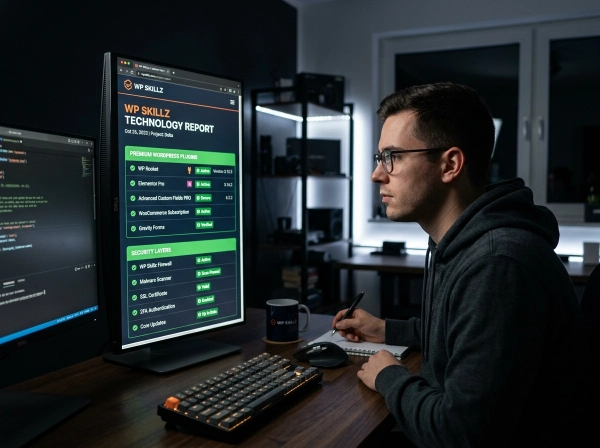
The security layer data tells you more about a site’s technical maturity than the CMS or theme does. Here’s what each result actually means and — importantly — what it means when something is missing:
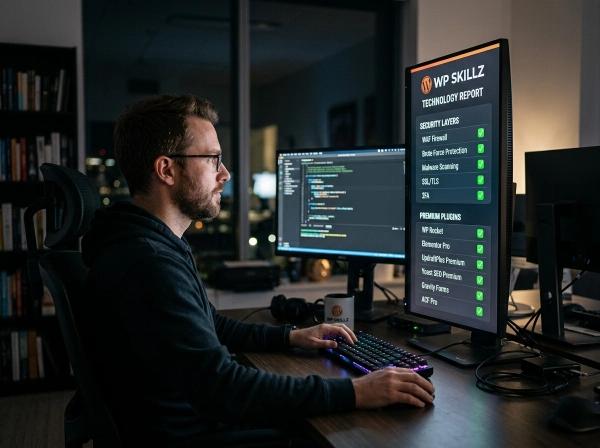
Cloudflare detected The site’s traffic runs through Cloudflare’s global network. This gives DDoS protection, rate limiting, automatic bot filtering, and a CDN that typically improves load times. For WordPress sites, Cloudflare is standard practice on any seriously managed installation. If a competitor has Cloudflare and you don’t, they have a meaningful security and performance advantage.
Wordfence detected Wordfence is running as a WordPress plugin. It adds an application-level firewall, login protection, malware scanner, and file integrity checks. This is WordPress-specific security — it works differently from Cloudflare (which is server-level). Having both Cloudflare and Wordfence is the most common setup on well-maintained WordPress sites.
Sucuri detected Sucuri’s Web Application Firewall is active. Sucuri is similar in function to Cloudflare’s security features but is specifically designed around website security rather than CDN performance. Sites using Sucuri have typically had a security incident in the past, or the owner takes security very seriously — it’s not a casual setup.
HSTS Enabled HTTP Strict Transport Security tells browsers to only ever connect to this site over HTTPS. Without HSTS, a user who types your domain without https:// could theoretically be intercepted before the redirect to HTTPS completes. With HSTS, the browser enforces HTTPS locally — the vulnerable redirect never happens. This is a one-line server configuration change with a meaningful security improvement. If your WordPress site isn’t showing HSTS, it’s worth adding.
Clickjacking Protection (X-Frame-Options) This HTTP header tells browsers not to allow the page to be embedded inside an iframe on another site. Clickjacking attacks work by putting an invisible iframe over a page the user trusts — tricking them into clicking something they don’t intend to. This header prevents it. Again, a simple configuration that many WordPress sites skip.
What if none of these show up? That’s a red flag. A WordPress site with no WAF, no HSTS, and no clickjacking protection is running with no meaningful security layers beyond basic SSL. If it’s a client site, this is an immediate conversation to have.
Six Things You Can Learn From This Tool That Most People Miss
I’ve been using tech stack checkers for years. Here are six things I actually use this data for that go beyond the obvious:
1
Estimating a competitor’s budget Cloudflare Pro runs about $20/month. A premium Elementor theme might be $60–200 one-time. Wordfence Premium is $119/year. When I see a competitor with all three, plus a well-known premium theme, I know they’ve invested properly in their WordPress setup. That tells me something about their seriousness and what I’m up against.
2
Finding security gaps in sites I’m auditing Before I start a WordPress project for a client, I check their current site with this tool. If HSTS isn’t showing, if there’s no WAF, if I see an older theme name I recognize as abandoned — these become the first bullet points in my project proposal. Clients respond well to specifics.
3
Understanding why a competitor ranks Site age is a real factor. A domain registered in 2011 with consistent WordPress content has compounded years of authority. Knowing the registration date from the RDAP data helps me set realistic timeline expectations. If I’m entering a niche where competitors have 10-year-old domains, I know the SEO timeline is longer.
4
Checking plugin footprint before a site migration Before migrating a WordPress site, I scan the live site with this tool. The plugins list shows me what I need to account for in the new environment. It’s not exhaustive, but it’s a useful starting checklist that takes 15 seconds to generate.
5
Verifying my own security configuration externally After I configure HSTS or add Cloudflare to a client site, I scan the URL with this tool to confirm the security headers are showing up correctly from the outside. Dashboard settings don’t always tell the full story — an external check does.
6
Domain age for content strategy A site registered in 2021 that ranks for competitive keywords is doing something right from a content and link standpoint — domain age alone can’t explain it. A site registered in 2008 that barely ranks might have technical debt or a history of bad SEO. The registration date gives context to the ranking data.
What This Tool Cannot Do — Honest Limitations
I’d rather tell you what it can’t do than have you misread results.
It can’t see inside WordPress admin. Everything detected here comes from the public-facing HTML. Plugins that run entirely server-side and don’t load any frontend assets won’t appear. If a site has 40 plugins but 30 of them are backend-only, you’ll see 10.
It can’t bypass WHOIS privacy. If a domain owner has enabled privacy protection, the registration and expiry dates show as “Hidden/Private.” This is correct behavior — privacy protection exists for a reason.
It can’t detect all CMS platforms. The tool detects the most common ones — WordPress, Shopify, Wix, Elementor, React. Less common platforms like Drupal, Joomla, Webflow, or custom PHP frameworks may not be identified. “Custom / Unrecognized” covers these cases.
Results are cached for 12 hours. If a site was recently changed — a theme update, a new security plugin installed — the cached result may not reflect it immediately. Wait 12 hours and rescan for fresh data.
It can’t check pages behind login walls. Member areas, checkout pages, admin panels — none of these are accessible. Public pages only.
CMS Comparison — What Each Platform Means for WordPress Developers
Understanding what CMS a site uses tells you a lot about what the site can and can’t do. Here’s a quick reference:
| CMS / Platform | Customization | SEO Flexibility | Security Control | Typical Use |
|---|---|---|---|---|
| WordPress | Very High | Very High | Full control | Blogs, business sites, ecommerce |
| Shopify | Medium | Medium | Limited (managed) | Ecommerce primarily |
| Wix | Low-Medium | Limited | Managed by Wix | Small business, portfolios |
| React/Custom | Unlimited | Requires setup | Developer-dependent | SaaS, apps, enterprise |
| Elementor (on WP) | High (visual) | WordPress-level | WordPress-level | Marketing sites, landing pages |
When you see a competitor on Wix, you know they’re limited in technical SEO. When you see a competitor on custom React, you know they’ve invested heavily in development. When you see WordPress with Elementor and Cloudflare, you know they have a solid, scalable setup.
How This Tool Actually Works
Most tools just show you results without explaining how they got them. I think that’s a mistake. Once you understand how the detection works, you read the results differently — and you catch things that other people miss.
Here’s what happens from the moment you click Analyze:
The tool pretends to be Chrome. It sends the request using a real Chrome browser header. Why? Because many servers behave differently for bots — they serve stripped-down HTML or block the request entirely. By mimicking Chrome, the tool sees the same page a real visitor would see. This is the same technique professional crawlers use.
It reads the HTML for fingerprints. Every major CMS leaves traces in the HTML. WordPress always loads files from /wp-content/themes/ and /wp-content/plugins/. Shopify loads assets from cdn.shopify.com. Wix leaves wix.com references throughout. The tool scans for these known patterns — called fingerprints — and matches them against the platform they belong to.
It checks the HTTP response headers. These are invisible to regular visitors but sent with every page load. The Server header reveals what web server software is running. Strict-Transport-Security tells you if HSTS is active. X-Frame-Options tells you if clickjacking protection is on. The tool reads all of these in real time.
It pulls WHOIS data through RDAP. RDAP (Registration Data Access Protocol) is the modern version of WHOIS. It returns structured JSON data — including registration date and expiry date — for any publicly registered domain. The tool queries this automatically and formats the dates into something readable.
It grabs a screenshot. Using WordPress.com’s public Mshots API, the tool renders a real 1200×800 screenshot of the URL. This confirms you’re looking at the right site and gives you an instant visual on the current state of the page.
Results are cached for 12 hours. If someone scanned the same domain recently, you get the result instantly from cache. This keeps the tool fast and prevents server overload when it’s being used heavily.
That’s the full process. Fifteen to twenty seconds from URL to complete results.
What You Get From One Scan — At a Glance
Before we go deeper, here’s a quick summary of exactly what this website technology checker surfaces from a single URL:
| What the Tool Checks | What You See in Results |
|---|---|
| CMS Platform | WordPress, Shopify, Wix, Elementor, React, or Custom |
| WordPress Theme | Active theme name extracted from asset paths |
| Installed Plugins | Up to 15 plugins detected from source code |
| Security Layer | Cloudflare, Wordfence, Sucuri, HSTS, Clickjacking protection |
| SSL Status | Active HTTPS or warning if missing |
| Server Software | Apache, Nginx, or hidden/protected |
| IP Address | Resolved server IP |
| Domain Registered | First registration date via RDAP |
| Domain Expiry | When the domain needs renewal |
| Live Screenshot | Real visual preview of the site |
No other free tool gives you all of this without asking you to sign up first. Tools like Wappalyzer give you the tech stack — but no domain dates, no security headers, no screenshot. WHOIS tools give you domain data — but no CMS, no plugins. This website technology checker combines everything into one scan.
Common Questions — Answered Directly
The tool shows "Custom / Unrecognized" for a site I know is WordPress. Why?
The site has likely removed or obfuscated the wp-content path from its public HTML. This is actually a recommended security practice — it makes automated WordPress-targeting attacks harder. The site is still WordPress, but it’s been configured to hide that fact from the outside. Ironically, “Custom / Unrecognized” on a site you know is WordPress is a sign of good security hygiene.
Can I use this to check my own WordPress site?
Yes — and you should. Scanning your own site from the outside is the only way to confirm that your security headers are showing up correctly, that your theme name isn’t being exposed unnecessarily, and that no unexpected plugins are loading frontend assets. Your WordPress dashboard shows you what’s installed. This tool shows you what’s actually visible to the outside world.
Why does the plugin list sometimes show plugins I've deleted?
It won’t — the tool only detects plugins that are currently loading files. A deleted plugin doesn’t load anything. If you see an unexpected plugin name, that plugin is currently active and loading assets on the page you scanned. It might be a plugin you forgot about, or one activated by a theme.
The screenshot shows an old version of the site. Why?
The screenshot is generated by WordPress.com’s Mshots API, which has its own caching. The HTML and data analysis are always live, but the screenshot itself may reflect a slightly older visual state. For fresh screenshot data, the Mshots cache typically refreshes within 24 hours.
Does scanning a site notify its owner?
No. This tool reads publicly available data — the same HTML and headers that any visitor or search engine crawler sees. There’s no notification to the site owner when a scan is run.
I see "Standard Firewall" in the security field. What does that mean?
It means the tool didn’t detect any specific named security solutions (Cloudflare, Wordfence, or Sucuri). The site may have some basic server-level security, but none of the recognizable WAF or security plugin signatures are present in the public HTML or headers.
WordPress Security Checklist — Based on What This Tool Checks
Use this after scanning any WordPress site — your own or a client’s:
- WordPress confirmed as CMS
- Theme is a recognized, actively maintained theme
- No unknown or unexpected plugins in the detected list
- Cloudflare or equivalent CDN/WAF is active
- Wordfence or Sucuri detected — application-level security in place
- HSTS is showing — HTTPS enforced at browser level
- Clickjacking protection (X-Frame-Options) is present
- SSL is Active — no HTTP warning
- Server version is hidden — not exposing Apache/Nginx version number
- Domain expiry is more than 6 months away
- Domain age matches expected history
Use It Before You Assume Anything
Here’s the honest version of why this tool exists.
Most WordPress developers and site owners make assumptions. They assume their security is set up correctly. They assume a competitor is using the same CMS they are. They assume a domain they want to buy is clean and well-maintained. They assume their security plugins are working as expected from the outside.
Assumptions are expensive. A five-second scan with this website technology checker replaces 20 minutes of manual source code inspection and gives you data that’s actually reliable.
Check website CMS before you start any project. Check the security headers before you sign off on a build. Check the domain dates before you recommend a purchase. Check your own site periodically to confirm everything you’ve configured is working correctly from the outside.
All of that is free. All of it takes seconds. And it’s the kind of due diligence that separates developers who catch problems early from developers who explain problems after they’ve already happened.
The tool is above. Your next scan is 20 seconds away.
WP Skillz — Real WordPress experience. Actual developer tools. No fluff. 🔗 Linkedin
What the WP Skillz Community Says
Average Rating: 4.9/5 based on our beta users