“I am an SEO expert, but I only started my journey a short while ago. The great news was that I quickly managed to land my first few clients and began working on their projects. However, as I got deeper into the work, I hit a major roadblock: Schema Markup. I just couldn’t wrap my head around what it actually was, how to implement it, or how to generate the code correctly. Here I was, trying to build my reputation as an SEO expert, but my technical coding for schema was completely off.
This critical problem was entirely solved by the team at WP Skillz. I used their custom Schema Generator tool and read their comprehensive guide. Suddenly, everything clicked—I completely understood what Schema is and how to deploy it flawlessly. If you are struggling with the same issue or want to try it for yourself, just scroll down and click the action button!”
Here is something that catches almost every SEO off guard the first time it happens.
You add schema markup to your site. You validate the code — it passes the Rich Results Test with no errors. You submit the URL for indexing and wait.
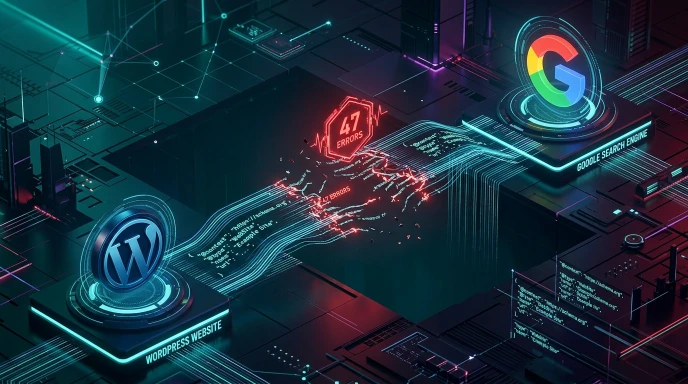
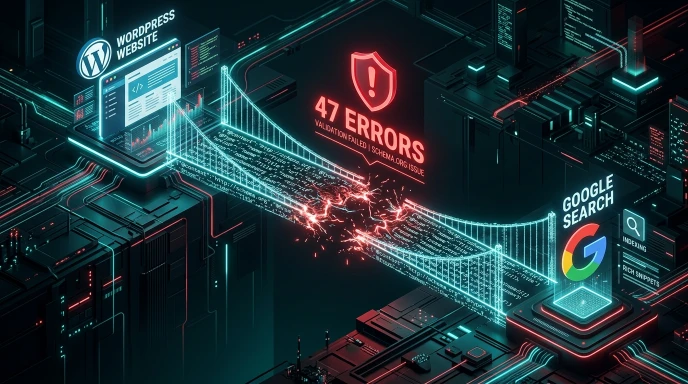
Two weeks later, you check Google Search Console. The Enhancement report shows 47 errors across your product pages. Your schema is broken — not because your code is wrong, but because a plugin updated three days ago and silently overwrote your structured data.
This is the part nobody talks about enough. Schema implementation is a one-time task. Schema monitoring is ongoing work.
Google Search Console is the only tool that tells you exactly what Google sees — not what you think is there, but what Googlebot actually retrieved when it crawled your pages. It is the difference between assuming your schema works and knowing it does.
This guide covers exactly how to use GSC for schema monitoring, how to read the Enhancement reports, and how to fix errors before they cost you rich result eligibility.
Why Monitoring Matters More Than Implementation
Adding schema to your site and never checking GSC again is like installing a smoke alarm and never testing the battery. The alarm exists. It might not work.
Four things regularly break schema on WordPress sites without any action from you:
Plugin updates. SEO plugins like Yoast and Rank Math generate schema automatically. When these plugins update, they sometimes change the schema format, add or remove properties, or conflict with manually added JSON-LD. What was valid before the update may produce errors after.
Theme updates. If your theme outputs any schema — some do, especially for WooCommerce product templates — a theme update can change that output in ways that create GSC errors.
Content changes. If your Product schema includes a price and that product goes on sale, but your schema still shows the original price, GSC detects a data mismatch. Same with review counts — if your schema says 24 reviews but the page shows 31, that is a flagged inconsistency.
Google requirements changing. Google periodically updates what properties are required or recommended for rich results. A schema configuration that was perfectly valid in 2024 may now show warnings because a new property became required in 2025.
Monthly monitoring catches all of these before they affect your rich result performance.
Finding Schema Reports in Google Search Console
Log into your GSC property. In the left sidebar, scroll down to the Enhancements section. This section only appears if Googlebot has found structured data on your site.
Inside Enhancements, you will see individual reports for each schema type Google has detected: FAQ, Product, Article, Breadcrumbs, Review Snippets, Video, Event, and others. Each report shows the total number of pages with that schema type, broken down into three categories.
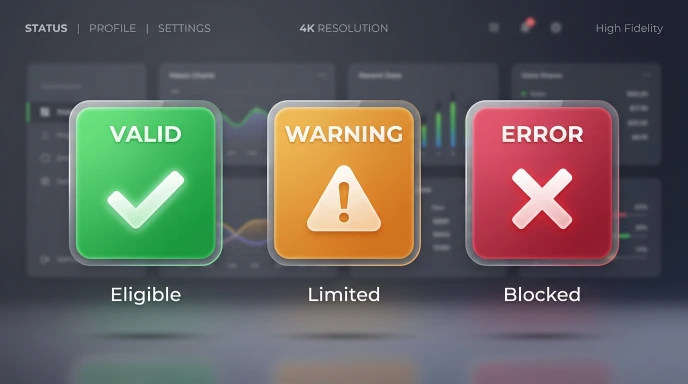
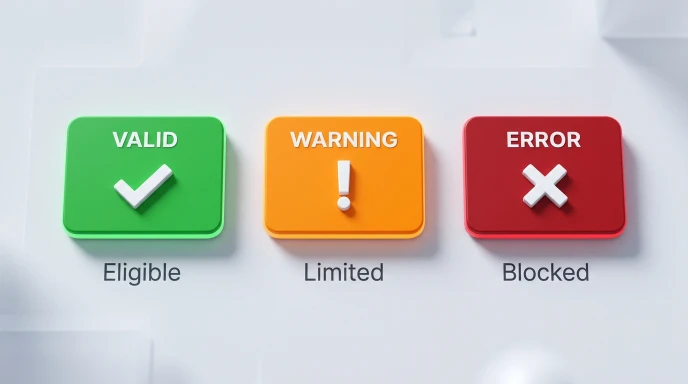
Valid — Schema is correct, and the page is eligible for rich results. Valid with warnings — Schema works but is missing recommended properties. Rich results will show, but not at full potential. Error — Schema has critical problems. This page is not eligible for rich results in this category.
Understanding Errors vs Warnings — What Actually Matters
This distinction confuses a lot of people. Both sound bad. One actually blocks your rich results; the other just limits them.
Errors (Red) are blocking. If a page has a schema error, Google will not show rich results for that page — no stars, no FAQ dropdowns, no price display. The page still appears in search results as a standard blue link, but all the visual enhancements are gone. Fix errors immediately.
Warnings (Orange) are limited. Your results still show, but they are missing elements that could make them more prominent. For example, an Article schema without a image property will still get Article rich results, but without a thumbnail image in Google Discover. Warnings represent improvement opportunities, not emergencies.
From an EEAT perspective, warnings matter beyond just visual appearance. Properties like author.url, author.sameAs, and publisher.logo help Google verify the identity of the person or organization behind your content. Adding these recommended fields does not just make warnings disappear — it strengthens the trust signals Google uses to assess your content’s authoritativeness.
How to Read Individual Enhancement Reports
Click into any Enhancement report — let’s use “FAQ” as an example. You will see a trend graph at the top showing how the number of valid, warning, and error pages has changed over time.
What the trend line tells you:
If your error count is rising steadily over two to four weeks, a systematic change caused it — most likely a plugin or theme update affecting all pages that use that schema type. You are not dealing with isolated page issues; you need to find the root cause at the template or plugin level.
If your error count spiked sharply on one specific date, look at what changed that day. Was there a plugin update? Did you push a theme change? Did you migrate to a new hosting environment? Check your WordPress update log for that date.
If your error count is flat but has always been high, the schema was never correctly implemented in the first place. Work through the list page by page.
Clicking individual pages:
Each page in the report shows you the specific error or warning. The most common errors you will see:
- Missing field: image — Your Article schema has no
imageproperty, or the image URL is broken - Missing field: price — Your Product schema has no
pricespecified - Missing field: datePublished — Your Article schema is missing the publication date
- Invalid value: availability — Your schema says
InStockbut the format is incorrect (should behttps://schema.org/InStock)
Using the URL Inspection Tool to Debug Live Schema
GSC Enhancement reports show data from Googlebot’s last crawl. That crawl might be days or weeks old. If you have just fixed an error and want to verify the fix before waiting for a re-crawl, use the URL Inspection Tool.
At the top of any GSC page, there is a search bar. Paste the URL of the page you want to inspect. In the inspection panel, click Test Live URL. This forces GSC to fetch the page right now and shows you what Googlebot would see in real time.
Scroll down in the inspection panel to the Enhancements section. It shows every piece of structured data found on the live page — the current state, not the cached state.
This is especially useful after fixing a schema error. Test the live URL, confirm the fix is showing correctly, then click Request Indexing to push that page to the front of the re-crawl queue.
Step-by-Step: Fixing Schema Errors Permanently
Step 1 — Identify the source of the error
Open the error in the Enhancement report. Note the specific property that is missing or invalid. Then ask: where does this schema come from? Check three places:
- Your SEO plugin settings (Yoast, Rank Math)
- Your theme’s functions.php or template files
- Manually added JSON-LD in your page headers
Step 2 — Fix the data or regenerate the code
If the error is a missing field — like a missing image URL or price — add that information to the page in WordPress. The SEO plugin will automatically include it in the schema output on the next crawl.
If the error is from manually added JSON-LD and the code has a syntax issue, regenerate the schema using the WP Skillz Schema Markup Generator. This is the fastest way to eliminate syntax errors — the generator outputs clean, validated JSON-LD with all required fields included. Replace your existing code with the freshly generated version.
Step 3 — Validate before submitting
Before requesting re-indexing, paste your fixed code into Google’s Rich Results Test. Confirm it shows zero errors. If there are still warnings, evaluate whether those properties are feasible to add. Then paste the URL into GSC and click Test Live URL to confirm the fix is live on the actual page.
Step 4 — Request validation in GSC
Go back to the Enhancement report. Select the affected pages. Click Validate Fix. This tells Google to re-crawl these pages ahead of the normal schedule. GSC will update the error status within a few days to two weeks depending on your site’s crawl frequency.
Do not skip this step. Without clicking Validate Fix, Google re-crawls pages on its own schedule — which could be weeks. Validating queues your pages immediately.
Tracking Rich Result Performance After Fixing Errors
Fixing errors is the technical work. This is where you measure whether it was worth doing.
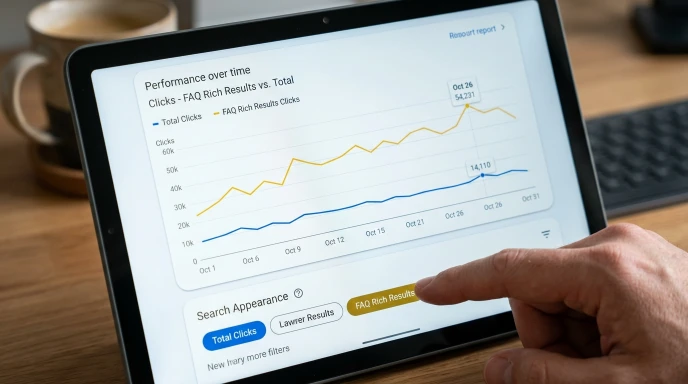
In GSC, go to Performance > Search Results. Click New in the filter row at the top and select Search Appearance. A dropdown shows available appearance types: FAQ Rich Results, Product Rich Results, Review Snippets, Video Results, and others.
Select one. The performance graph now shows only clicks and impressions from that specific rich result type — isolated from your standard organic traffic.
Compare the CTR (click-through rate) from rich results versus your overall organic CTR for the same pages. In most cases, rich result CTR is significantly higher — users respond to stars, prices, and FAQ dropdowns before they read a single word of your listing.
This comparison is the concrete proof that schema monitoring produces measurable returns. If you want to show a client or employer why time spent maintaining structured data is justified, this performance filter provides the numbers.
Preventing Future Errors — The Maintenance Routine
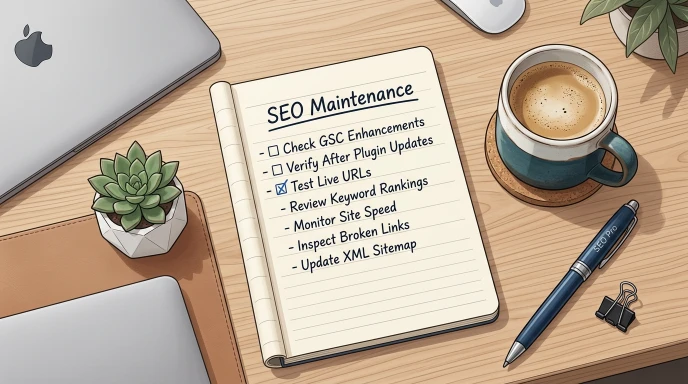
After every WordPress plugin update: Open GSC Enhancement reports. Confirm the total error count has not changed. Run a spot-check URL inspection on your highest-traffic product or article page.
After every theme update: Same check. Pay particular attention to pages where your theme generates schema automatically — product templates, archive pages, author pages.
Monthly: Review all Enhancement report trend lines. A slow upward trend in errors means something is silently breaking your schema over time.
After any content change affecting schema data: Price changes, review accumulation, event date updates — anything referenced in your schema should be checked for consistency with the live page content after it changes.
Use the WP Skillz SEO Content Analyzer alongside GSC to track content changes on your key pages. And for generating replacement schema quickly when errors appear, the Schema Markup Generator produces validated JSON-LD in seconds — no manual coding required.
Frequently Asked Questions
What does “Valid with warnings” mean in Google Search Console? Your schema is working and the page is eligible for rich results, but you are missing some recommended fields. Rich results will still appear, just not with every possible enhancement. Fix warnings when feasible — they improve both rich result quality and EEAT signals.
How long does GSC take to update after I fix a schema error? After clicking Validate Fix, Google re-crawls affected pages and updates the Enhancement report. This typically takes a few days to two weeks. Use the URL Inspection Tool to verify your fix is live on the page without waiting for the report to update.
What causes “Unparsable structured data” errors? A syntax error in the JSON-LD code — a missing comma, unclosed bracket, or invalid character. Google cannot even determine the schema type. Always use a validated generator like the WP Skillz Schema Markup Generator instead of hand-coding schema to prevent these errors entirely.
Can schema errors hurt my regular organic rankings? Schema errors do not directly reduce organic rankings. But they eliminate eligibility for rich results, which reduces CTR. Lower CTR over time is a negative engagement signal that can indirectly affect rankings. More importantly, fixing errors ensures you are getting the full search visibility your content deserves.
How do I fix schema errors if I do not know how to code? Identify which plugin is generating the broken schema using the URL Inspection Tool. Update that plugin’s settings to include the missing data. If the error is from manually added code, replace it with freshly generated code from the Schema Markup Generator — no coding knowledge required.
Conclusion — Make GSC Part of Your Monthly SEO Routine
Schema implementation takes an afternoon. Schema monitoring is a habit that protects that afternoon’s work indefinitely.
The Enhancement tab in Google Search Console is the most underused section of one of the most useful free tools in SEO. It tells you exactly what Google sees, exactly what is broken, and exactly which pages are eligible for the rich results that actually move your click-through rates.
Build the monthly check into your routine. Fix errors as they appear. Track performance through the Search Appearance filter. And when you need clean, validated schema code fast, the WP Skillz Schema Markup Generator is there — free, no login, all major schema types supported.
Connect with me on LinkedIn if you have a specific GSC error you cannot figure out. I read every message.
Waseem Aijaz — WordPress Developer & SEO Specialist, WP Skillz Schema Markup Generator | All SEO Tools | About WP Skillz