Free Photo Link Generator — Upload Image and Get a Temporary Shareable URL Instantly
I’ll tell you the exact situation where I need this tool most.
A client sends me a WhatsApp message with a screenshot of a bug on their WordPress site. The image is 4MB. I’m on my phone. Sending it back to my team means downloading it, recompressing it, finding somewhere to host it, and sending the link. By the time I’ve done all that, I’ve spent five minutes on a 10-second problem.
Or — I open this tool. Upload. Set expiry to 1 hour. Copy link. Paste in team chat. Done in 20 seconds. Nobody needs a permanent copy of a bug screenshot. It lives for an hour, my team sees it, and then it’s gone automatically.
That’s the whole point of a photo link generator with built-in expiry.
You’re not trying to host images permanently. You’re not building a photo album. You just need a shareable URL right now, for a specific amount of time, that works anywhere — and then disappears when it’s no longer needed.
Personal Experience Tips :
I run an e-commerce platform and deal with Amazon, Walmart, eBay, and Shopify clients. I often need to send high-quality product images to my clients for review. However, every time I sent them via WhatsApp, the quality would drop, and my clients would get frustrated with the blurry results.
I was looking for a solution and searched on Google for tools that could generate image links, but I faced a major privacy issue. Most of those platforms would store my uploaded images, and I didn’t want anyone else to see my private business data. Plus, they didn’t offer a proper delete option.
That’s when I found this tool by WP Skillz, and it completely won my heart. It does exactly what I needed. It not only generates image links but also gives me a timer feature—I can set how long the link stays active before it automatically deletes itself. If I want to delete it immediately after the client has seen it, there is a direct delete button.
The best part? It works entirely on the client-side, not on a server. Since nothing is stored on a database, there is no risk of hacking or privacy leaks. It is the perfect, secure solution for any professional!
⚠️ My Personal Experience
Here is a tip for everyone using this tool: there is a “Share” button at the bottom. You can click it to easily share the link with others. Also, keep in mind that even if you clear your browser cache, the images will be deleted automatically—or you can simply use the timer to have them deleted even before that. It’s that simple and secure!
What Makes This Tool Different From Imgur, ImgBB, and Postimages
Most free image URL generators share the same problem: they host your image forever, show ads around it, push you to create an account, or give you no control over when the link expires.
Here’s the honest comparison:
| Feature | This Tool | Imgur | ImgBB | Postimages | Jumpshare |
|---|---|---|---|---|---|
| Temporary links | ✅ You set the time | ❌ Permanent only | ❌ No auto-delete | ✅ Limited options | ✅ Paid plan only |
| Expiry control | 1 min to 1 day | None | None | Fixed options | Fixed options (paid) |
| Manual delete | ✅ Delete button | ❌ Account required | ❌ Account required | ❌ No | ✅ Yes |
| No login required | ✅ | ❌ Pushes account | ✅ (limited) | ✅ (limited) | ❌ Account required |
| Social share buttons | ✅ 10 platforms | ❌ | ❌ | ❌ | ❌ |
| Custom link text | ✅ | ❌ | ❌ | ❌ | ❌ |
| Auto-delete on expiry | ✅ Server-side | ❌ | ❌ | ❌ | ✅ Paid |
| Privacy focus | ✅ Full client-side | ❌ | ❌ | ❌ | ❌ |
The key difference: this tool was built around the idea that not every image needs to live forever. Most images people share — screenshots, bug reports, design drafts, support photos — are temporary by nature. They’re useful for hours, not years. This tool treats them that way.
How the Photo Link Generator Works — The Full Technical Picture
Understanding the technology makes you use the tool correctly. Here’s exactly what happens when you upload an image:

Step 1 — File Upload via WordPress AJAX
When you click Generate Link, the tool sends your image to the server using a WordPress AJAX request to admin-ajax.php. This is the standard WordPress way of handling asynchronous file operations — it’s secure, uses WordPress’s built-in permission system, and works without page reloads.
The file is processed by WordPress’s wp_handle_upload() function — the same function WordPress uses internally when you upload images through the Media Library. This means the upload goes through WordPress’s standard security checks: file type validation, size checking, and sanitization.
Step 2 — Expiry Metadata Stored in .meta File
After upload, the tool creates a .meta file alongside the image. This file stores two pieces of information in JSON format:
expire— the Unix timestamp of when the image should be deleted (current time + your selected minutes)key— a unique MD5 hash generated from a random ID, used for secure deletion
So if you upload at 3:00 PM and select 1 Hour, the .meta file stores expire: 1715786400 (3:00 PM + 60 minutes converted to Unix time) and a unique key like a3f2b8c1....
This metadata approach is why the expiry system works reliably — the server knows exactly when to delete each file without needing a database or scheduled tasks.
Step 3 — The 5-Second Loading Animation
After you click Generate Link, a loading bar fills over 5 seconds. This isn’t just decorative — the 5-second delay gives the server time to fully process and write both the image file and the .meta file before the URL is returned. Attempting to serve a URL before the write is complete can result in broken links. The animation is a visual representation of an actual server operation.
Step 4 — URL Returned and Displayed
When the upload completes, the tool displays the direct URL to your image. This is a real URL pointing to the uploaded file in the WordPress uploads directory. Anyone with the link can view the image directly — no login required, no redirect, no ads wrapped around it.
You can optionally add custom link text — a label that replaces the raw URL when displayed. This is useful for sharing in contexts where you want a cleaner display, like documentation or client-facing messages.
Step 5 — Auto-Deletion on Expiry
The auto-deletion runs on WordPress’s init hook — meaning every time any page on the site loads, the cleanup function checks all .meta files and deletes any image where time() > expire. There’s no cron job required, no scheduled task setup, no external service.
It runs naturally as part of the site’s existing traffic. On a moderately visited site, a 1-hour image will typically be cleaned up within minutes of its expiry — not hours.
This is the privacy-first approach: images don’t linger on servers after they’ve served their purpose.
Step 6 — Manual Delete
The Delete Now button sends a request to a second AJAX endpoint with your unique key. The server finds the .meta file matching that key, deletes both the image and the .meta file, and confirms deletion. No account needed — the key in your session is the only authentication required.
This means you can share an image, realize you shared the wrong one, and delete it within seconds — before anyone else opens the link.
Here’s the complete flow summarized:
| Action | What Happens Technically |
|---|---|
| Upload image | wp_handle_upload() saves file to uploads directory |
| Select expiry | Current time + minutes = Unix timestamp stored in .meta |
| Click Generate | 5-second load → AJAX returns direct file URL |
| Copy link | navigator.clipboard.writeText() copies URL |
| Custom text | Display label replaces raw URL in the interface |
| Delete Now | AJAX request with key → unlink() removes image + meta |
| Auto-expiry | init hook checks all metas → deletes expired files |
How to Use the Photo Link Generator — Step by Step

1
Step 1 — Choose Your Image Click the upload field and select any image from your device. Supported formats: JPG, JPEG, PNG, GIF, WebP. Most phone screenshots are JPG or PNG and work immediately.
2
Step 2 — Select Expiry Time This is the feature that makes this tool unique. Choose how long you want the link to work:
- 1 Minute — for sharing something you want to immediately forget
- 5 Minutes — for a quick review in a live meeting or call
- 15 Minutes — for a short-window client review
- 30 Minutes — for sharing during a working session
- 1 Hour — the most common choice — covers most sharing scenarios
- 6 Hours — for sharing across a half-day
- 12 Hours — for overnight sharing with a team in a different timezone
- 1 Day — for client feedback cycles that need 24 hours
3
Step 3 — Click Generate Link The loading bar animates for 5 seconds while the server uploads and processes the file. When it finishes, the URL appears below.
4
Step 4 — Optionally Add Custom Text If you want the link to display as “Client Review Screenshot” instead of a raw URL, type that in the custom text field. The display updates immediately.
5
Step 5 — Copy and Share Click Copy Link. The URL goes to your clipboard. Paste it in WhatsApp, Slack, Discord, Telegram, an email, a support ticket, a GitHub issue — wherever you need it.
6
Step 6 — Use the Share Buttons Ten social platform buttons appear below the link — WhatsApp, Facebook, Instagram, Telegram, TikTok, YouTube, Pinterest, Snapchat, Skype, and X. Click any to open that platform with the link ready to share.
7
Step 7 — Delete When Done Click Delete Now if you want to remove the image before it expires naturally. Useful if the review is done early, if you shared the wrong image, or if you simply want the file gone immediately.

Quick Social Media Content If you need a direct image URL for a social platform that requires a hotlink rather than an upload — Discord profile pictures, forum avatars, HTML embed codes — this gives you a clean direct link instantly.
Temporary Portfolio Samples Showing a client a specific piece of work for a proposal, but you don’t want it permanently accessible? Set 24 hours, send the link with the proposal. After the decision is made, the image is gone.
When to Use a Temporary Image URL — Real Situations Where This Saves Time
I’ve been using tools like this for years. Here are the specific situations where a temporary photo link generator is genuinely the right tool:
WordPress Bug Reports When a WordPress site has a visual bug — a layout issue, a broken element, an error message — a screenshot tells the story immediately. Upload here, set 6 hours, paste the link in the support ticket or developer chat. No file attachments, no shared drives, no “I can’t open that format.”
Client Design Reviews A client needs to see two versions of a hero image to choose between them. Upload both, get two links, send both in an email. They open each in a browser, pick one, the links expire overnight. No cloud folder setup, no permissions to manage.
Team Screenshots in Slack or Discord Slack’s image previews in free workspaces are limited. Discord has file size limits. Instead of fighting with file size restrictions, upload here and paste a direct image URL. It renders as a proper image preview in most chat apps.
Support Tickets on WordPress Hosting Platforms Most WordPress hosting support systems accept URLs but not file attachments over a certain size. Upload here, paste the URL, support team sees the screenshot, ticket gets resolved. Link expires after the issue is closed.
The Privacy Advantage — Why Expiry Matters More Than Most Tools Admit
Every image you upload to Imgur, ImgBB, or Postimages stays on their servers indefinitely — or until you manually delete it with an account. Most people never delete them. Over years, platforms accumulate images that nobody actively manages.
This tool takes a different position: images should exist only as long as they’re needed.
The .meta expiry system means the server has a clear contract with each uploaded file. When the clock runs out, the file goes. There’s no orphaned image sitting on a server in 2028 that you uploaded today and forgot about.
For screenshots that contain sensitive information — error messages with system details, browser console outputs, client site issues, payment-related screenshots — temporary hosting is the responsible choice. Share what you need to share. Let it expire. Move on.
This is particularly relevant for WordPress developers who regularly take screenshots of client sites, admin panels, plugin settings, and error logs. None of that needs to live permanently on a third-party server.

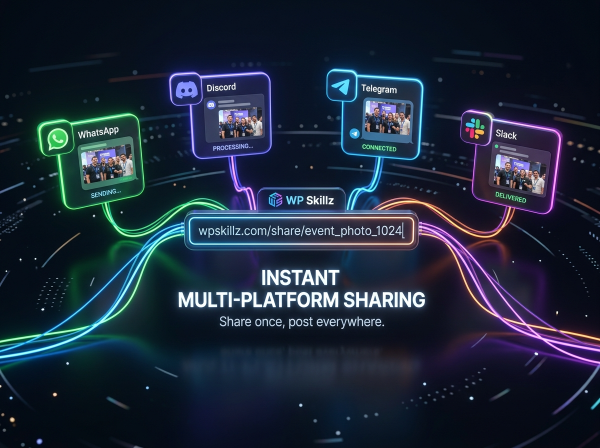
X (Twitter) — Direct image URLs render as preview cards on X when shared correctly.
TikTok, YouTube, Pinterest, Snapchat, Skype — Platform-specific sharing for content creators and team communication.
What the Social Share Buttons Do
After generating your link, ten social sharing buttons appear. Here’s what each one is useful for specifically:
WhatsApp — The most common sharing channel for client communication in many markets. Your image URL opens a WhatsApp message pre-filled with the link. Recipients see the image preview directly in the chat.
Telegram — Popular with developer communities and WordPress groups. Telegram renders direct image URLs as inline previews in channels and group chats.
Facebook — When you paste a direct image URL in a Facebook post or message, Facebook renders a preview. Useful for sharing design work in Facebook Groups for feedback.
Instagram — Instagram doesn’t support external link sharing in posts, but the button opens Instagram so you can use the URL in bio or stories.
Discord — Discord renders direct image URLs as inline image previews. This is the most useful platform for quick image sharing in developer communities — paste the link and the image displays immediately in the channel.
Image URL Formats — Where You Can Use the Generated Link
Once you have your direct image URL, here’s exactly where and how to use it:
In HTML:
<img src="YOUR_IMAGE_URL" alt="Description of image">In WordPress Block Editor: Paste the URL in an Image block’s URL field. The image renders inline in the post.
In Markdown (GitHub, Notion, Discord):
In Discord: Simply paste the URL in any channel. Discord automatically renders direct image URLs as inline previews.

In Email: Use as an <img> src in HTML emails. Recipients see the image without downloading an attachment.
In CSS (as background):
.element {
  background-image: url('YOUR_IMAGE_URL');
}
In WordPress Custom HTML Widget: Paste into any HTML field in WordPress. The image loads from the URL without using your Media Library.
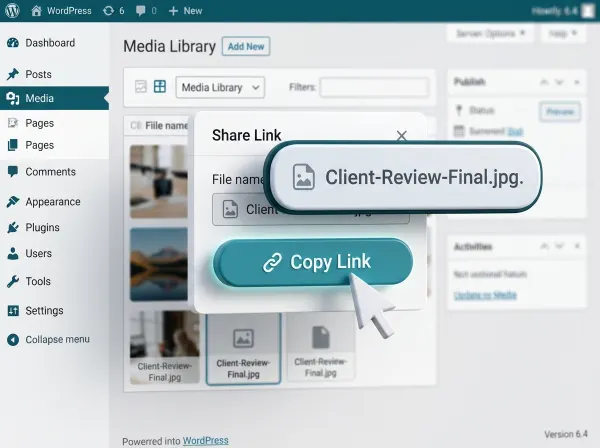
Supports all common image formats — JPG, JPEG, PNG, GIF, WebP. Every format WordPress supports, this tool accepts.
Benefits of Using a Photo Link Generator for WordPress Developers
WordPress developers work with images constantly — screenshots, mockups, error captures, client assets. Here’s why a free image URL generator fits naturally into a WordPress development workflow:
Faster client communication — No more emailing compressed screenshots or setting up shared Google Drive folders for a single image. Generate a link, paste in email, done.
Clean WordPress Media Library — Testing images don’t end up in your WordPress Media Library and stay there forever. Temporary uploads here auto-delete, keeping your library clean.
No Cloudinary or external service setup — For quick one-off sharing, you don’t need to configure an external image CDN. This tool handles it in 20 seconds.
WordPress-native security — The upload uses wp_handle_upload() — the same function WordPress uses internally. Files go through the same validation as any WordPress media upload. No third-party service touching your images.
Common Questions — Answered Directly
How do I generate a photo link for free with auto-expiry?
Upload your image using the tool above, select your expiry time (from 1 minute to 1 day), and click Generate Link. The tool uploads your file, creates an expiry record, and returns a direct URL. When the time runs out, the server automatically deletes both the image and its metadata. No account needed.
What happens when the image link expires?
The server’s cleanup process deletes the image file and its associated metadata file. Anyone who opens the URL after expiry gets a 404 error — the file no longer exists on the server. This is intentional — the image is gone, not just hidden.
Can I delete the image before it expires?
Yes. The Delete Now button sends a deletion request to the server using your unique session key. The image and its metadata are deleted immediately. The URL stops working within seconds of deletion.
What image formats does the photo link generator support?
JPG, JPEG, PNG, GIF, and WebP — the same formats WordPress supports natively. The upload uses WordPress’s wp_handle_upload() function which validates file type before accepting the upload.
Is my image private? Can anyone find it without the link?
The image URL is not listed anywhere publicly — it’s a direct file URL in the WordPress uploads directory. Anyone who has the exact URL can view the image. Anyone without the URL cannot find it by browsing. For genuinely private images, don’t upload them to any web-based tool — but for screenshots and temporary sharing, this level of access control is appropriate.
Why does the tool take 5 seconds to generate the link?
The 5-second loading animation corresponds to the server completing two file writes: the image file and the .meta expiry file. Returning the URL before both writes are complete can result in a broken link. The 5-second wait ensures the URL is valid and immediately accessible when it appears.
Photo Link Generator Checklist — Before You Share Any Image
Quick check before sending a link:
- Correct image selected — not an old version or wrong file
- Appropriate expiry time selected for how long the link is needed
- Link copied and tested in a new browser tab before sharing
- Custom link text added if sharing in a formal context
- Sensitive information in the image reviewed — is temporary hosting appropriate?
- Recipients notified that the link is temporary and will expire
- Delete Now button used if sharing is done before expiry
Share Images the Way They Were Meant to Be Shared
Most images people share online are inherently temporary. A screenshot of a bug, a quick mockup for client approval, a photo for a support ticket, a reference image in a design discussion. None of these need to live on the internet for years.
But most image hosting tools treat every upload like a permanent addition to a library. You get ads around your image, pressure to create an account, and files that sit on someone’s server indefinitely with no clear end date.
This photo link generator works differently. You set the time. The image lives for exactly that long. Then it’s gone — automatically, server-side, without you having to remember to delete it.
Upload your image. Set your time. Share the link. When you’re done, it deletes itself.
The tool is above. Your first link is 20 seconds away.
WP Skillz — WordPress tutorials, tools, and honest developer experience. Built for developers who want temporary sharing without permanent clutter. 🔗 Linkedin
What the WP Skillz Community Says
Average Rating: 4.9/5 based on our beta users