Free Website Malware Scan — Find Vulnerabilities, See Exact File Locations & Fix Instructions
A client messaged me on a Tuesday afternoon. Their WooCommerce site had been live for three years, generating consistent revenue, ranking well for their target keywords. Something was off that day — Google was showing a “This site may be hacked” warning in search results.
🛡️ Deep-Scan Forensic Auditor
Identifying the exact file, the reason for infection, and the manual fix.
Scanning Core Assets & Heuristic Patterns...
🛑 Forensic Analysis Report
Our engineers can clean your site manually within 2 hours.
By the time they noticed, the damage was already done. Their traffic had dropped 60% in 48 hours. Google had flagged the domain. The site was injecting visitors to a pharmacy spam page through a hidden redirect in footer.php. The hackers had been there for at least two weeks, silently poisoning the site’s SEO equity.
A standard malware scanner would have told them “malware detected.” Not helpful. What they actually needed was: which file, why it’s there, and exactly how to remove it.
That’s what this tool does.
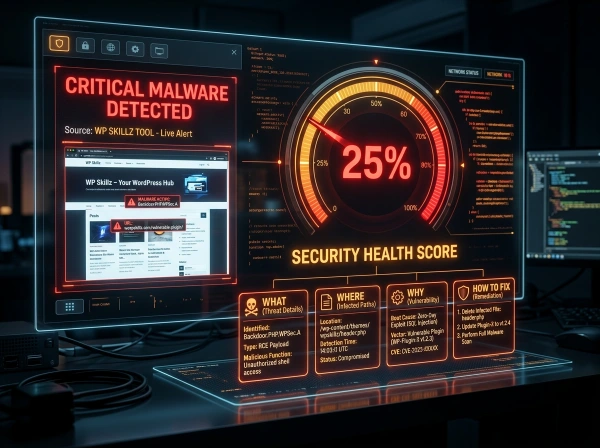
Enter your URL above. The scanner fetches your site’s public HTML, analyzes it against known malware signatures, assigns a security health score, and — critically — tells you the probable infected file location, the reason the malware was injected, and the exact manual steps to remove it.
No other free tool does all four of those things together.
⚠️ My Personal Experience
Let me share a personal story from my own experience. I had a client based in the USA whose website was called “FP Insoles.” Unfortunately, someone attacked and hacked their site. I took over the management of the website to resolve the issue and fix the problem, but when I searched the internet and even asked AI tools, I couldn’t find a single working solution to repair it. The hacker had completely changed the website’s URLs.
I was under immense pressure at that time, but I didn’t give up. I manually went deep into the WordPress files, cleaned out the malware, and used specific security plugins. (You can actually find the exact guide and the plugins I used by going to our top menu, clicking on Blog, and searching for this case study). That entire ordeal cost me a lot of time and money before I finally found a permanent solution.
After that experience, I dedicated six months to working on this problem and built a dedicated tool. Now, users only need to enter their website URL, and the tool will instantly show all the details—including whether there is a virus or malware present. This URL scanner is completely free, and in the future, we will be rolling out even more advanced updates, features, and new editions. For now, make sure to bookmark this page and start using the tool!
2026 Expert Tip:
Here is a 2026 expert tip from me: whenever you build a new website, make sure to install the Wordfence plugin. Even the free version is highly effective and will keep your website secure. For malware and virus scanning, you can use our tool to get a full, detailed report on your site’s safety.
What Makes This Scanner Different From Sucuri, CleanTalk, and SiteLock
Most free website security scanners share the same problem: they tell you something is wrong without telling you enough to actually fix it.
Sucuri SiteCheck says “malware found” with a risk rating. CleanTalk shows you a list of detected patterns. SiteLock shows a security grade and immediately pushes you toward a paid plan. None of them tell you which specific WordPress file is likely infected, why the malware was planted there, or how to manually remove it.
This tool takes a forensic approach. Every detected threat comes with four pieces of information:
What it is — The specific malware type and what it’s doing.
Where it probably is — The most likely WordPress file location (wp-config.php, functions.php, footer.php, header.php, or JavaScript files). This is based on known infection patterns for each malware signature.
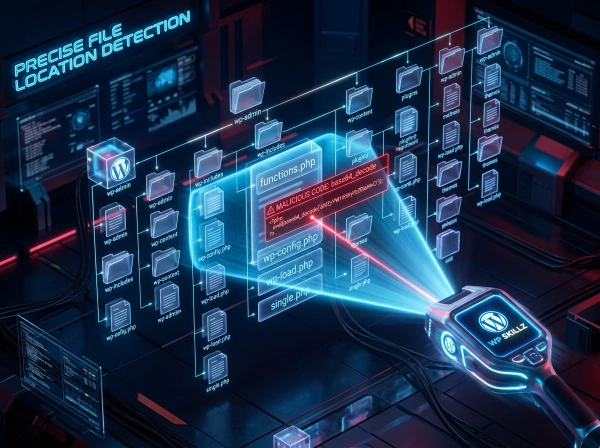
Why it’s there — What the attacker gains from this specific injection. Understanding the motive helps you understand the severity.
How to remove it — Specific, actionable manual steps. Not “contact our security team.” The actual fix.
Here’s the direct comparison:
| Feature | This Tool | Sucuri SiteCheck | CleanTalk | SiteLock |
|---|---|---|---|---|
| Malware detection | ✅ | ✅ | ✅ | ✅ |
| Security health score | ✅ | ✅ | ❌ | ✅ |
| Probable file location | ✅ | ❌ | ❌ | ❌ |
| Reason for infection | ✅ | ❌ | ❌ | ❌ |
| Manual removal steps | ✅ | ❌ | ❌ | ❌ |
| Site screenshot | ✅ | ❌ | ❌ | ❌ |
| No login required | ✅ | ✅ | ✅ | ✅ |
| No paywall push | ✅ | ❌ | ❌ | ❌ |
| Emergency expert contact | ❌ | ❌ | ❌ |
How the Website Vulnerability Scanner Works — The Technical Explanation
This tool uses a server-side forensic engine built on WordPress, making it more reliable than purely client-side scanners that are blocked by certain security configurations.

1
Step 1 — Fetching the Target Site
When you click START DEEP SCAN, the tool sends a wp_remote_get() request to your URL with a 20-second timeout. This request uses a Chrome-compatible user agent, which means the server sees a real browser visit — not a bot that many sites block. SSL verification is flexible, so sites with mixed SSL configurations still get scanned correctly.
The tool captures both the full HTML response body and the HTTP response headers. Most scanners only look at HTML. HTTP headers reveal additional security information — server software version, security header configuration, and response codes that indicate redirects or blocks.
2
Step 2 — Malware Signature Detection
The forensic engine scans the captured HTML against a database of known malware signatures. Each signature has been identified from real WordPress infections. Here’s what the scanner currently checks for:
Encrypted PHP Backdoor (base64_decode) Base64 encoding is a common obfuscation technique that hackers use to hide malicious PHP code from basic scanners. When a WordPress file contains base64_decode in combination with eval(), it almost always means someone is executing encoded commands remotely. The code looks like garbage but decodes to commands that give the attacker full access to the server.
3
Step 3 — Security Score Calculation
The tool starts with a score of 100. Each detected malware signature reduces the score by 25 points. A site with all four signatures scores 5% (the floor — to avoid showing 0 for sites that might have partial false positives).
This scoring maps directly to severity:
100% — No known signatures found. Clean on public-facing scan. 75% — One issue detected. Investigate immediately. 50% — Two issues. Likely compromised. Take action today. 25% — Three issues. Serious active infection. Immediate remediation needed. 5% — All four signatures detected. Critical — site is severely compromised.
4
Step 4 — Site Screenshot
The results panel shows a live screenshot of your site generated via the image.thum.io API at 500px width. This confirms the scanner analyzed the right URL and gives you a visual of what visitors currently see — including any visible defacement or redirect behavior that has been captured in the screenshot.
5
Step 5 — Forensic Report Output
Each detected issue displays as a card with color-coded risk levels (Critical in red, others in blue). The card shows the four forensic elements: title, probable file location, the reason the attack was planted there, and the manual removal steps.

Crypto-Jacking Virus (CoinHive and WebMine) Cryptocurrency mining scripts use your visitors’ CPU power to mine Monero or Bitcoin for the attacker. The site owner gets nothing. Visitors experience dramatically slow performance — CPU usage spikes to 90-100% the moment they land on the page. Many visitors think their computer has a virus and never return.
CoinHive was shut down in 2019 but numerous clone services emerged. The scanner checks for coinhive, WebMine, and similar known mining script identifiers.
Step 2 — Malware Signature Detection Full Explanation
The tool flags any page that loads or renders content from a file containing this pattern. Probable location: wp-config.php, functions.php, or index.php.
Malicious Script Injector (api.clod.xyz and similar domains) Hackers inject <script> tags loading JavaScript from their own domains into WordPress theme files. These scripts redirect visitors to phishing sites, adult content, or online pharmacies. The redirect is often conditional — it only fires for visitors coming from Google, so the site owner using direct access never sees it. The client from my opening story had this exact injection in their footer.
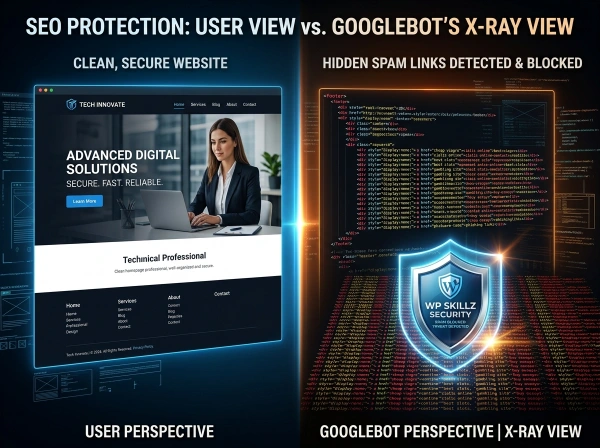
SEO Spam Injection (display:none hidden links) This is one of the most profitable hacks for attackers and the most damaging for site owners. Hidden <div> elements with style="display:none" contain dozens of links to gambling sites, pharmaceutical sites, or adult content. These links are invisible to human visitors but fully visible to Google’s crawler.
The result: Google crawls your site and discovers it’s linking to spam. Your domain authority gets associated with those sites. Rankings drop. In severe cases, Google manually removes the site from search results entirely.
How to Use the Website Malware Scan — Step by Step
Step 1 — Enter Your URL Type the full URL including https://. You can scan your own WordPress site, a client’s site, or any publicly accessible website. The scanner fetches the public-facing page — it cannot access admin areas or password-protected pages.
Step 2 — Click START DEEP SCAN The spinner runs while the server fetches and analyzes the target. Most scans complete in 5–15 seconds depending on the target server’s response speed.
Step 3 — Check Your Security Score The score in the left panel gives you an instant summary. 100% means clean on this scan. Anything below 75% needs immediate investigation.
Step 4 — Review the Forensic Report Each finding card tells you exactly what was detected and where to look. Open your WordPress file manager or FTP client and navigate to the indicated file. Search for the pattern described in the “How to Remove” section.
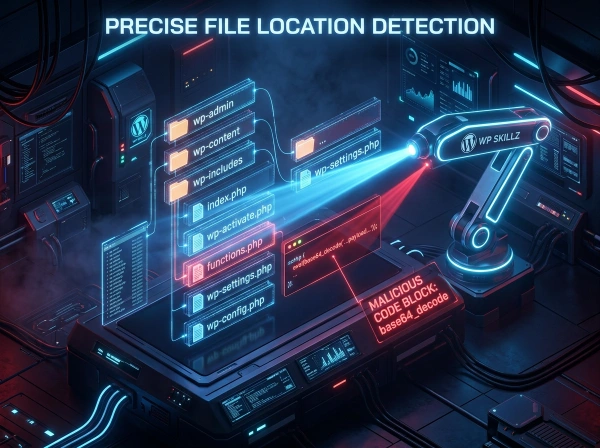
Step 5 — Use the Manual Removal Steps The remedy for each issue is specific enough to act on without needing a developer. If you’re not comfortable editing WordPress files directly, use the Emergency Malware Removal contact (WhatsApp button in the results panel) to reach our WordPress security team.
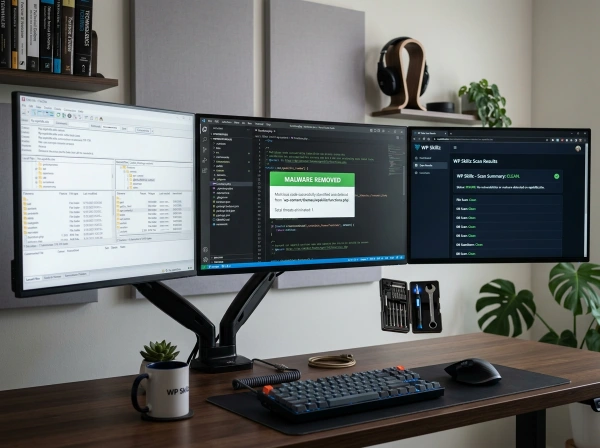
Step 6 — Re-scan After Cleanup Once you’ve removed the identified code, run the scan again to confirm the signature no longer appears in the page output.
This tool is your first line of detection. It catches the most common and most damaging front-end infections quickly. For deeper server-level auditing, combine this with a Wordfence full site scan inside your WordPress dashboard.
What This Scanner Cannot Detect — Being Honest About Limitations
Every security scanner has limitations. I’d rather tell you clearly what this tool can and can’t do than have you rely on it for something it wasn’t designed for.
What this scanner detects: Malware signatures visible in the publicly rendered HTML of a page. If the malicious code appears in the source code that a browser (or the scanner’s server request) receives, it will be detected.
What this scanner cannot detect: Server-side only malware that doesn’t affect the rendered HTML — backdoors in PHP files that haven’t been triggered yet, database injections that activate only under specific conditions, malware in files that aren’t loaded on the URL you scan, or infections that are blocked by IP-based targeting (showing clean content to scanner IPs while showing malware to regular visitors).
For server-side and file-level malware, you need a plugin-based scanner running on your WordPress installation directly — tools like Wordfence or Sucuri Security plugin can scan PHP files and database entries that an external scanner cannot reach.
Why Malware Is a WordPress SEO Emergency — Not Just a Security Problem
Most site owners treat malware as a technical issue. It’s actually an SEO emergency.
Google Safe Browsing maintains a list of sites distributing malware or involved in phishing. When your site gets flagged, Google displays a red warning page before visitors can access your site. Organic traffic drops to nearly zero within days because even users who click your search result are stopped by the warning.
Google Search Console sends a message to verified site owners when it detects malware — but only if you’ve verified ownership. Many WordPress site owners haven’t connected Search Console and never see the notification. The ranking drop is the first sign.
Manual Action is the most severe consequence. Google’s spam team can apply a manual action to your domain, requiring a reconsideration request after cleanup. Recovery from a manual action takes weeks to months, even after the malware is removed.
Backlink devaluation is the long-term consequence of SEO spam injection. Even after you clean the infected site, any links Google crawled while the spam was present have already contributed to the association between your domain and the spam sites. Some domains never fully recover their pre-infection authority levels.
Running a regular website malware scan — monthly at minimum — catches infections before they trigger Safe Browsing flags, before Google demotes rankings, and before the SEO damage compounds.
Website Security Checklist for WordPress — Monthly Audit
Run through this alongside the malware scan:
External scan (this tool):
- Security score is 100% — no signatures detected
- Re-scan after any major plugin update or theme change
- Screenshot shows your normal site — no visible defacement
WordPress admin checks:
- No unrecognized admin accounts in Users → All Users
- No recently modified core files (check via Wordfence File Monitor)
- Google Search Console shows no manual actions or security issues
File-level checks (via FTP or cPanel):
- wp-config.php contains only expected database configuration
- functions.php has no base64_decode blocks you didn't add
- footer.php has no hidden div blocks with external links
- header.php has no unknown external script tags
Preventive measures:
- WordPress core is on the latest version
- All plugins are updated — especially security plugins
- Theme is from a reputable source and updated
- Strong, unique password on all admin accounts
- Two-factor authentication enabled for admin login
- Cloudflare or WAF active on the domain
Frequently Asked Questions
What does this website malware scan check for?
The scanner fetches your site’s public HTML and checks for four known malware signatures: base64-encoded PHP backdoors, malicious script injection (external JS loading from hacker domains), SEO spam (hidden links in display:none divs), and crypto-jacking scripts (CoinHive and similar miners). Each detected threat shows the probable file location, why it was planted, and how to remove it manually.
Why does my site show a low score even though it looks normal?
Many malware injections are invisible to regular visitors — they redirect only Google traffic, or they’re in hidden div elements that don’t display. A site can look completely normal while serving malware to search engine crawlers or visitors arriving from specific sources. A low score means something suspicious was detected in the source code, even if the visible site appears unchanged.
Can I use this to scan competitor or client websites?
Yes. The scanner fetches publicly available page source — the same HTML any browser receives. You can scan any public URL. This is useful for auditing client sites before starting a project, checking competitor sites for security issues, or verifying that a site you’re about to link to isn’t compromised.
What should I do if the scanner finds malware?
Read the “How to Remove” section in the finding card carefully. For base64 backdoors, open the indicated file via FTP and search for the pattern. For script injection, check header.php for unknown script tags. For SEO spam, check footer.php for hidden divs. If you’re not comfortable editing WordPress files directly, use the WhatsApp emergency contact in the results panel — our team can clean the site manually within 2 hours.
Why does this scanner show file locations while Sucuri and CleanTalk don't?
Most scanners are designed for general audiences and keep results high-level. This tool was built specifically for WordPress developers and site owners who need enough information to actually take action. Showing the probable file location and manual removal steps reduces the friction between “problem detected” and “problem fixed.”
How often should I run a website malware scan?
At minimum, once a month. Run an immediate scan after any of these events: a plugin update (especially security plugins), a theme update, a new user added to the admin area, or any unexplained traffic drop or ranking change. Malware infections often follow plugin vulnerabilities that are disclosed publicly — attackers scan for sites running vulnerable versions and inject within hours of disclosure.
The Four Malware Types — What They Mean for Your WordPress Site
PHP Backdoors — The Silent Remote Access Tool
A PHP backdoor is the most dangerous type of WordPress infection because it gives the attacker ongoing, persistent access. Even if you change all passwords and update everything, a backdoor allows the attacker to re-enter and re-infect at any time.
The most common pattern: eval(base64_decode('..a long string of characters..')). The base64 string decodes to commands that create an admin user, download additional malware, or execute arbitrary server commands.
The reason attackers use base64 encoding is simple: it bypasses most basic security filters. A plain-text eval(system('rm -rf /')) would be caught immediately. Encoding it in base64 makes it look like harmless data.
How to find it manually: Access your server via FTP or cPanel File Manager. Open wp-config.php and functions.php. Press Ctrl+F and search for eval(base64_decode. If you see it and you didn’t write it, delete the entire code block containing it. Also check index.php in the root directory.
Malicious Script Injection — Redirecting Your Visitors
Script injection attacks add JavaScript to your theme files that redirects visitors to other sites. The attacker profits from affiliate commissions, ad views, or selling redirect traffic to spam networks.
The most sophisticated versions are conditional — they only redirect visitors who arrive from Google, Bing, or Facebook. If you navigate directly to the URL, you see your normal site. This is why these infections often go undetected for weeks.
How to find it manually: Open your theme’s header.php file. Look for any <script src= tags that reference domains you don’t recognize. Any external script loading from a .xyz, .tk, .ml, or similar low-cost TLD is highly suspicious. Remove the entire script tag.
SEO Spam Injection — Stealing Your Link Equity
Link injection attacks are financially motivated attacks that steal your site’s accumulated SEO authority. Your domain has spent years building credibility with Google. The attacker exploits that by using your site to link to their spam properties.
Google’s algorithm sees your site recommending gambling sites. Your domain association with those sites damages your own rankings. The hidden links are also frequently used to create artificial backlink profiles for sites selling counterfeit goods.
How to find it manually: Open your theme’s footer.php. Look for any <div> elements with inline CSS display:none. Inside those divs, you’ll typically find dozens of anchor tags linking to external sites. Delete the entire hidden div block.
Crypto-Jacking — Draining Your Visitors' CPUs
Crypto-jacking is unusual among malware types because it doesn’t redirect users or steal data — it steals processing power. Every visitor’s browser is forced to run mining calculations. The attacker receives the cryptocurrency. Your visitors leave your site with a hot laptop, a dead phone battery, and no idea why your site is so slow.
This type of infection disproportionately affects mobile visitors, whose devices heat up and drain within minutes of landing on an infected page. High bounce rates often follow crypto-jacking infections because users associate the performance degradation with the site.
How to find it manually: Search all JavaScript files in your WordPress theme folder for CoinHive, WebMine, cryptonight, or min.js files loaded from unrecognized domains. Remove any script tags or JS file contents that match.
Use It Before You Assume Anything
The site owner in my opening story lost two weeks of revenue and months of SEO recovery time because they didn’t know the infection was there. A scan would have caught it in 15 seconds.
The difference between a standard malware scanner and this one: standard scanners tell you something is wrong. This tool tells you what, where, why, and how to fix it. That difference is the difference between knowing you have a problem and actually being able to solve it without paying for a security service.
Run the website malware scan above. Check your security score. If anything is flagged, read the forensic report, open your files, and remove what shouldn’t be there. Then run it again to confirm it’s clean.
Your site. Your rankings. Your visitors. Protect all three.
WP Skillz — WordPress security, tutorials, and developer tools. Built by a WordPress developer who has cleaned malware from client sites one too many times. 🔗 Linkedin
What the WP Skillz Community Says
Average Rating: 4.8/5 based on our beta users