Free HD Image Converter — Bulk Image Compressor, Resizer & Format Converter in One Tool
Every WordPress developer I know has the same problem before uploading images to a site.
The client sends over 30 product photos. Raw from a camera or downloaded from stock. Each one is 4MB, 6MB, sometimes 8MB. JPG format, no compression, no resizing, no optimization whatsoever.
You can’t upload these to WordPress. Well — technically you can. But you shouldn’t. Unoptimized images kill page speed. They destroy Core Web Vitals scores. They blow up your WordPress hosting storage. And Google ranks slow sites lower, every time.
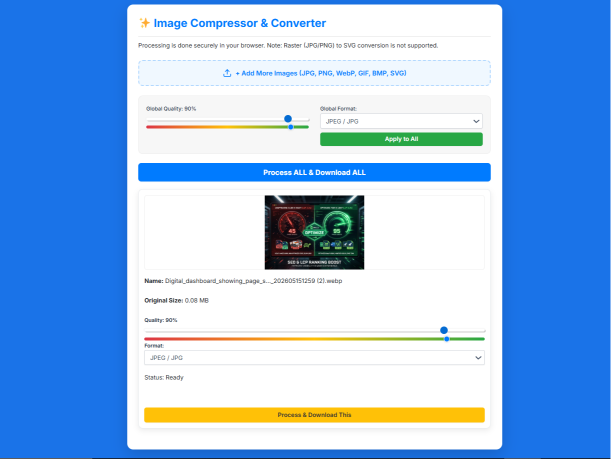
✨ Image Compressor & Converter
Processing is done securely in your browser. Note: Raster (JPG/PNG) to SVG conversion is not supported.
The standard approach: open each image individually in a tool, compress it, download it, repeat 30 times. That takes forever. Or you use a tool like TinyPNG — but TinyPNG uploads your files to a server, limits you to 20 images, and doesn’t let you choose the output format.
This tool does everything differently.
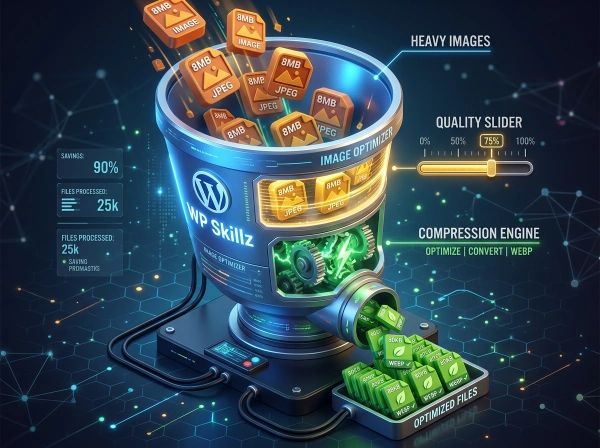
Upload all 30 images at once. Set a global quality level. Choose a global output format. Click “Process ALL & Download ALL.” Every image gets processed in your browser — nothing is uploaded anywhere — and downloads individually. Done in under two minutes.
⚠️ My Personal Experience
Do you wish there was a safe place where you could compress, change the format, or improve the quality of your family or personal photos? Well, you have found exactly that place.
I want to share a personal story behind why I built this. I come from a household where privacy is taken very seriously, and I am the same way—I never upload my private photos to random websites on the internet. Once, I needed to upload some official documents and family photos for a formal application. The requirements were for high-quality PNGs, but all I had were low-quality JPGs from my phone. I was very worried about uploading them to some random online converter because of privacy concerns.
I started searching for a solution and found out about the technology behind this tool, which the WP Skillz team has developed. This tool is built with a “Zero-Knowledge Architecture,” meaning it fully respects your privacy. When you upload a photo, it stays entirely on your device—it never travels to a server or a database. Everything is processed on your browser (client-side), so there is no risk of your data being hacked or stolen. Once you clear your browser cache or close the tab, the files are gone.
I now use this tool for everything. If the tool ever feels slow, it is only because it relies on your device’s processing power rather than a server. If you are using a good device, it will work incredibly fast; if your device is older, it might be slightly slower. Even on my oldest devices, it has worked perfectly so far. If you want to use it, just scroll down for the details and start processing your images safely!
Pro Tips:
Here is a quick tip from my side: if you want to change the format and quality of your photos in one place with just a single click, this is the tool for you. Whether you have 10, 20, or even 100 photos, you can process them all at once with just one click. And the best part? Once they are ready, you can download them all together in a single file. You are in the right place—scroll down and start using the tool now!
What This Tool Does — All Features in One Place
This is a genuine all-in-one bulk image resizer and HD image converter. No feature is locked behind a login or a paid plan. Here’s everything it handles:
Compress images — Reduce file size using the quality slider. Lower quality = smaller file. Set quality to 70% for aggressive compression (still looks fine for web), 85% for a balanced result, 95% for near-lossless.
Convert image format — Change any image from JPG to PNG, JPG to WebP, PNG to JPG, WebP to JPG, BMP to JPG, or any other combination from the supported formats. Each image can be converted to a different format independently.
Bulk processing — Upload as many images as needed (up to 50MB each). Process all with one click. Or process each image individually if you want different settings per file.
Quality control per image — Every image card has its own quality slider and format selector. Set different compression levels for different images — high quality for hero images, lower quality for thumbnails.
Global settings — Use the Global Quality slider and Global Format selector to set a standard across all images, then apply with one click. Perfect for batch processing where everything needs the same output spec.
SVG support — SVG files can be uploaded and downloaded. Since SVG is a vector format, quality compression doesn’t apply — SVGs download in their original vector format.

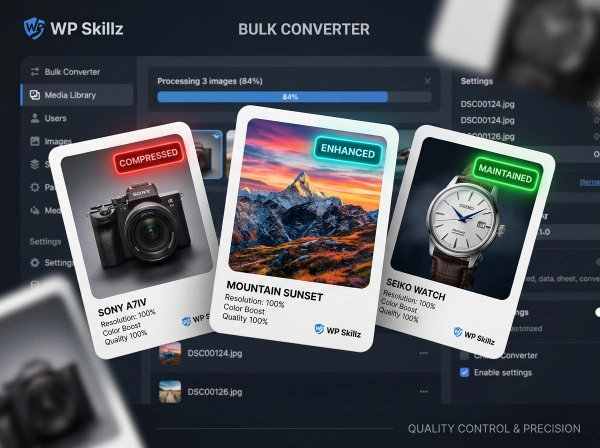
Status badges — After processing, each image shows a badge: Compressed (red — file got smaller), Enhanced (teal — file got larger because quality was increased), or Quality Maintained (green — file size stayed similar).
100% client-side privacy — Nothing leaves your browser. Your images are processed using the Canvas API and never sent to any server.
Here’s the complete feature comparison:
| Feature | This Tool | TinyPNG | Adobe Compress | iLoveIMG | RedKetchup |
|---|---|---|---|---|---|
| Bulk processing | ✅ Unlimited | ❌ 20 limit | ❌ | ✅ Limited | ✅ |
| Format conversion | ✅ JPG/PNG/WebP/BMP | ❌ Compress only | ❌ | ✅ Some | ✅ Some |
| Per-image quality control | ✅ | ❌ | ❌ | ❌ | ✅ |
| Global apply to all | ✅ | ❌ | ❌ | ❌ | ✅ |
| SVG support | ✅ | ❌ | ❌ | ❌ | ✅ |
| Status badge (compressed/enhanced) | ✅ | ❌ | ❌ | ❌ | ❌ |
| 100% browser-side | ✅ | ❌ Uploads to server | ❌ Server | ❌ Server | ❌ Server |
| Login required | ❌ Never | ❌ Free (20 limit) | ✅ Required | ❌ | ❌ |
| File size limit | 50MB each | 5MB each | 25MB | 25MB | 10MB |
How the Tool Works — The Technology Behind It
This is the part that matters for WordPress developers who want to understand what they’re actually using.
Canvas API — The Core Processing Engine
When you click Process & Download on any image, the tool creates an HTML <canvas> element in memory. It draws your image onto the canvas using ctx.drawImage(), then calls canvas.toBlob() with two parameters: the MIME type of the output format and the quality value.
The toBlob() method is the browser’s native image compression and format conversion function. Here’s exactly how it works:
canvas.toBlob(function(newBlob) {
    // newBlob is the compressed/converted image
    downloadFile(newBlob);
}, mimeType, quality / 100);.
The mimeType parameter controls the output format — image/jpeg, image/png, image/webp, or image/bmp. The quality parameter (0 to 1) controls the compression level. A quality of 0.85 means 85% quality, which is the standard recommendation for web images.
Important: PNG format ignores the quality parameter because PNG is lossless — it always preserves full quality. The quality slider only affects JPEG and WebP output. BMP is also lossless and ignores quality settings.
The Quality Slider — What Each Level Means in Practice
The slider goes from 10% to 100%. Here’s what each range actually means for your images:
10–40% (Aggressive compression):
Visible quality loss, but file sizes drop dramatically. Good for tiny thumbnails, avatar images, or situations where maximum file size reduction is the priority. A 3MB photo at 20% quality might become 80KB.
50–70% (Balanced for web):
Minimal visible quality loss for photographic images. This range is what most CDNs use for automatically optimized images. Google’s own Lighthouse tool recommends serving images at around 70% JPEG quality for web use.
80–90% (High quality web):
Excellent quality, files still significantly smaller than originals. This is the sweet spot for WordPress featured images, hero images, and product photos. At 85% quality, most people cannot tell the difference from the original.
95–100% (Near-lossless):
Almost no compression. Files may be larger than originals if the original was already compressed. Useful for images that will be edited further after download.
Format Conversion — Which Format for What
JPEG / JPG:
Best for photographs. Uses lossy compression — smaller files, slight quality loss. Not suitable for images needing transparency. The most universally supported image format.
PNG:
Best for graphics, logos, screenshots, and anything with text. Lossless compression — no quality loss but larger files than JPEG. Supports full transparency. Essential when you need to remove backgrounds.
WebP:
Google’s format, specifically designed for web use. Typically 25-35% smaller than equivalent JPEG at the same visual quality. Supported by all modern browsers. WordPress natively supports WebP since version 5.8.
BMP:
Uncompressed bitmap. Large files but universal compatibility. Rarely needed for web use but occasionally required for specific software or printing workflows.
GIF (Note: First frame only):
The tool can convert an image to GIF format, but the Canvas API only captures a single frame. Animated GIFs cannot be processed — only the first frame is preserved. For animated GIF conversion, you’d need a dedicated tool.
SVG — Why It's Handled Differently
SVG (Scalable Vector Graphics) is a fundamentally different type of file from JPG, PNG, or WebP. Those are raster formats — grids of pixels. SVG is a vector format — mathematical descriptions of shapes.
You cannot meaningfully compress an SVG with the Canvas API because the Canvas rasterizes the SVG (converts it to pixels) before drawing. Converting an SVG to PNG via Canvas is actually a format change, not compression of the original vector.
The Status Badge System
After processing, each image shows one of three status badges:
Compressed (red badge):
The new file is more than 0.5% smaller than the original. This is the most common result when lowering quality or converting from PNG to JPEG.
Quality Enhanced / Larger File (teal badge):
he new file is more than 0.5% larger than the original. This happens when you increase quality above the original compression level, or when converting JPEG to PNG (since PNG is lossless and typically larger than equivalent JPEG).
Quality Maintained (green badge):
The file size changed by less than 0.5%. The image was processed but without significant size change — common when re-exporting at similar quality to the original.
How to Use the Bulk Image Compressor — Step by Step
1
Step 1 — Upload Your Images Click the upload area (the blue dashed box) and select as many images as you want. Or drag and drop files directly onto it. You can upload more images after the initial batch by clicking the upload area again — new cards are added to the existing ones.
2
Step 2 — Review Each Image Card Each uploaded image gets its own card showing: a preview, the filename, and the original file size in MB. The quality slider defaults to 90% and the format defaults to JPEG.
3
Step 3 — Set Global Settings (Optional but Recommended for Bulk) If you want all images processed the same way, use the Global Quality slider and Global Format dropdown at the top. Then click “Apply to All.” Every image card updates simultaneously.
If you need different settings for different images — keep quality high for hero images, compress thumbnails harder — adjust each card individually.
4
Step 4 — Choose Your Action
Option A — Process All at Once: Click “Process ALL & Download ALL.” The tool processes every image sequentially and downloads each one as it completes. For 30 images, this takes about 15-30 seconds depending on your device speed.
Option B — Process Individual Images: Click “Process & Download This” on any single card. Useful when you want to preview results before committing to a setting.
5
Step 5 — Check the Status Badges After processing, each card shows a badge. Red means the file got smaller (what you usually want). Teal means the file got larger (happens when converting JPEG to PNG or increasing quality). Green means approximately no change.
6
Step 6 — Repeat if Needed Not happy with the compression level? Change the slider and click Process again. The tool re-processes without needing to re-upload.
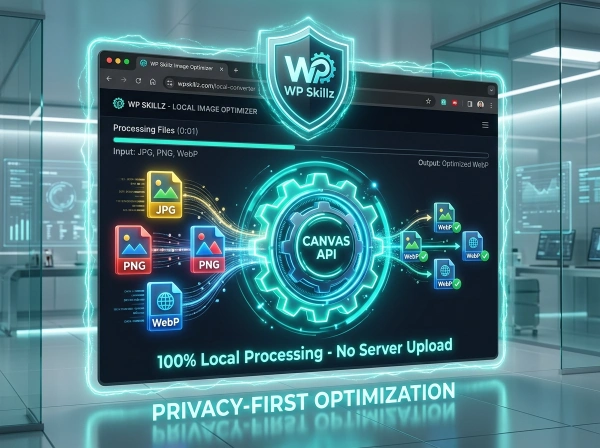
For a WordPress developer working on client sites, this is genuinely significant. Client images stay on your machine. Nothing gets accidentally stored or indexed elsewhere.
Why Client-Side Processing Matters — The Privacy Argument
Every time you upload an image to TinyPNG, Adobe Compress, or iLoveIMG, that image travels over the internet to a server you don’t control. The server processes it, stores it temporarily (sometimes up to 48 hours), and serves it back.
For most generic web images, this is probably fine. But consider:
Family photos being optimized for a family blog post. They upload to a third-party server in a data center you’ve never heard of.
Client design assets — mockups, product photos, brand imagery — sent to an external server as part of your development workflow.
Screenshots with sensitive information — error messages, admin panels, client data visible in screenshots.
Medical or legal images — documents that have genuine privacy requirements.
This tool processes everything in your browser using the Canvas API. The images never leave your device. There’s no network request made for image data. No server receives your files. When you close the tab, the images are gone from memory completely.
Where Image Compression Matters Most for WordPress SEO
Images are the biggest contributor to page weight on most WordPress sites. HTTP Archive data shows images account for over 50% of median web page bytes. Google’s Core Web Vitals scoring directly penalizes slow-loading images through LCP (Largest Contentful Paint).
Here’s where compression makes the biggest ranking impact:
Hero/Banner Images: The largest image on most pages, almost always the LCP element. A 5MB uncompressed hero image almost guarantees LCP failure. Target under 150KB at 85% quality.
Featured Images (Blog Posts): WordPress generates multiple sizes — thumbnail, medium, large, full. All generated from your uploaded source. Upload a smaller, pre-compressed source and all WordPress-generated variants are proportionally smaller.
WooCommerce Product Images: E-commerce pages often show 8-12 product images per page. Unoptimized product photos destroy mobile performance. Compress to under 100KB each before uploading.
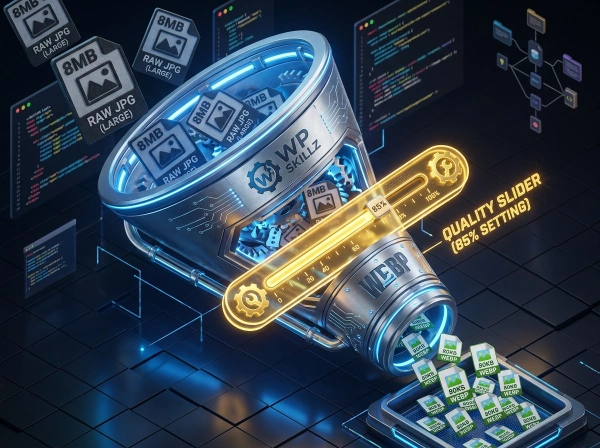
Gallery Images: Gallery plugins load all gallery images on page load by default. 20 unoptimized gallery images at 4MB each = 80MB page weight. At 85% quality with WebP: 20 images at ~60KB each = 1.2MB. That’s a 66x reduction.
Background Images (CSS): Background images don’t benefit from WordPress’s lazy loading. They load immediately. Keep CSS background images under 200KB, ideally under 100KB.
Image Optimization Checklist for WordPress — Before Every Upload
Run through this before uploading any image to the WordPress Media Library:
Format selection:
- Photograph → JPEG at 80-85% quality
- Logo/Icon with transparency → PNG
- Web image for modern browsers → WebP
- Screenshot or text image → PNG
Size targets (general guidelines):
- Hero image → under 200KB
- Featured image → under 100KB
- Product image → under 80KB
- Thumbnail → under 30KB
- Background image → under 150KB
Processing checks:
- Status badge shows "Compressed" — file is smaller than original
- Visual quality looks acceptable at the intended display size
- File processed and downloaded successfully
- No error messages appeared during processing
WordPress-specific:
- Filename is descriptive (not "IMG_4392.jpg")
- Alt text planned before upload
- Image dimensions appropriate for intended use (don't upload 4000px wide image for a 300px thumbnail)
Common Questions — Answered Directly
What is the difference between image compression and image conversion?
Compression reduces the file size of an image while keeping the same format — a JPEG stays JPEG but gets smaller. Conversion changes the format — JPEG becomes PNG or WebP. This tool does both simultaneously: you can compress a JPEG and convert it to WebP in the same step.
Why does converting JPG to PNG make the file larger?
PNG is a lossless format — it stores every pixel with full precision. JPEG uses lossy compression that reduces file size by removing data. When you convert JPEG to PNG, the PNG stores all the data that the JPEG was already compressing, resulting in a larger file. This is expected behavior and is why the tool shows a teal “Larger File” badge when this happens.
Can I compress images to a specific KB size like 100KB or 50KB?
Not directly — the quality slider controls compression level, not a specific output file size. To hit a specific target size, start with a lower quality (try 60-70%) and check the resulting file size shown in the status. Adjust the slider up or down and reprocess until you reach your target. For very specific size requirements (like government portal submissions requiring exactly 50KB), you may need a dedicated target-size compressor.
Does converting to WebP work for WordPress?
Yes. WordPress has supported WebP natively since version 5.8 (released July 2021). You can upload WebP files directly to the WordPress Media Library, use them in posts, set them as featured images, and add them to galleries. All modern browsers (Chrome, Firefox, Safari, Edge) display WebP correctly.
Is it safe to process client images in this tool?
Yes — and it’s actually safer than most alternatives. Because processing is 100% client-side using your browser’s Canvas API, client images never leave your computer. No data is transmitted over the internet. No server stores your files. When you close the browser tab, the images are gone from memory. This is genuinely important for client confidentiality.
Why can't I see a quality slider for SVG files?
SVG is a vector format — it stores mathematical descriptions of shapes, not a grid of pixels. Quality compression (which works by removing pixel data) doesn’t apply to vector files. SVGs are downloaded in their original format without any processing. If you need to optimize SVG file size, use an SVG-specific optimizer like SVGO which removes unnecessary metadata and path data.
Image Format Guide for WordPress Developers
Understanding which format to use for which situation saves you from the most common WordPress image mistakes:
JPG/JPEG — The Default for Photographs
Use JPG for: hero images, background images, product photos, blog post featured images, any photographic content.
Avoid JPG for: logos, icons, images with text, anything needing transparent backgrounds.
The quality sweet spot for WordPress: 80-85%. At 85%, a typical 5MB raw photo compresses to under 300KB with no perceptible quality loss. That’s a 94% file size reduction.
PNG — When You Need Transparency or Sharpness
Use PNG for: logos with transparent backgrounds, screenshots, UI mockups, images with text, icons, anything where pixel-perfect sharpness matters more than file size.
Note: PNG files converted from JPEG don’t gain transparency — the transparent areas from the original source need to exist. Converting JPEG to PNG simply gives you a lossless version of the JPEG’s existing content.
WebP — The Best Format for Modern WordPress Sites
Use WebP for: everything, ideally. WebP gives you JPEG-level quality at 25-35% smaller file sizes. All modern browsers support it. WordPress Media Library accepts WebP files. Google’s Core Web Vitals scoring rewards WebP images.
If your WordPress theme or plugin generates image variants automatically (most modern setups do), check whether it’s outputting WebP. If not, converting your source images to WebP before upload is the next best thing.
The limitation: some older email clients and certain social media platforms don’t display WebP correctly. If you’re specifically creating images for email or specific social platforms, JPEG is safer.
Converting JPG to PNG — When and Why
The most common misconception: people convert JPG to PNG thinking they’ll get better quality. You won’t. Converting JPG to PNG gives you a lossless version of whatever quality was already encoded in the JPEG. Existing JPEG compression artifacts are preserved — the PNG just stops adding new ones.
The right reason to convert JPG to PNG: you need to edit the image further and don’t want additional compression applied on each save. PNG is lossless on re-saves; JPEG loses quality every time you save it.
The other right reason: you need to remove the background. Background removal tools require PNG. Convert your JPEG source to PNG first, remove the background in an editor, save as PNG with transparency.
Process Images Right, Every Time
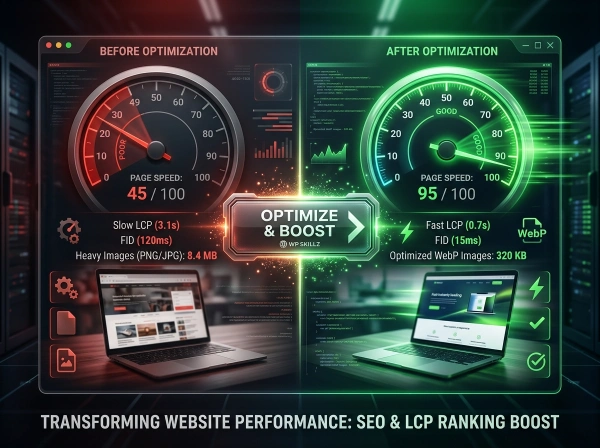
The difference between a WordPress site with 45 PageSpeed score and one with 85 is usually images. Not the content. Not the theme. Not the hosting. Images.
An uncompressed hero image fails your LCP. A gallery full of 4MB product photos fails your Total Blocking Time. A background PNG that should be WebP adds hundreds of milliseconds to your First Contentful Paint.
These aren’t abstract technical problems. They’re ranking problems. Google measures them. Visitors feel them. Sites that fix them rank higher and convert better.
This bulk image compressor exists to make the fix easy. Upload everything at once. Set your quality. Choose your format. Process all. Download all. No server. No login. No limits.
Your images, processed correctly, in under two minutes.
WP Skillz — WordPress tutorials, tools, and honest developer experience. Built for WordPress developers who take image optimization seriously. 🔗 Linkedin
What the WP Skillz Community Says
Average Rating: 4.9/5 based on our beta users