
“Ever since I started using the Mobile Responsive Checker by the WP Skillz team, my problem has been completely solved. This is my firsthand experience with the tool, and it genuinely stands out from anything else on the market. Honestly, I am amazed—features that other platforms don’t even include in their paid subscriptions are being offered here entirely for free.
Whether it’s a laptop, an iPhone, or Android models like the Samsung Galaxy and Google Pixel, this tool targets and simulates them flawlessly. I used to wonder how my website would look if someone opened it on a giant LED TV screen, and this tool solved that problem for me, too! Huge thanks to the WP Skillz team.”
Here is something that happens more often than most developers admit.
A client signs off on a WordPress site. Everything looks clean on the desktop. You tested it in Chrome DevTools — mobile view looked fine. You delivered the project. Three weeks later, the client calls. Their bounce rate is 74%. Their mobile traffic has dropped 30% from the previous month.
You log into Google Search Console and find a stack of “Mobile Usability” errors. Touch targets too close together. Content wider than the screen. Clickable elements too small.
The site was not broken. It was not unresponsive. But it had three specific mobile layout problems that Google’s algorithm had flagged — and every mobile visitor was experiencing them, whether they noticed or not.
That situation is preventable. Every single time. The tools exist, they are free, and they take less than two minutes to run.
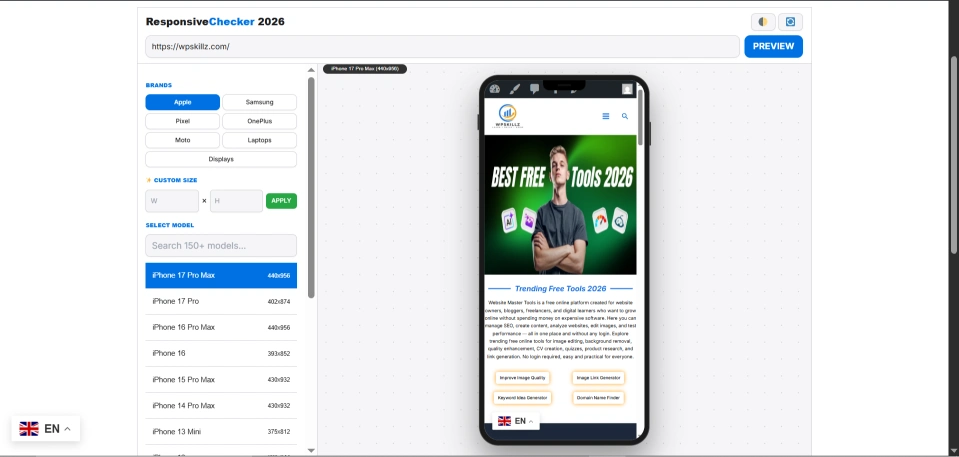
Why “Responsive” and “Mobile-Friendly” Are Not the Same Thing
This distinction is where most developers and site owners go wrong, and it directly affects rankings.
Responsive means the layout resizes based on screen width. Your CSS media queries kick in, columns stack, font sizes adjust. The site fits the screen.
Mobile-friendly means the site actually works well for mobile users. The text is readable without zooming. Buttons are large enough to tap accurately. The page loads quickly on a mobile connection. Navigation makes sense on a touch screen.
A site can be responsive — technically resizing correctly — while still failing every mobile-friendly test. A layout that scales down to 390px wide but has 12px font sizes, buttons 20px apart, and a 4-second load time on mobile is responsive. It is not mobile-friendly.
Google’s mobile-first indexing evaluates both. The layout must fit the screen, AND the experience must be functional for real users. Running a mobile responsive checker shows you the layout. Running a speed test shows you the performance. Both checks are required before any site launch.
The 3 Mobile Layout Mistakes That Actually Hurt Rankings
In years of auditing WordPress sites, these three problems appear most consistently. Each one is visible in a responsive checker. Each one is fixable with specific CSS changes.
Mistake 1 — Fixed-Width Elements Causing Horizontal Scroll
This is the most common mistake on WordPress sites built with page builders. A developer sets an element to width: 1200px — matching the desktop design perfectly. On mobile, that element is wider than the screen. The user has to scroll horizontally to see the full content.
Horizontal scrolling is one of the clearest signals of a broken mobile experience. Google’s mobile crawler detects it immediately and flags it as “Content wider than screen” in Search Console.
The fix:
css
/* Wrong - breaks on mobile */
.hero-section {
    width: 1200px;
}

/* Correct - adapts to any screen */
.hero-section {
    width: 100%;
    max-width: 1200px;
}
Never use absolute pixel widths for container elements. Always use max-width with width: 100%. This preserves your desktop design while eliminating horizontal scroll on smaller screens.
Open the WP Skillz Responsive Website Checker and select a 390px iPhone viewport. If you see a horizontal scrollbar at the bottom, you have this problem somewhere in your CSS.
Mistake 2 — Touch Targets Too Close Together
Mobile users navigate with their thumbs, not a mouse cursor. Apple’s Human Interface Guidelines recommend a minimum tap target size of 44×44 points. Google’s guidelines suggest a minimum of 48×48 pixels with at least 8px of space between adjacent targets.
When navigation links, buttons, or form elements are placed too close together, users accidentally tap the wrong element. This is not just a usability frustration — it is a Google Search Console error category: “Clickable elements too close together.”
This error appears most often in:
- Mobile navigation menus where links are stacked with minimal padding
- Footer link lists where multiple URLs sit close together
- WooCommerce product pages where the ” Add to Cart and Wishlist buttons are adjacent
- Blog post tag clouds where multiple tags cluster together
The fix: Add explicit padding to all interactive elements on mobile.
css
@media (max-width: 768px) {
    .nav-link,
    .btn,
    a {
        padding: 12px 16px;
        min-height: 44px;
        display: inline-flex;
        align-items: center;
    }
}
Select the iPhone viewport in the responsive checker and physically try to identify which elements are too close together visually. If they look cramped on screen, they definitely fail the 44px tap target test.
Mistake 3 — Content Hidden Under the iPhone Notch or Navigation Bar
This mistake specifically affects sites with fixed or sticky headers. On iPhones with a notch or Dynamic Island, the device reserves space at the top of the screen for system UI. A CSS position: fixed header that does not account for this safe area will overlap with the notch — hiding navigation items or creating an awkward visual conflict.
A similar problem occurs at the bottom of the screen. On iPhones without a home button, a thin indicator bar sits at the bottom. Sticky footers, cookie consent banners, or floating chat buttons positioned at bottom: 0 can sit behind this bar — visible but untappable.
The fix: Use CSS environment variables that read the actual safe area dimensions.
css
.site-header {
    position: fixed;
    top: 0;
    padding-top: env(safe-area-inset-top);
}

.sticky-footer {
    position: fixed;
    bottom: 0;
    padding-bottom: env(safe-area-inset-bottom);
}
These variables automatically read the correct values for any iPhone model — including the Dynamic Island on iPhone 14 Pro and later. The same code works across all notch configurations without device-specific targeting.
How to Use the WP Skillz Mobile Responsive Checker Professionally
The WP Skillz Responsive Website Checker tests your site on 150+ devices simultaneously. Here is the exact workflow to use before any site launch or client delivery.
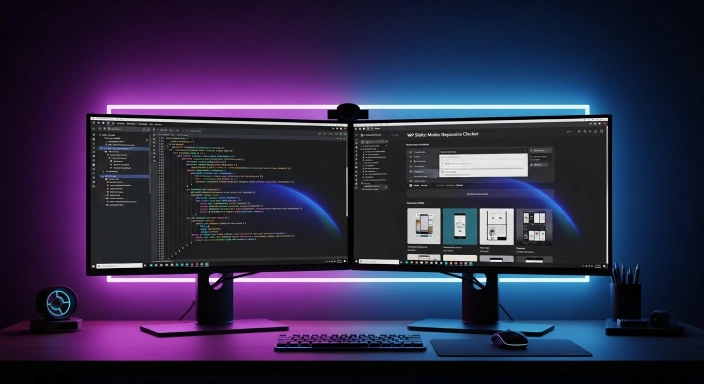
Step 1 — Test the primary mobile viewport
Select iPhone 13 / 14 / 15 / 16 (390×844px). This viewport covers the four most commonly owned iPhone models. Paste your URL. Look for:
- Any horizontal scrollbar
- Navigation items that appear cut off or overlapping
- Text that appears too small to read without zooming
- Buttons that look too close together
Step 2 — Test landscape orientation
Click the rotate button. Many developers test only portrait mode and miss landscape layout breaks. iPhone users rotate for video viewing, image galleries, and typing. A site that breaks in landscape is still a broken site.
Step 3 — Test across Android viewports
Select Samsung Galaxy (360px width). Select Google Pixel (393px width). The 30px difference between 360px and 390px catches layouts that work at the iPhone baseline but collapse at slightly narrower Android widths. This is a common source of “works on my phone, broken on theirs” client complaints.
Step 4 — Test smaller, older devices
Select iPhone SE (375×667px). Many users still use older, smaller-screen devices. If your site breaks at 375px, you are serving broken layouts to a significant portion of your audience.
Chrome DevTools vs Real Viewport Simulation — Why Both Matter
Chrome DevTools mobile mode is fast and convenient. It is also incomplete for professional testing.
DevTools resizes the browser window and simulates different viewport widths. What it does not simulate:
- The exact Pixel Density Ratio of specific devices (iPhone DPR is 3.0)
- Safari’s rendering behaviour (Safari handles certain CSS differently from Chrome)
- Safe area insets for notches and Dynamic Island
- The actual scroll behavior of iOS
For initial development checks, DevTools works well. For final testing before launch or client delivery, you need viewport simulation that reflects actual device dimensions and pixel ratios.
Use DevTools during development for speed. Use the Responsive Website Checker for final validation before delivery.
Mobile Responsive vs Paid Testing Tools
| Feature | WP Skillz Checker | Chrome DevTools | BrowserStack |
|---|---|---|---|
| Real device pixel ratios | ✅ Yes | ❌ Simulated only | ✅ Yes |
| Safe area simulation | ✅ Yes | ❌ No | ✅ Yes |
| 150+ device presets | ✅ Yes | ✅ Yes | ✅ Yes |
| Login required | ❌ Never | ❌ No | ✅ Yes |
| Cost | Free | Free | $29-$99/month |
| Landscape mode | ✅ Yes | ✅ Yes | ✅ Yes |
| Screenshot export | ✅ Yes | ✅ Yes | ✅ Yes |
For most WordPress developers, freelancers, and site owners, the WP Skillz checker covers every essential testing scenario at no cost. BrowserStack provides real device testing through cloud VMs — valuable for large agency projects with strict QA requirements, but unnecessary for most independent site builds.
Speed and Layout Together — Why One Without the Other Fails
Fixing your mobile layout is necessary but not sufficient.
A perfectly responsive site that loads in 5 seconds on mobile still fails Google’s Core Web Vitals assessment. LCP (Largest Contentful Paint) should be under 2.5 seconds. A 5-second LCP is a failing grade regardless of how clean the layout is.
After running your responsive checks and fixing layout issues, run the Website Speed Test on your mobile URL. Look at the mobile performance score specifically — desktop scores are secondary given Google’s mobile-first indexing.
Common mobile speed killers on WordPress sites:
- Unoptimized images loaded at full resolution on mobile
- Heavy JavaScript files are loading before the page renders
- No caching plugin configured
- Multiple external fonts are loading on every page
- Plugins adding render-blocking scripts to the header
If your responsive layout is clean but your mobile speed score is below 70, the ranking impact of the speed issue will outweigh any benefit from the layout work.
Also, run a malware scan on any site that shows unexpected performance drops — malicious scripts are a common cause of sudden mobile performance degradation that does not show up in normal testing.
Mobile Launch Checklist
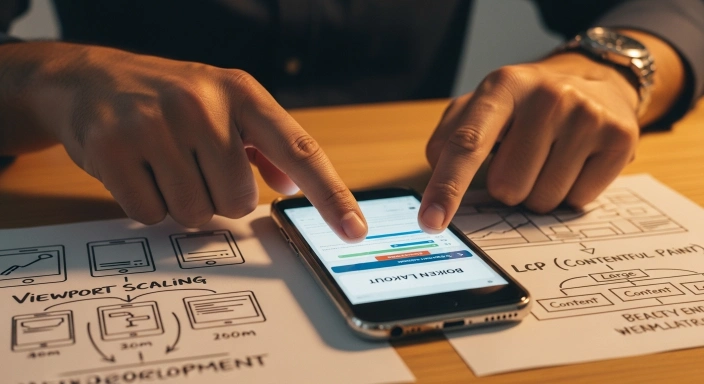
Run through this before delivering any WordPress project or publishing any new site:
Layout:
- Horizontal scrollbar absent at 390px, 375px, and 360px viewports
- Fixed header does not overlap notch or status bar
- Sticky footer not hidden by iOS home indicator
- Landscape mode tested — layout intact at all standard heights
Touch targets:
- All buttons minimum of 44×44px
- Navigation links have adequate padding
- No adjacent clickable elements closer than 8px apart
- Form fields large enough to tap without mis-tapping adjacent elements
Typography:
- Body text minimum 16px — no Safari auto-zoom on form tap
- Text is readable without pinch-to-zoom at any tested viewport
- Line height adequate for mobile reading comfort
Performance:
- Mobile PageSpeed score above 80
- Images compressed and appropriately sized for mobile
- No render-blocking resources flagged in speed test
Frequently Asked Questions
What is the best free mobile responsive checker? The WP Skillz Responsive Website Checker tests 150+ devices, including accurate iPhone and Android viewport dimensions, with no login required. It includes landscape mode testing and screenshot capability.
Why does Chrome DevTools miss some mobile layout bugs? DevTools resizes the browser viewport but uses Chrome’s rendering engine. Safari handles certain CSS properties differently — particularly100vh, form zoom behaviour, and safe area insets. These differences only appear in proper iOS viewport simulation, not Chrome-based emulation.
How do I fix the horizontal scroll on mobile? Identify the element causing overflow using Chrome DevTools (add * { outline: 1px solid red } to your CSS temporarily to visualise all elements). Replace any fixed-pixel widths on container elements with width: 100%; max-width: [original size]px.
Can I test localhost URLs with the responsive checker? Yes. The WP Skillz checker supports localhost URLs for testing during development before deployment.
How often should I run mobile responsive tests? Before every site launch, after every major theme update, and after every page builder version update. Theme and plugin updates frequently introduce CSS changes that break previously working mobile layouts.
Conclusion — Test Before Your Client Finds the Bug
The site from my opening story was not a bad site. It was a good site with three specific, fixable problems that nobody caught before launch. A two-minute responsive check during development would have found all three.
Mobile layout testing is not a final QA step you add at the end of a project. It is a habit you build into every stage of development. Test early. Fix immediately. Test again.
The WP Skillz Responsive Website Checker is free, requires no account, and covers 150+ devices. There is no reason to deliver any WordPress site without running it.
Connect with me on LinkedIn if you are dealing with a specific mobile layout issue — some responsive bugs require a different approach than standard CSS fixes.
Waseem Aijaz — WordPress Developer & SEO Specialist, WP Skillz Responsive Website Checker | All Dev Tools | About WP Skillz