“If you have arrived here to read this article, it means you want to master WordPress—and you are looking for a fast-track course that can teach you everything from beginner to advanced levels in just a few minutes. If so, you have come to the absolute right place! Here, you will be guided through every single step, from the core basics to advanced levels, explaining what WordPress is, how to use it, and how to build full-scale websites. Furthermore, if you are looking for deeply detailed articles or comprehensive tutorials, those are also readily available. Explore our website, enjoy the learning experience, and start growing your business today!”
Most WordPress tutorials show you how to install WordPress.
That part takes five minutes. It is not the part that matters.
What actually determines whether your WordPress site succeeds or fails in the next six months has nothing to do with the installation. It is the fifteen minutes of setup that happens immediately after — the settings most beginners skip because no tutorial covers them, the decisions about themes and plugins that determine your site’s performance ceiling, and the habits around images and security that prevent the slow, silent degradation that kills most new sites before they gain any traction.
I have been building WordPress sites professionally since 2014. Every site I have seen struggle had the same pattern: a correct installation followed by a chaotic setup that made the site progressively slower, messier, and harder to maintain over time.
This crash course covers everything that happens after the five-minute install — the part nobody tells you about.
Before You Install — Two Decisions That Affect Everything
Decision 1: Hosting
Your hosting choice determines your performance ceiling before you write a single line of content. A slow server cannot be optimized past a certain point — no amount of caching or image compression compensates for a server that responds in 1.5 seconds before serving anything.
For a new WordPress site in 2026, these are the only categories worth considering:
Budget option ($3-5/month): Hostinger’s basic WordPress plan or SiteGround’s starter plan. Both include LiteSpeed servers on their entry plans, which gives you server-level caching unavailable on many cheap shared hosting plans. Performance is genuinely acceptable for new sites under 500 daily visitors.
Mid-range option ($15-25/month): SiteGround’s GrowBig or Kinsta’s starter plan. Managed WordPress hosting with daily backups, server-level security, and performance optimization that beginners do not need to configure manually.
Avoid the cheapest shared hosting (under $2/month) for any site you intend to grow. The shared resources on these plans produce consistent TTFB above 1 second, which directly hurts your Core Web Vitals scores before you publish a single post.
Decision 2: Domain
Your domain name is permanent — changing it later is possible but creates redirect chains and temporary SEO disruption. Get it right from the start.
Use the WP Skillz Domain Name Finder to check availability across 35+ extensions simultaneously. Check whether similar domains on other extensions are already taken — if yourname.com is available but yourname.co.uk is owned by someone else in your industry, you will lose branded UK traffic to them.
Keep it short. Under 15 characters. No hyphens. No numbers. .com if available.
The Real 5-Minute Setup — What to Do Immediately After Installation
The WordPress installer takes five minutes. This next section takes another fifteen. Together, they determine how your site performs for the next several years.
Setting 1: Permalinks — Do This Before Publishing Anything
After WordPress installs, go to Settings > Permalinks. You will see it is set to “Plain” by default — this generates URLs like yoursite.com/?p=123.
Change it to “Post Name” immediately. This generates URLs like yoursite.com/your-post-title/.
Why this matters: readable URLs are a confirmed SEO signal. Google prefers yoursite.com/wordpress-speed-optimization/ over yoursite.com/?p=47. More importantly, if you publish posts with the default plain structure and then change permalinks later, every existing URL breaks. Anyone who linked to your content gets a 404. Google loses those indexed pages. This mistake costs real SEO progress.
Do it now, before any content exists.
Setting 2: Delete the Default Content
WordPress installs with a “Hello World” sample post, a “Sample Page,” and a default comment. Delete all three from the dashboard immediately.
Google crawls new sites quickly after they are indexed. Default content signals an unconfigured, potentially low-quality site. A clean installation with only intentional content signals a professionally managed property from the first crawl.
Setting 3: Configure Your Site Title and Tagline
Go to Settings > General. Set your site title to your brand name. Set the tagline to a one-sentence description of what your site does. This appears in browser tabs and sometimes in search snippets.
A blank tagline defaults to “Just another WordPress site” — the most generic signal possible.
Setting 4: Set a Static Homepage
If you are building a business site rather than a blog, go to Settings > Reading and set “Your homepage displays” to “A static page.” Select your homepage from the dropdown.
This prevents WordPress from using your blog post feed as the homepage — a layout that is appropriate for news blogs but unprofessional for business sites and confusing for first-time visitors.
Step 1: Choose Your Theme — Performance First
Your theme is the most impactful technical decision you make for site performance. A heavy theme can make a $50/month hosting plan perform like a $5/month plan. A lightweight theme makes $5/month hosting perform acceptably.
The rule: install a theme and run the WP Skillz Website Speed Test with nothing else active. If the mobile score is below 70 with only the theme installed, that theme is not the right choice regardless of how good it looks.
The three themes I recommend for most beginners:
Astra — The safest all-round choice. Under 50KB default load, 240+ free starter templates, excellent WooCommerce integration. Mobile scores of 88-94 with nothing else installed. For most small business sites and blogs, Astra is the right answer.
GeneratePress — The fastest option in independent benchmarks. Under 30KB default load, zero JavaScript by default. Less visual out of the box, but for performance-obsessed developers or sites where every millisecond matters, GeneratePress wins.
Neve — Best for mobile-first sites. Under 30KB, native AMP support, free drag-and-drop header builder that other themes charge for. If your audience is primarily mobile, Neve is the right choice.
After installing your theme, run the Responsive Website Checker to confirm it renders correctly at 390px (iPhone), 360px (Android), and 768px (tablet) before adding any content.
Step 2: Install Only These Four Plugins
This is where most beginners make the mistake that costs them the most. They install 15-20 plugins in the first week. Each plugin adds database queries, HTTP requests, and JavaScript to every page load.
Install exactly four plugins first:
SEO Plugin — Rank Math (free) Handles meta titles, meta descriptions, XML sitemap, and basic schema markup. Configure it once with your site name and homepage description, then it works automatically as you publish content. Do not install both Rank Math and Yoast — they conflict and double the resource usage.
Caching Plugin — LiteSpeed Cache (free) or WP Rocket ($59/year). This single plugin often improves mobile PageSpeed scores by 20-30 points. It saves static HTML versions of your pages and serves them directly instead of executing PHP and database queries for every visitor. Install it, enable basic caching settings, and rerun the speed test. The improvement is immediate and significant.
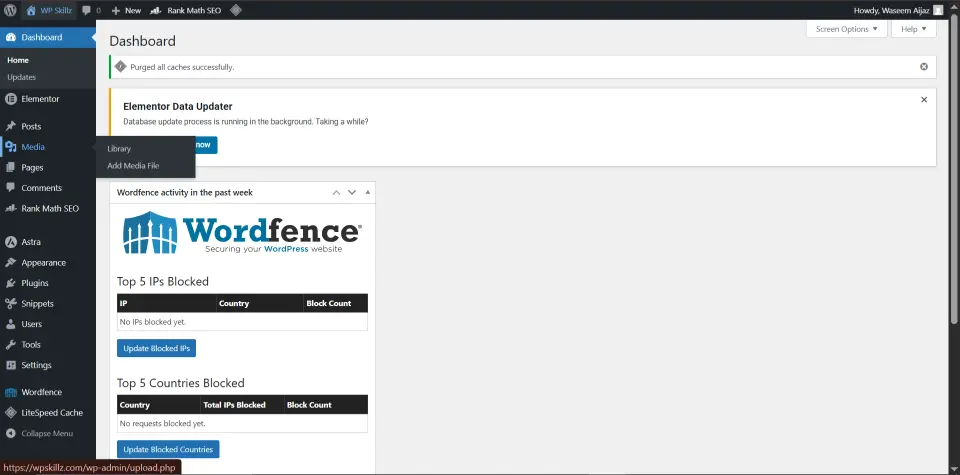
Security Plugin — Wordfence (free) Blocks automated login attacks, malware uploads, and suspicious traffic. New WordPress sites attract automated bots within days of going live. Wordfence handles this silently in the background. Enable it and let it run — it requires minimal configuration for basic protection.
Backup Plugin — UpdraftPlus (free). Configure it to back up your site weekly to Google Drive or Dropbox. This costs nothing and has saved countless sites when something goes wrong — a plugin conflict, a failed update, a hack. Without a backup, any of these events means losing everything you have built.
That is four plugins. Do not add more until a specific, genuine need arises and you have confirmed the plugin does not significantly impact your speed score.
Step 3: Handle Images Correctly From Day One
Images cause more WordPress performance problems than any other single factor. A site with the lightest theme and best caching plugin is still slow if images are not optimized.
The correct image workflow:
Before uploading any image, use the WP Skillz Bulk Image Resizer to convert it to WebP format and compress it to the right size. This happens outside WordPress — no plugin required, no server load during upload.
Target file sizes:
- Hero and banner images: under 200KB
- Blog content images: under 100KB
- Product images: under 80KB
- Thumbnails: under 50KB
Name every file descriptively before uploading. homepage-hero-wordpress-tools-2026.webp is findable in the media library. IMG_4892.jpg is not. This naming takes five extra seconds per image and saves five minutes every time you need to find something in a growing library.
For large images used only once — a downloadable PDF, a high-resolution file for a specific project — use the WP Skillz Photo Link Generator to host them externally and get a direct URL to paste into your content. This keeps your WordPress media library from accumulating files that do not need to be there.
Step 4: Create Your Essential Pages
Before publishing blog content, create these four pages. They are required for Google’s trust signals, AdSense approval, and basic user expectations.
About Page — Your most important trust page. Write it as a real personal story. Who you are, how you learned what you know, why you built this site. The more specific and genuine, the better it performs as an EEAT (Experience, Expertise, Authoritativeness, Trustworthiness) signal. A generic “We are a team of experts” About page tells Google nothing meaningful about the person behind the site.
Contact Page — A working contact form (WPForms Lite is free) and an email address. Sites without visible contact information signal untrustworthiness to both Google and AdSense reviewers.
Privacy Policy — Required by law in most jurisdictions for sites that collect any user data, required by Google AdSense as a condition of approval. WordPress has a Privacy Policy generator at Settings > Privacy. Use it, customize it with your actual contact information, and publish it.
Terms and Conditions — Not legally required in all cases but expected on professional sites. Establishes the rules for using your content and tools.
Step 5: Learn What Your Competitors Are Actually Doing
One of the most underused competitive research techniques in WordPress: checking what technology your successful competitors are using.
Use the WP Skillz Website Technology Detector on any public website. Enter their URL and the tool shows you their CMS, theme, active plugins, hosting provider, CDN configuration, security headers, and SSL status — all from their public page source.
This is valuable in two specific ways:
First, if a competitor consistently loads faster than your site, the technology detector tells you exactly what they are using to achieve that. LiteSpeed server? Cloudflare CDN? A specific lightweight theme? You can match or improve on their technical approach rather than guessing.
Second, run it on your own site after setup. See what you are inadvertently advertising to the world. Outdated plugin version numbers visible in page source are readable by automated vulnerability scanners. If your setup exposes information you did not intend to expose, that is worth addressing.
Step 6: Security as a Foundation, Not an Afterthought
WordPress powers 43% of the internet, which makes it the most targeted CMS for automated attacks. Most attacks are not targeted at your specific site — they are automated bots scanning millions of URLs looking for known vulnerabilities.
The baseline security configuration:
Change your admin username from “admin” to something unique. The username “admin” is the first thing every brute force bot tries. If your admin account is named something non-obvious, you have eliminated the majority of automated login attack risk.
Enable two-factor authentication on your admin account. Wordfence provides this for free. Even if your password is somehow compromised, the attacker cannot log in without your phone.
Keep everything updated. WordPress core, themes, and plugins. Outdated installations are the most common entry point for successful WordPress hacks. Most successful attacks exploit known vulnerabilities in old plugin versions that were patched months earlier.
Run monthly security scans using the WP Skillz Website Malware Scanner. It provides forensic results — specific infected file paths, infection types, and removal steps — rather than generic “malware detected” alerts. For a new site, monthly scans catch problems early before they affect search rankings or visitor trust.
Step 7: SEO Before You Publish a Single Post
Most beginners publish content and then think about SEO. The correct order is reversed.
Before writing your first post, find the right keyword using the WP Skillz Keyword Ideas Generator. Enter your topic idea, check the keyword difficulty (target below 30 for a new site), check the search volume (meaningful demand), and note the search intent (the format Google rewards for this keyword).
A new domain cannot rank for difficult keywords regardless of content quality. Target low-competition, specific keywords in your first six months. Build domain authority through achievable rankings. Then graduate to harder keywords as your site’s authority grows.
After writing your content, add schema markup using the WP Skillz Schema Markup Generator. FAQ schema for posts with question-and-answer sections. Article schema for blog posts. LocalBusiness schema if you have a physical location. Schema markup is what enables rich results — FAQ dropdowns, star ratings, and breadcrumbs — that make your search listings more clickable than plain blue links.
Quick Comparison: Right Way vs Default Way
| Setup Component | Default WordPress Way | The Right Way |
|---|---|---|
| Permalink structure | Plain (?p=123) | Post Name (/post-title/) |
| Images | Raw JPEG/PNG from camera | WebP compressed before upload |
| Theme choice | Based on demo appearance | Based on mobile speed score |
| Plugins | Install many, figure it out | Four essentials only, test each |
| Content | Write then do SEO | Research keyword then write |
| Security | Ignored until something breaks | Configured from day one |
| Backups | None until data is lost | Automated weekly from setup |
The 30-Minute Launch Checklist
Use this before making your site public:
Hosting and domain:
- Hosting on LiteSpeed or managed WordPress server
- Domain registered — checked across extensions
- SSL certificate active — site loads on https://
WordPress setup:
- Permalink structure set to “Post Name”
- Default “Hello World” post and “Sample Page” deleted
- Site title and tagline configured
- Static homepage set if building business site
Theme and plugins:
- Lightweight theme installed — Astra, GeneratePress, or Neve
- Speed test run with only theme active — mobile score above 70
- Four essential plugins installed and configured
- No other plugins active
Performance:
- Mobile speed score above 75 with all plugins active
- All images converted to WebP before upload
- Responsive check passed at 390px, 360px, 768px
Essential pages:
- About page published with real personal story
- Contact page with working form and email
- Privacy Policy and Terms pages published
Security:
- Admin username changed from “admin”
- Strong password set on admin account
- Wordfence active and initial scan complete
- UpdraftPlus configured with automated weekly backup
Frequently Asked Questions
Can I really build a professional WordPress site for free? The WordPress software is free. You need to pay for hosting ($3-15/month) and a domain ($10-15/year). Everything else in this guide uses free tools and free plugin versions. A professional result is achievable at this cost level — the five themes recommended are all free, the four essential plugins are all free, and every WP Skillz tool referenced is free with no login required.
How long does a proper WordPress setup actually take? Installation is five minutes. The setup covered in this guide takes 30-45 minutes for a first-time builder. Creating your About, Contact, and legal pages takes another hour depending on how much you write. Your first keyword-researched blog post takes 2-3 hours. From zero to a properly configured live site with one published post: a full day of focused work.
When should I start creating content? After your site is fully configured — speed tested, responsive checked, security in place, essential pages published. Publishing content on a misconfigured site means your first posts are indexed in a technically weak state. Fix the foundation first, then build on it.
How do I know if my setup is working correctly? Run three checks: the Website Speed Test (mobile score above 75), the Responsive Website Checker (layout intact at all viewports), and the Website Malware Scanner (clean result on fresh installation). If all three pass, your technical foundation is solid.
How long before my WordPress site starts ranking on Google? New domains typically take three to six months to gain meaningful organic rankings, even with excellent content and correct technical setup. This is normal — Google extends trust to new domains gradually. Target low-competition keywords in the first six months to build ranking history. Use the Keyword Ideas Generator to find keywords with difficulty below 30.
Conclusion — The Foundation Is Everything
Every WordPress site I have seen succeed long-term had one thing in common: the technical foundation was right from the start. Lightweight theme, minimal carefully chosen plugins, optimized images, proper security, and keyword-researched content.
Every WordPress site I have seen struggle had the opposite: a heavy theme chosen for looks, dozens of plugins installed without testing their impact, unoptimized images, no security configuration, and content published without keyword research.
The difference is not skill level or budget. It is whether the right decisions were made in the first hour of setup.
Follow this guide. Run the speed test. Check the responsive layout. Publish your first post on a properly configured site.
Then connect with me on LinkedIn when you have questions — because you will have questions, and that is completely normal.
Waseem Aijaz — WordPress Developer & SEO Specialist, WP Skillz Free WordPress Course | All Free Tools | About WP Skillz