


Website Malware Scanner: How WP Skillz Scans, Finds & Fixes Malware Fast
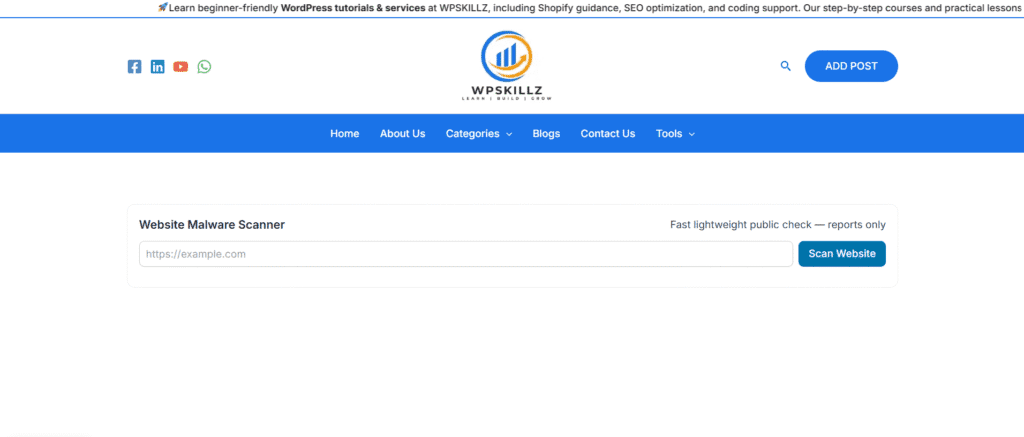
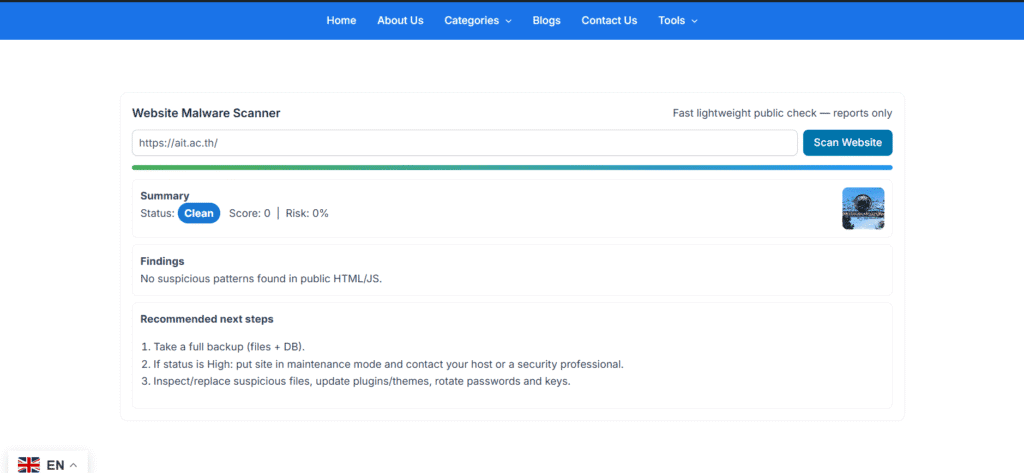
Imagine typing your site’s URL into a simple box and, within seconds, getting a clear report saying whether your site has malware, viruses, is blacklisted, or has hidden site errors. That’s exactly what Website Malware Scanner (the WP Skillz scanner) does — fast, secure, and free to use without logging in. In this article, I’ll explain how it works, what the results mean, and the exact steps you should take if the scanner finds trouble.
Why use a Website Malware Scanner like WP Skillz?
Websites get hacked in quiet ways: a plugin update gone wrong, a leaked password, or a malicious script injected into a theme file. A good scanner does more than label a site “infected.” It analyses suspicious files, checks for viruses, confirms blacklisting status, and reports site errors so you know what to fix first. WP Skillz’s scanner is built to deliver those clear, prioritized results — and it updates frequently to detect new threats.
What are the scanner assessments (easy breakdown)
- Malware & viruses: Known malicious code signatures and suspicious conduct.
- Blacklisting status: Google Safe Browsing and major blocklist checks.
- Website mistakes: Broken hyperlinks, insecure resources, and configuration problems.
- Suspicious documents: Modified core documents, unknown PHP scripts, or hidden iframes.
- Outdated software: Old WordPress, plugins, or subject matters that invite attacks.
How WP Skillz stands out
WP Skillz is secure and fast. It runs regular signature updates, adds new features over time, and works without forcing users to create accounts — paste your URL, scan, and get results in seconds. That convenience matters when you need a quick check before panic sets in.
Scan results — what they mean and what to do
| Google or other blocklists flagged the site | What it implies | First action to take |
|---|---|---|
| Malware found | Malicious file or injected code detected | Quarantine file, backup, and remove injected code |
| Virus signatures | Known virus patterns matched | Restore clean files, update site software |
| Blacklisted | Google or other blocklists flagged site | Clean site, then request blacklist review |
| Site errors | Missing headers, broken links, unsafe resources | Fix configuration and resources |
| Suspicious files | Unknown scripts or modified core files | Investigate file origin, reset credentials |
Quick, practical cleanup checklist (step-by-step)
- Put the site in maintenance mode so visitors aren’t affected.
- Take a full backup (even the infected copy is useful for analysis).
- Download the scanner report — it tells you which files are suspicious.
- Quarantine suspicious files (don’t delete everything at once).
- Restore clean core files from official sources or a clean backup.
- Reset passwords for admin, FTP, and hosting accounts; enable 2FA.
- Update WordPress, themes, and plugins to their latest secure versions.
- Harden the site: restrict file permissions and add security headers.
- Request blacklist removal only after you’ve verified the cleanup.
If you see repeated re-infections, consider a professional cleanup service — persistent backdoors often need deeper server-level work.
Preventive habits that stop most attacks
- Don’t use pirated or “nulled” plugins/themes.
- Keep automatic or scheduled scans (daily/weekly).
- Use a Web Application Firewall (WAF).
- Limit admin logins by IP where possible.
- Maintain offsite backups (daily for busy sites).
Real-life example (short anecdote)
A small commercial enterprise owner as soon as unnoticed a plugin update. One morning, their website redirected to spammy pages. A brief experiment with WP Skillz found a modified theme record and an antique plugin with a known make the most. After restoring documents and updating the software program, the website changed into smooth, and the owner delivered every day scans to keep away from a repeat.
The bottom line — scan often, fix fast
Using a reliable website malware scanner like WP Skillz gives you quick, actionable insights: whether you’re facing malware, viruses, blacklisting status issues, or hidden website errors. Scan early, follow the scanner’s prioritized fixes, and harden your site afterward. Simple habits prevent most attacks.
FAQ — quick answers
Q: Is the WP Skillz scanner really free and fast?
Yes — it’s designed to scan without login, return fast reports, and remain free while updating signatures over time.
Q: Can a free scanner find everything?
Free scanners find the most common issues and blacklisting checks. Deep infections sometimes need paid tools or manual review.
Q: How often should I scan?
Daily for high-traffic sites; at least weekly for small blogs.
Q: My site was blacklisted — how long to recover?
After a proper cleanup and review request, Google may clear the site in days to a few weeks, depending on severity.
Q: Will scanning slow my website?
External scanners like WP Skillz run separately and don’t affect live site speed. On-server scans should be scheduled during low-traffic times.
You can also watch our videos on our YouTube channel or comment on our Facebook page for more help.








I think the admin of this website is in fact working hard in support of his website, as here every stuff is quality based stuff.
I’m not that much of a internet reader to be honest but your blogs really nice, keep it up! I’ll go ahead and bookmark your website to come back in the future.
Way cool! Some extremely valid points! I appreciate you penning this write-up and also the rest of the website is really good.
Hello There. I found your blog the use of msn. This is a really well written article. I will make sure to bookmark it and come back to read extra of your useful info. Thanks for the post.
Keep functioning ,splendid job!
I appreciate, cause I found just what I was looking for. You’ve ended my 4 day long hunt! God Bless you man. Have a great day. Bye
I feel that is among the most significant info for me. And i am happy studying your article. However wanna observation on some normal things, The web site taste is wonderful, the articles is really nice : D. Good job, cheers
I have realized some new things from your web site about desktops. Another thing I’ve always assumed is that computer systems have become an item that each family must have for a lot of reasons. They offer convenient ways in which to organize homes, pay bills, search for information, study, focus on music and perhaps watch tv programs. An innovative approach to complete all of these tasks is to use a notebook. These personal computers are portable ones, small, powerful and convenient.
Oh my goodness! a tremendous article dude. Thanks Nonetheless I’m experiencing difficulty with ur rss . Don’t know why Unable to subscribe to it. Is there anybody getting equivalent rss problem? Anybody who is aware of kindly respond. Thnkx
Thanks for your publish. My spouse and i have always seen that almost all people are desperate to lose weight as they wish to show up slim as well as attractive. However, they do not usually realize that there are many benefits for losing weight additionally. Doctors assert that obese people experience a variety of health conditions that can be instantly attributed to their particular excess weight. The good news is that people who’re overweight and suffering from several diseases are able to reduce the severity of their particular illnesses by losing weight. You’ll be able to see a steady but noted improvement in health as soon as even a negligible amount of losing weight is obtained.