


Introduction: Online Tool to Remove Background from Image
Welcome to WP Skillz. My name is Waseem Aijaz, & in this content, I’m sharing details about our online image background removal tool.
This tool allows you to remove the background from any image without affecting its quality. Best Part 100% Free. It works like a clean and accurate background eraser and also supports removing backgrounds from multiple images at the same time.
This Free background remover tool is designed for all types of users (developers, SEO experts, Figma designers, graphic designers, and content writers).
If you’re a developer, it helps make your design tasks faster and easier.
If you work in SEO or content creation, it helps you create clean, professional images that are ready to use.
One thing users really like is that this tool is completely free, Off Cost (No Pay, No Problem).
Tips: Any image you upload stays safe and secure, so there’s no risk to your data.
Before moving forward, it’s essential to understand why background removal is beneficial and how to execute it effectively. These points are explained clearly below, so keep scrolling to learn more. There is a button given below, you can click on it and go to our tool, and if you want to know more about the tool, then scroll down and read its details.
You’ll also see how accurate and reliable this tool is. With this online photo background change feature, you can create a transparent background or replace it with a new one based on your needs.
Overall, this tool gives you full control to edit images in a way that is simple, fast, and professional.
Example: While using the Online Free Background Remover tool, you will get a sense of how perfect this tool is. We will also discuss the rest of the tools in detail in the upcoming content, and in it, we will compare them with you and tell you what the difference is between our free tool and the Other paid tool.
How to Remove Background from an Image Using This Tool
You don’t always need expensive photo software.
Imagine taking a great picture, but a lamp or a messy wall ruins it. That’s when a tool to remove background from an image becomes your shortcut. In just seconds, it gives you a clean subject ready for product listings, social posts, or YouTube thumbnails.
Step 1: Open the Background Remover Tool
If you are reading our article, then you will definitely want to use our tool, which is called Image Background Remover. If you want to use it, there will be a button at the top; by clicking on it, you can go to our tool page. Otherwise, you will find different links by scrolling through them; you can go to our background removal tool and also to other tools.
Step 2: Upload Your Image
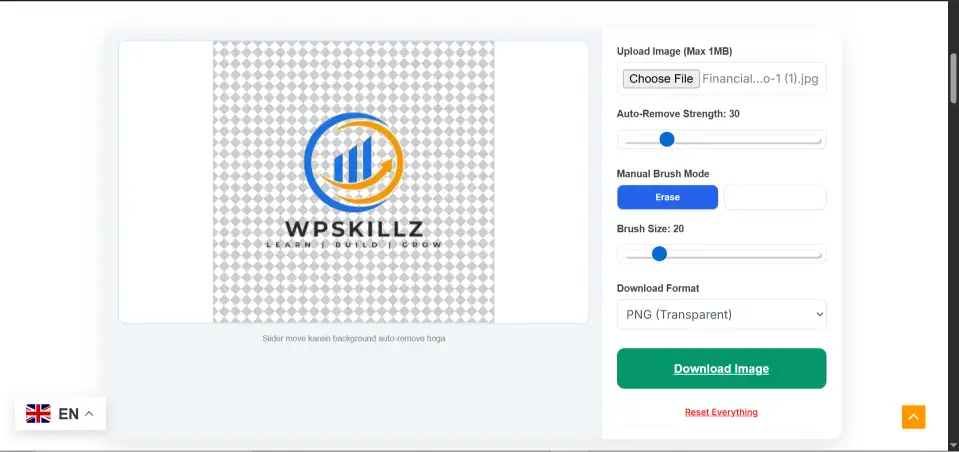
If you have entered our photo background remover tool, scroll down a bit on your mobile device or PC, and you will find the option to choose a file in front of you. Above it, it will be written “1 MB.” 1 MB means that you cannot add a logo or image more than 1 MB. This is due to security reasons. You can add this many MB to it. Click on the Chosen file and add your image or logo, and use it.
Step 3: Remove the Background Manually or Automatically
Now, you will have two options: one is to remove the order, and the other is to add your logo or image. When you do, it will automatically detect and remove its background. Now you can scroll and increase or decrease it; you can try how much you want to remove or how much you don’t want to keep. Apart from this, you will see the erase option below. You can remove the background using this option. Okay, the brush option will also appear below. You can increase or decrease the brush, you can increase or decrease its size, and you can remove it from the place you want to remove it from. This is not available in every tool. This is our tool that is providing it to you.
Step 4: PNG, JPG, WEBP, GIF, Converter Tools
You will be getting another option below for the download format. If you click on it, you will be able to edit the image in this format as per your choice.
Now there are four types of formats: PNG, JPG, WebP, and GIF.
You can select any of them and download your image in this format.
Step 5: Download or Use Your Image
If you have edited your image with BG Remover and are certified, then you will see a download button at the bottom.
You will only see this download button when you add an image inside it. You can easily download your image for free by clicking the download button. If you want to reset it again, you can reload the page, and there is a reset button at the bottom.
Tips: By clicking on it, you can reset it and download it again. If you have returned to this article after visiting this tool, then there will be a more information button at the bottom. You can click on it and go back to this article and read everything in detail.
- Speed: one-click or slider-based control.
- Quality: smooth HD results with no rough edges.
- Privacy: files should never stay on a server.
Image Background Remover Tool 2026: What’s New and Improved
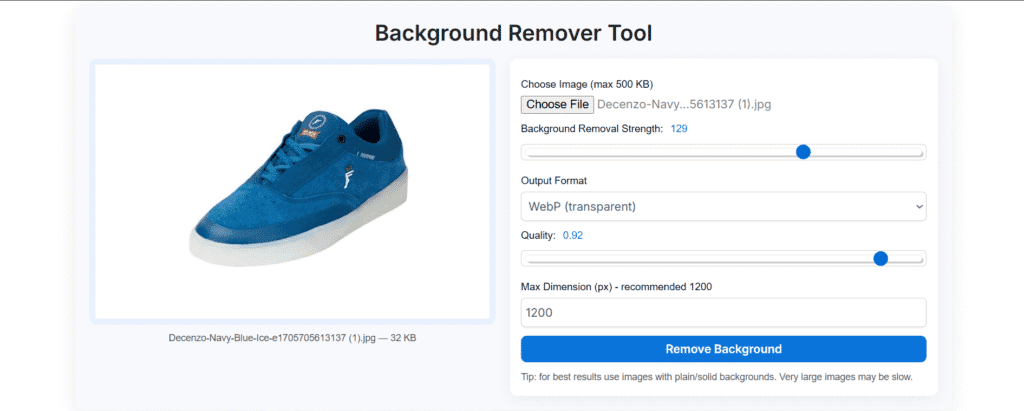
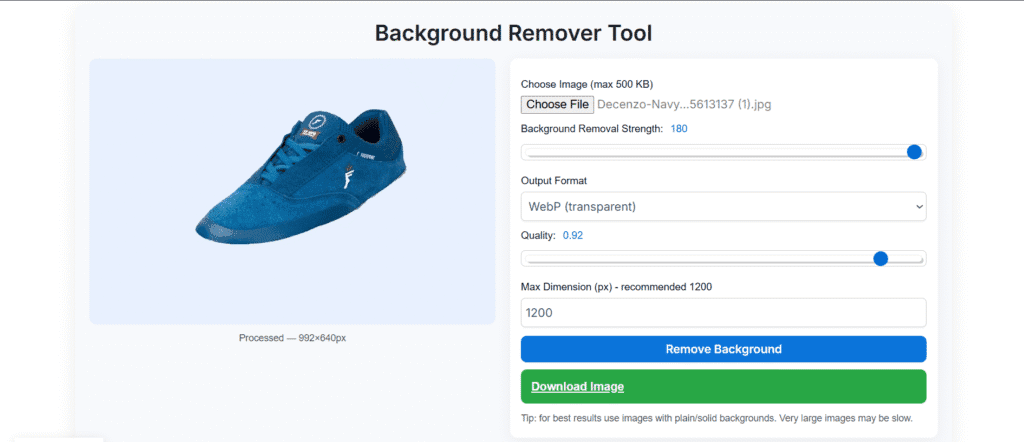
The inline image background remover tool was introduced by the WP Skills website in 2025. They have introduced many tools, one of which was the background remover tool. This tool proved to be quite good in 2025. In 2026, an update came, which is updated every month. Its first update in 2026 is an improvement.
Example:
- Earlier, images of 500 KB were added; the option to add images of up to 1 MB has been given on the WP Skills website.
- Previously, it had a slider option that would auto-detect and remove the background from the image, but it has become more accurate, professional, and fast.
- The new feature that has been added to it, which was not in the previous 2025 tool, is a brush system that allows the user to remove the background from any place of their choice. If he is using it on mobile, he can remove it with his finger. If he is using it on a PC, he can remove it by creating the exact size of his choice with the mouse cursor.
- And now, the option to change the image format in the 2026 tool has been updated with more accuracy and features.
Tips: Earlier, it only provided the download option; it has added a new option called reset, which resets your page, and you can add the image again on the same page.
Key Features to Look For (and What WPSkillz Offers)
A reliable background remover download or online version should include these features:
| Feature | Simple Tools | WPSkillz Background Remover |
|---|---|---|
| One-click background removal | ✅ | ✅ |
| Manual slider adjustments | ❌ No | ✅ |
| PNG/JPG/WebP/GIF output | ✅ | ✅ |
| HD quality output | Limited | ✅ |
| Files saved on server | Yes | ❌ (Not Saved) |
| Mobile-friendly | No | ✅ (Fully Responsive) |
With WPSkillz, your photos remain 100% private — images are processed securely and cleared automatically.
Privacy & Security of an Online Tool to Remove Background from an Image
Why is the Image Background Remover Tool safe? I have been telling you in all the previous content that it is safe. Why is it safe? What is its privacy policy? This tool is safe because any user who uploads or downloads their image in it is not stored in the image server or the website database. It is stored in the browser of that user. So as long as the user is working on it, it will remain in the browser. When he stops working on it, it will be removed from the browser. Therefore, it is safe because it keeps your data safe. It does not send your image online or over the internet.
Tips For User: The background remover tool is specially designed for users who are afraid of uploading their images on the internet, as they may not be saved on the internet. Therefore, this tool has been created to remove the confusion of the user that their image is on the internet. His image will only remain in his browser as long as he is using it; it will be automatically deleted. It is fully secure and 100 percent free.
Benefits of Using the Online Tool Background Remove
1. Saves Time and Effort
2. Maintains Original Image Quality
3. 100% Free and No Login Required
5. Safe and Privacy-Focused
8. Works on All Devices
Pro tip: You can also easily delete the background from an image or make the background transparent for commercial or creative work.
Background transparent Tools Use A Real Life Example
The Image Background Transparent Tool has been very useful to me in my life. I am also a website developer and SEO expert. When I used to create websites for my clients, they used to provide me with logos and images, so I used to use this tool to remove their backgrounds because this tool is secure, fast, and free, and it does not reduce the quality of the work.
Tips: If you use this tool, the way this tool gives you the option to remove the background is in a way that no other free tool gives you the option to remove the background. This will make your clients happy with you.
Conclusion
The online tool removes the background from the image. This tool is perfect for you, according to my conclusion. It keeps your image secure, unlike other tools. It does not reduce the quality of your image. It gives you the option to remove the background of your image in different ways, so that you do not miss any part that you cannot remove. It can also be removed by auto-detection, and it is free. It offers this to you without logging in. You should use it according to my recommendation.
- Fast and user-friendly & Seo Friendly
- Allows manual control (slider)
- Exports in PNG, JPG, WebP, Gif
- Keeps your images private
Developer Tips: If you like this tool of ours, you can also use our other tools on the WP Skills website; you will also like them very much. If you want to create a tool for yourself, then go to our service page and book your order there. If you want to contact us directly, then you can contact us by going to the contact page.
Common questions
Q1: Is this tool made by WP Skills themselves? Is it a developer?
A: Yes, it has been created by WP Skillz, and its SEO has been done by their developers. In addition, they have created many tools, and their courses are also available on the website. You can also contact them and create your own tools and learn for yourself how to create tools and how to create a website.
Q2: Does the image background remover tool only remove the background of the image, and does it have any features?
A: Yes, in addition to removing the background of the image, it also changes the format, including converting WebP images, PNG to JPG, JPEG to WebP, and GIF files.
Q3: Does removing the background make a difference in the quality of our image?
A: No, when you remove the image background, there will be no difference in the quality of your image. Your quality will remain the same as it was. But when you convert it to PNG, JPG, or WebP, the quality of your image will change.
Q4: Will adding our image to it keep our image secure? Don’t we need to worry that that image will go on the internet?
A: Not at all; as long as you are using WP Skills’ Image Background Remover tool, you don’t need to worry about whether your image will go on the internet, go to a server, or be saved in a database. It will remain in your browser as long as you are using it. It will remain there until you stop using it. It will be automatically deleted when you stop using it. Just use it.
Q5: Is this free background eraser tool free, and does it require logging in?
A: Yes, it is 100 % free, and it will remain free in the future. We have specially created this for general users and all types of users who want to run a website, want to create their own logo, or want to remove the background of their people, and for this, you do not even need to log in. You can use it 100 percent free without logging in.








свадебные платья 2026 каталог свадебных платьев 2026
Нужны столбики? столбики ограждения столбики для складов, парковок и общественных пространств. Прочные материалы, устойчивое основание и удобство перемещения обеспечивают безопасность и порядок.
Looking for a yacht? best yacht hire deals in Cyprus for unforgettable sea adventures. Charter luxury yachts, catamarans, or motorboats with or without crew. Explore crystal-clear waters, secluded bays, and iconic coastal locations in first-class comfort onboard.
купить кабель магазин электрики в минске