

Introduction
Have you ever stared at an image on your website and thought, “It looks fine… but something’s missing”?
That’s in which the Elementor masks widget quietly steps in. It’s one of these equipment that doesn’t shout for attention however completely modifications how your page feels when you operate it the proper manner.
What the Elementor Mask Actually Does
Let’s maintain it simple.
A mask is a design layer that makes a decision which a part of your image may be visible and for you to live hidden. Think of it like using scissors on paper — you cut a shape and spot handiest that a part of the picture.
In Elementor Pro, you don’t need Photoshop or any external editor for this. You just switch on the Mask choice, pick out a shape (like a circle, blob, or big name), and increase — your flat image all of sudden seems creative and alive.
Why People Use Masks in Elementor
There’s a small but powerful reason designers love this feature:
It helps your website feel less templated and more personal.
Here’s what I’ve noticed after using it in a few projects:
- It breaks the boxy layout most sites have.
- It makes simple photos look like custom illustrations.
- It adds creativity without extra plugins.
- And honestly… it’s fun to play with.
When you’re building a portfolio, travel blog, or product landing page — that little touch of visual difference matters.
Let’s Try It Step by Step
Imagine you’ve opened a section in Elementor with a background image.
Now do that:
- Click the segment or picture widget. .
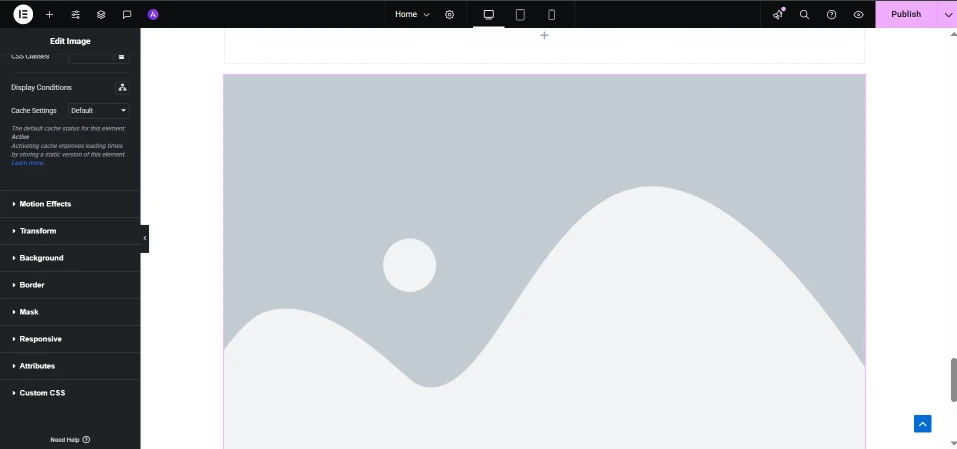
- Go to the Advanced tab.
- Scroll down and find the Mask toggle.
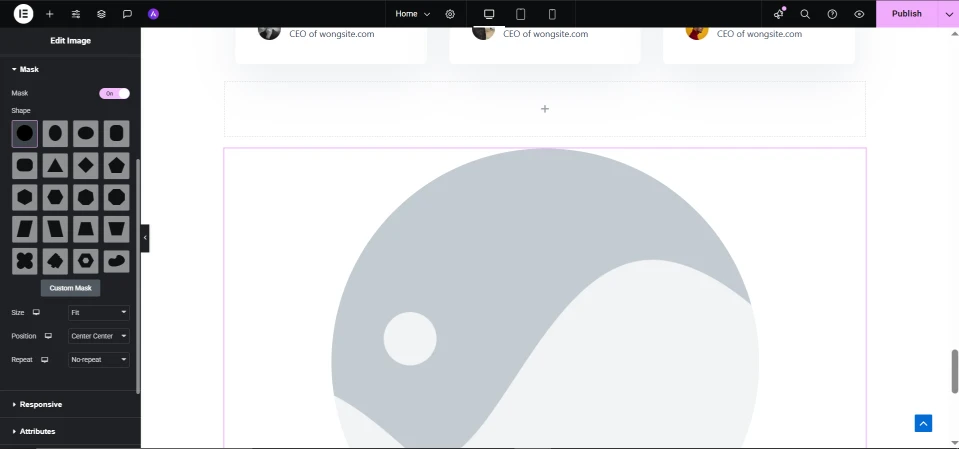
- Turn it ON.
- Choose the shape — try “Blob” for a smooth, organic vibe.
- Adjust the size and position until it looks right.
That’s all.
The best part? You can still use hover effects, animations, and overlays — the mask works perfectly with all of them.
When You Want More Control — Use CSS Masking
Okay, permit’s say you’re like me and love to tinker.
Elementor’s built-in mask is great, but sometimes you want a totally custom shape.
Here’s a quick example you can copy right now:
<div class="masked-image">
  <img src="your-image.jpg" alt="Creative Image">
</div>
.masked-image img {
  width: 100%;
  height: auto;
  clip-path: polygon(0 0, 100% 0, 100% 85%, 0 100%);
}
See that clip-path line?
It literally tells the browser, “Show only this part of the image.”
Change those numbers and you’ll get triangles, waves, or diagonal cuts.
It’s like shaping water — smooth and precise.
Little Design Tricks Most People Don’t Use
These are the kind of things I wish someone told me earlier:
- Blend gradients with masks for soft fade effects.
- Use SVGs if you need a totally precise form (like a brand outline).
- Animate your masked image with scroll outcomes for movement.
- Preview on mobile — a few shapes stretch in a different way.
- Keep report sizes small — large masked pictures can sluggish your website.
Here’s a easy CSS gradient mask that appears exquisite on banners:
.masked-gradient {
  mask-image: linear-gradient(to bottom, rgba(0,0,0,1), rgba(0,0,0,0));
  mask-mode: alpha;
  -webkit-mask-image: linear-gradient(to bottom, rgba(0,0,0,1), rgba(0,0,0,0));
}
It makes your photo fade out superbly from top to backside — best for headings or hero sections.
Common Problems and How I Fixed Them
| Issue | What to Check |
|---|---|
| Mask doesn’t appear | Make sure the widget has a background image, not a solid color. |
| Shape looks weird on phone | Change mask size to “Contain” and recheck. |
| Custom SVG not showing | Re-save the file in Inkscape or any SVG editor. |
Where I Usually Add Masks
- Blog headers to make photos blend with text
- Travel or photography portfolios
- Product banners in WooCommerce or Shopify
- Testimonials with portrait photos
It’s small design detail — but that’s what makes people stop scrolling for a second.
FAQs About Elementor Mask Widget
Q1. Can I use it in Elementor free model?
No, it’s most effective in Elementor Pro.
Q2. What’s the difference between “mask” and “clip-path”?
Mask hides areas with transparency; clip-path cuts the shape.
Q3. Does it work on all browsers?
Mostly yes. For older Safari, use -webkit-mask-photograph for safety.
Q4. Can I use CSS mask and Elementor mask collectively?
Yes, however be careful — it can make your layout more difficult to control.
Final Thoughts
At the end of the day, the Elementor mask widget is set adding non-public
It’s not about perfection — it’s about creativity.
Once you start experimenting with shapes, gradients, and clip paths, you’ll feel how design becomes less like work and more like art.
Try one section today — surprise yourself.
💬 You can also watch our videos on our YouTube channel or comment on our Facebook page for more help.








