


Introduction
Have you ever spent hours looking to recreate a page on any other WordPress web page? It’s frustrating, isn’t it? Luckily, there’s an easy answer: JSON documents. Think of a JSON file like an equipped-to-move template suitcase. It includes all of your Elementor settings, layouts, and widgets, so you can use them everywhere without starting from scratch.
In this guide, I’ll give an explanation for the way to create, upload, and use JSON files in WordPress, step by step, with suggestions that save time and prevent mistakes. By the end, you’ll feel assured in coping with JSON documents like a seasoned.
What is a JSON File in WordPress?
A JSON document is only a structured textual content record. It’s smooth for WordPress and Elementor to study. When you export an Elementor template, WordPress saves it as JSON. Inside, it holds all the information about your page: headings, images, buttons, and even widget settings.
Here’s a tiny example:
{
  "title": "Landing Page",
  "content": "<div>Welcome!</div>",
  "widgets": [
    {"type": "heading", "text": "Hello Visitor"},
    {"type": "image", "src": "hero.jpg"}
  ]
}
So, rather than rebuilding a web page from scratch, you could export it once and use it everywhere.
How to Create a JSON File
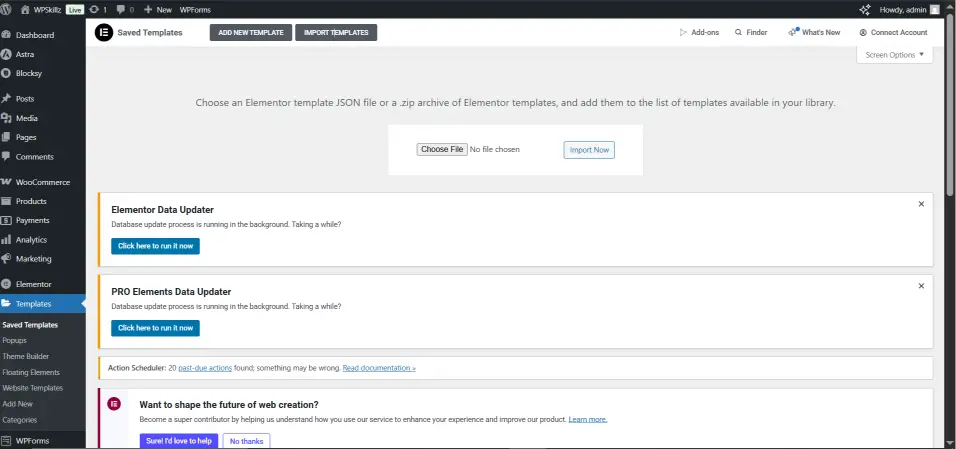
Creating a JSON file in Elementor is less complicated than it sounds. Here’s how I do it:
| Step | What to Do | Tip |
|---|---|---|
| 1 | Open Elementor and create a template | Give it a clear name like homepage.json |
| 2 | Click Export Template → JSON | Make sure Elementor is updated |
| 3 | Save it on your computer | Keep a backup in case something goes wrong |
| 4 | Optional: Edit JSON if needed | Only do this if you understand JSON syntax |
Example from my experience: I once recreated a homepage 5 times manually. Then I exported it as JSON and imported it to the alternative websites. What used to take hours was done in only 10 minutes. That’s the magic of JSON.
How to Upload JSON Files in WordPress
After creating your JSON, uploading it is just as clean:
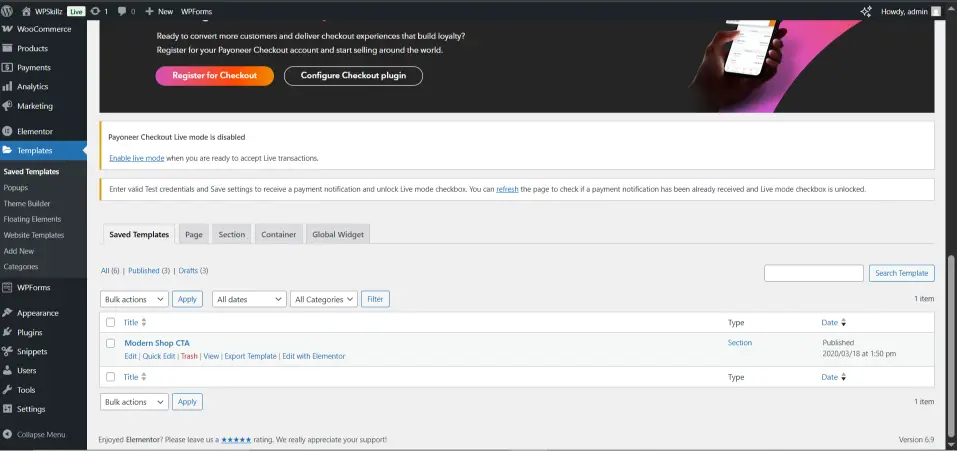
- Go to Elementor → Templates → Import Templates
- Click Choose File, select your JSON, and click Import Now
- Assign the template to a page or section
Tips:
- Make sure your Elementor version suits the template model.
- If some widgets don’t display, test that the related plugin is active.
- Always preview the page to make sure everything looks right.
Imagine this: You need the same landing page for five clients. JSON lets you do it in minutes, instead of hours.
Using JSON in Coding
Developers can do even more with JSON. You can use it to load templates dynamically.
Here’s a simple PHP example:
$json_data = file_get_contents('template.json');
$template_array = json_decode($json_data, true);
print_r($template_array);
This turns the JSON into a format WordPress can use programmatically. You can even change headings, images, or content automatically based on the visitor.
Tip: Always check your JSON file with an online validator before importing. A tiny mistake can break the template.
Best Practices
- Backup your JSON files—you never know when you might need them.
- Give clear names like
landing-home.json. - Avoid extra widgets—they slow down import.
- Check the versions of Elementor and plugins.
- Test your imported template before publishing.
Common Mistakes
- Importing JSON without checking required plugins
- Trying to edit JSON without understanding the structure
- Overloading JSON with unnecessary elements
- Forgetting to test after importing
FAQs
Q: Can I edit JSON manually?
Yes, but best in case you recognize the syntax. One small mistake can break the template.
Q: Will it overwrite my web page?
No, it creates a new template you can assign freely.
Q: How do I restore import mistakes?
Check the Elementor model, JSON shape, and plugins/widgets required.
Q: Can I merge JSON files?
Yes, cautiously integrate sections in a text editor.
Q: Is it secure to share JSON publicly?
Yes, however, don’t encompass touchy information like personal facts.
Conclusion
JSON documents in WordPress Elementor save time, reduce frustration, and make your workflow easy. If you comply with the stairs, guidelines, and nice practices above, you’ll be able to create, add, and use templates like a seasoned.
You can also watch our motion pictures on our YouTube channel or comment on our Facebook page for more help.








