Introduction: Advanced Accordion in Elementor
Have you ever landed on a website and felt immediately overwhelmed by a massive wall of text? It’s like trying to drink water from a firehose! As a designer, I’ve learned that the secret to a professional site isn’t just fancy graphics; it’s how you organize information. This is where an Advanced Accordion in Elementor becomes your most powerful ally.
But let’s be real for a second. Most people think of accordions as just “collapsible boxes.” However, if you want to rank on Google and keep visitors engaged, you need to think bigger. An Advanced Accordion in Elementor is a psychological tool. It respects the “skimmers” who want quick answers while providing deep value to the “readers” who want every detail. In this guide, I’ll show you how to build one that not only looks good but also performs like a beast.
And I also want to tell you that apart from this widget, I will also mention some tools to you, which will be very beneficial for you. You definitely need to generate content for your website, check your website’s content, and assess its speed. We will cover all of these. So, check out our article below. You will also get tips about many tools in it.
Why Structure Matters More Than You Think
When you use an Advanced Accordion in Elementor, you are practicing what we experts call “Progressive Disclosure.” You’re telling your visitor, “I have the info you need, but I won’t clutter your screen until you ask for it.” This keeps the User Intent front and center.
But here’s the catch: a boring, default accordion can actually hurt your brand. To stand out, your Advanced Accordion in Elementor needs to feel “alive.” It needs smooth transitions, smart icons, and a layout that breathes. When a user clicks, and the Advanced Accordion in Elementor glides open, it creates a sense of trust and professionalism that a static page just can’t match.
The Developer’s Secret Toolkit: Perfecting Your Layout
Before we dive into the CSS of your Advanced Accordion in Elementor, we need to talk about performance. A common mistake I see my students make is building a beautiful site that is slow or broken on mobile. To avoid this, I use a specific “Developer’s Kit” to audit every page I build.
How does your design actually look on a phone?
Before I finalize any Advanced Accordion in Elementor, I always use the Free Website Responsive Checker. It’s a lifesaver. You might think your accordion looks great on your desktop, but if the tap zones are too small on an iPhone, your bounce rate will skyrocket. This tool helps you verify your Advanced Accordion in Elementor on real device dimensions.
Does your custom code slow things down?
Adding custom styles to an Advanced Accordion in Elementor can sometimes bloat your site. I highly recommend checking your stats with this PageSpeed Insights Alternative. It gives you a clear picture of your Core Web Vitals. Also, if you’re curious about what tech your competitors are using for their layouts, just run their URL through the Free Website Technology Detector.
Pro-Tip for Security and Content:
Before you upload any custom JS for your Advanced Accordion in Elementor, always scan your website for Viruses to keep your data safe. Furthermore, since Google loves human content, I use this Free AI Detector to ensure my writing feels authentic. For finding the right terms to put inside your Advanced Accordion in Elementor, this Smart Keyword Idea Generator is a must-have. Lastly, I always run my text through a Free Grammar Checker because typos kill authority.
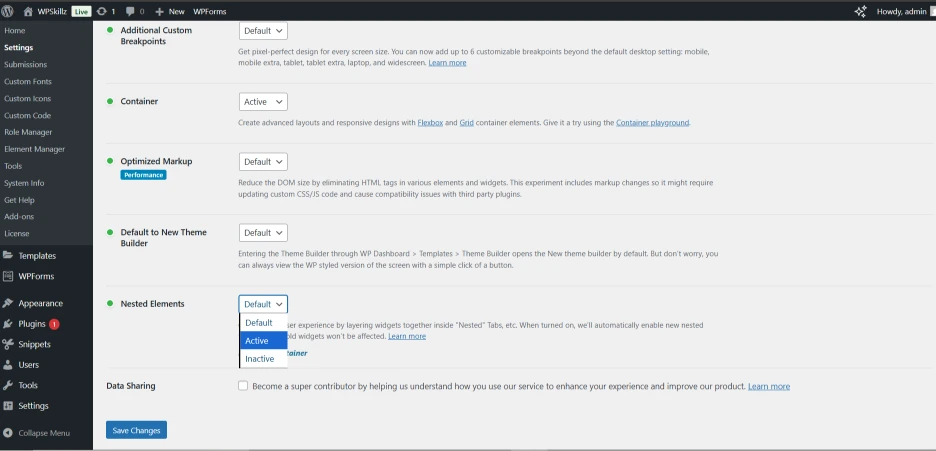
Step-by-Step: Creating Your Advanced Accordion Elementor
1. Drag, Drop, and Humanize
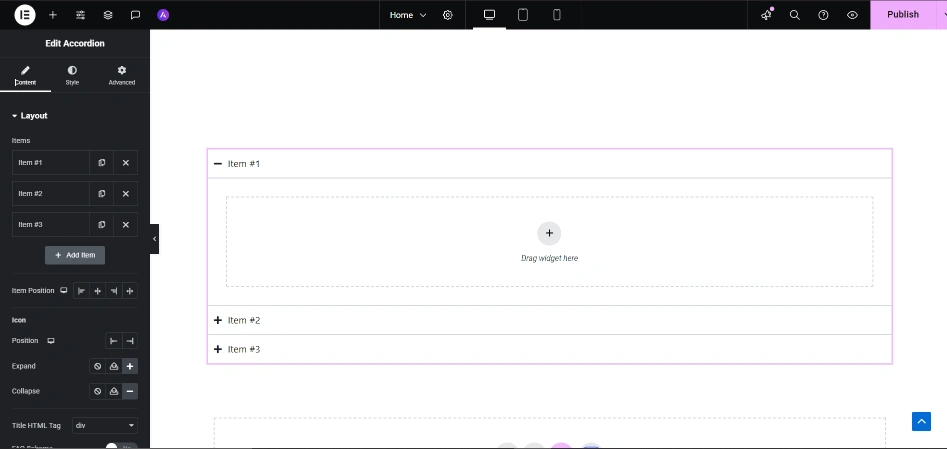
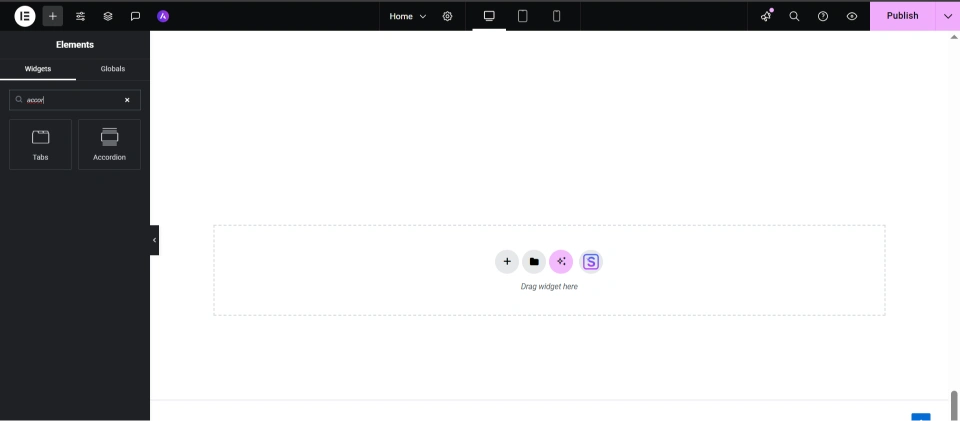
Open Elementor and grab the Accordion widget. But don’t just leave the default “FAQ 1” text. That’s robotic! Instead, use questions that people actually ask. For example, instead of “Shipping Info,” try “How fast can I get my order?” Using an Advanced Accordion in Elementor this way makes your brand feel more relatable and human.
2. Custom Styling for High-End Feel
To make your Advanced Accordion in Elementor look premium, go to the style tab. Set your border radius to at least 10px and add a subtle box shadow. This makes each tab of the Advanced Accordion in Elementor look like a floating card. Use an “Ease-in-Out” transition so the motion feels buttery smooth.
selector .elementor-tab-title {
  background: #f9f9f9;
  border-radius: 10px;
  font-weight: 500;
  letter-spacing: 0.3px;
  transition: all 0.35s ease;
}
selector .elementor-tab-title.elementor-active {
  background: #0073e6;
  color: #fff;
  box-shadow: 0 2px 8px rgba(0,0,0,0.1);
}
3. Mastering the Mobile Interaction
On mobile, people don’t click; they tap. This is where your Advanced Accordion in Elementor needs extra padding. If the titles are too close together, users will accidentally open the wrong tab. Check your mobile version frequently using the Responsive Checker tool to ensure a frustration-free experience.
Comparison: Why an Advanced Accordion Wins
| Feature | Standard Text Block | Advanced Accordion in Elementor |
| Visual Clarity | Poor (Wall of text) | Excellent (Clean & Organized) |
| User Engagement | Low | High (Interactive) |
| Page Speed | Varies | Optimized (If built right) |
| Mobile UX | Hard to Scroll | Perfect (Saves space) |
SEO & Performance Optimization Secrets
Does hiding text in an Advanced Accordion in Elementor hurt your SEO? The short answer is: No! As long as the content is in the HTML code, Google can read it. In fact, an Advanced Accordion in Elementor can improve your SEO by increasing “Dwell Time”—the amount of time users spend interacting with your page.
However, you must be careful with images. If you place images inside your Advanced Accordion in Elementor, make sure they are optimized. I use the Meta Data Article Generator Tool to help create SEO-rich descriptions for my images and sections. This ensures that even the hidden parts of your Advanced Accordion in Elementor are working hard for your rankings.
Expert Tips for Conversions
- Icon Choice: Use a simple plus (+) and minus (-) icon. It’s a universal signal that even a child understands.
- Color Contrast: Make sure the “Active” state of your Advanced Accordion in Elementor has a different color than the “Normal” state. It acts as a visual map for the user.
- Accessibility: Use proper HTML tags (H2 or H3) for your accordion titles so screen readers can navigate your Advanced Accordion in Elementor easily.
Final Thoughts
At the end of the day, an Advanced Accordion in Elementor is more than just a widget; it’s about better communication. It’s about giving your visitors exactly what they want, right when they want it. When you combine smart design with the right diagnostic tools, you create a website that Google trusts and users love.
So, go ahead and start building! Use the tools we discussed to verify your speed and responsiveness, and watch your engagement metrics climb.
You can also watch our videos on our or comment on our Facebook page for more help.
FAQs – Advanced Accordion in Elementor
Q1: Can I add videos inside my Advanced Accordion in Elementor?
Absolutely! You can paste a YouTube link or use a video widget inside the accordion content area. Just be sure to check your page speed after adding it.
Q2: Is the Advanced Accordion in Elementor mobile-friendly?
Yes, by default it is, but you should always customize the mobile padding and font sizes to ensure it’s easy to tap with a thumb.
Q3: How many tabs should my Advanced Accordion in Elementor have?
I recommend staying between 3 and 8 tabs. If you have more than that, it might be better to split them into two different categories.
How to Make the Accordion Truly Mobile-Responsive
Here’s a truth that most tutorials ignore:
Mobile responsiveness isn’t just resizing text — it’s rethinking how people interact with their thumbs.
Your user isn’t clicking — they’re tapping.
That means your accordions should be spaced enough to avoid accidental touches.
- Open Responsive Mode in Elementor.
- Reduce padding slightly, increase tap area height to at least 45px.
- Set font sizes to 16–18px for readability.
- Use minimum icons (keep away from photograph-heavy SVGs).
- Keep the simplest one accordion open at a time — users lose context if multiple are expanded.
Insider Tip: Want your accordion to scroll smoothly whilst opened on mobile?
Add this practice JS snippet inside your “Custom Code” area:
document.querySelectorAll('.elementor-tab-title').forEach(tab => {
  tab.addEventListener('click', () => {
    setTimeout(() => {
      tab.scrollIntoView({ behavior: 'smooth', block: 'center' });
    }, 300);
  });
});
This ensures the opened segment scrolls well into view — it’s a small detail that makes customers think, “Wow, this feels professional.”
Building a Custom Accordion with HTML, CSS & JavaScript
If you like to completely manipulate or want to add accordions in Shopify, right here’s a way to code one from scratch.
Pure CSS Accordion (No JavaScript)
<div class="accordion">
  <input type="checkbox" id="faq1">
  <label for="faq1">What makes this accordion special?</label>
  <div class="content">
    <p>It’s built entirely with CSS — no JavaScript needed, lightning fast!</p>
  </div>
</div>
.accordion label {
  display: block;
  background: #ececec;
  padding: 12px;
  cursor: pointer;
  border-radius: 5px;
}
.accordion .content {
  max-height: 0;
  overflow: hidden;
  transition: max-height 0.4s ease;
}
.accordion input:checked ~ .content {
  max-height: 150px;
}
Why it matters: CSS-simplest accordions load faster and enhance Core Web Vitals — something Google’s set of rules quietly rewards.
Vanilla JavaScript Accordion (For Smooth UX)
document.querySelectorAll('.accordion-title').forEach(title => {
  title.addEventListener('click', () => {
    const content = title.nextElementSibling;
    title.classList.toggle('active');
    content.style.maxHeight = content.style.maxHeight ? null : content.scrollHeight + 'px';
  });
});
Developer’s Note: You can even add a “scroll-to-open” impact for better accessibility.